Extend
Extend your workspace to your tablet.
Use an iPad or Android tablet as an independent second display for Mac or Windows. Move documents, chat, and tool windows aside to free your main screen.
Start on my devices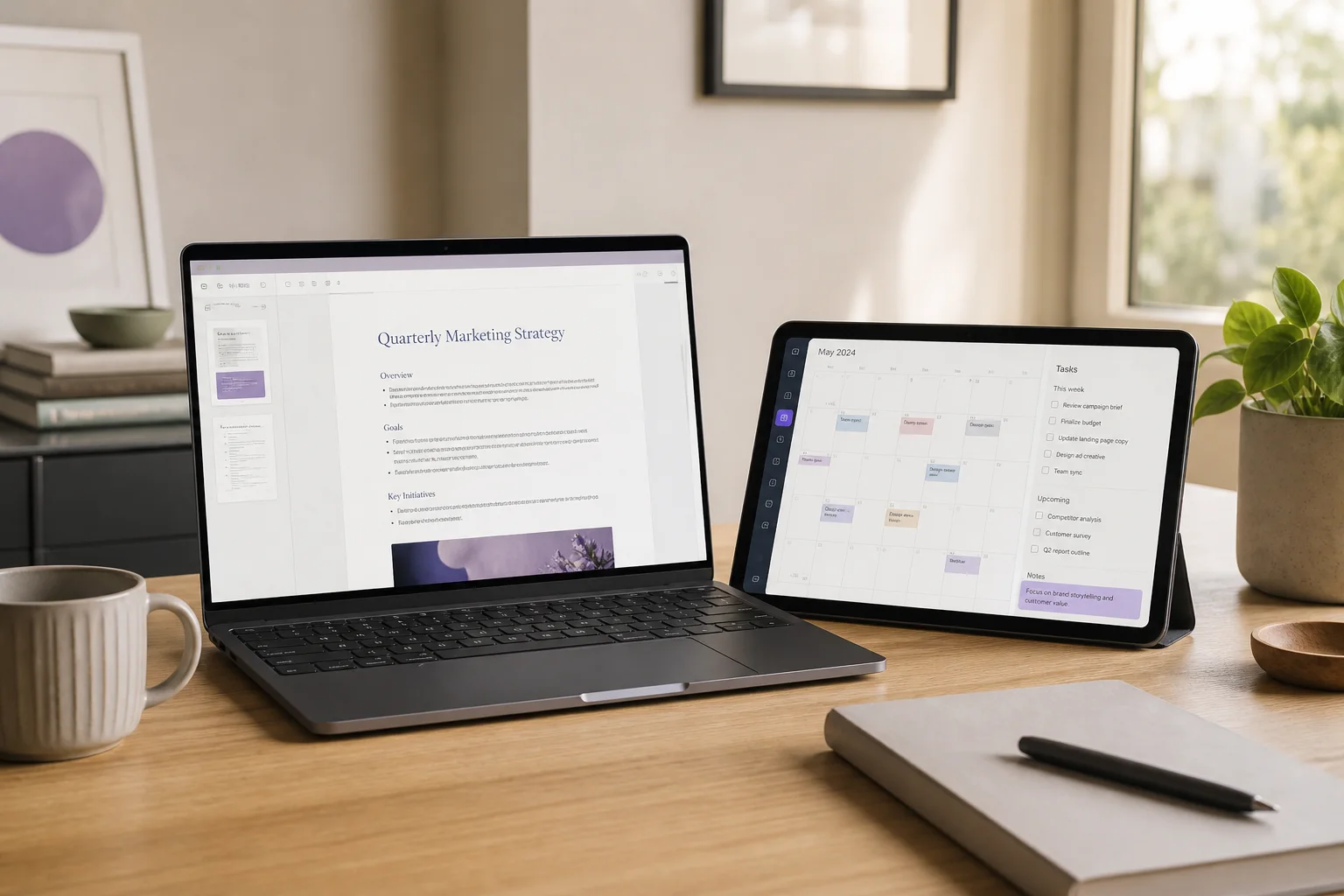 Any Display · Extend
Extend
Clear about what it does.
See the result first, without translating settings or technical terms.
Position and scale in the operating system
Connect over Wi-Fi or USB
User guides
Extend
Use an iPad or Android tablet as an independent second display for Mac or Windows. Move documents, chat, and tool windows aside to free your main screen.
- 01
Sign in to the same account
On the computer and mobile device, open Settings → Sign in. Use Google, Apple, Microsoft or email; on first launch, continue directly from the sign-in screen. Use the same provider and account on both devices, then verify the account name and access. Another account may not appear in device discovery. Complete the trial/license prompt on an unlicensed computer before connecting.
- 02
Launch both apps and grant permissions
Install and open Any Display on the computer and tablet. On Mac, Screen Recording permits screen transmission and Accessibility permits touch, keyboard and mouse input. Restart Any Display when the permission prompt requires it. On Windows, complete the virtual display driver setup offered by the installer.
- 03
Choose Extend or Mirror on the tablet
Open Extend & mirror on the tablet. Choose Extend for a separate workspace or Mirror for an existing computer screen. Choose the mode before connecting. My computers lists computers signed in to the same account.
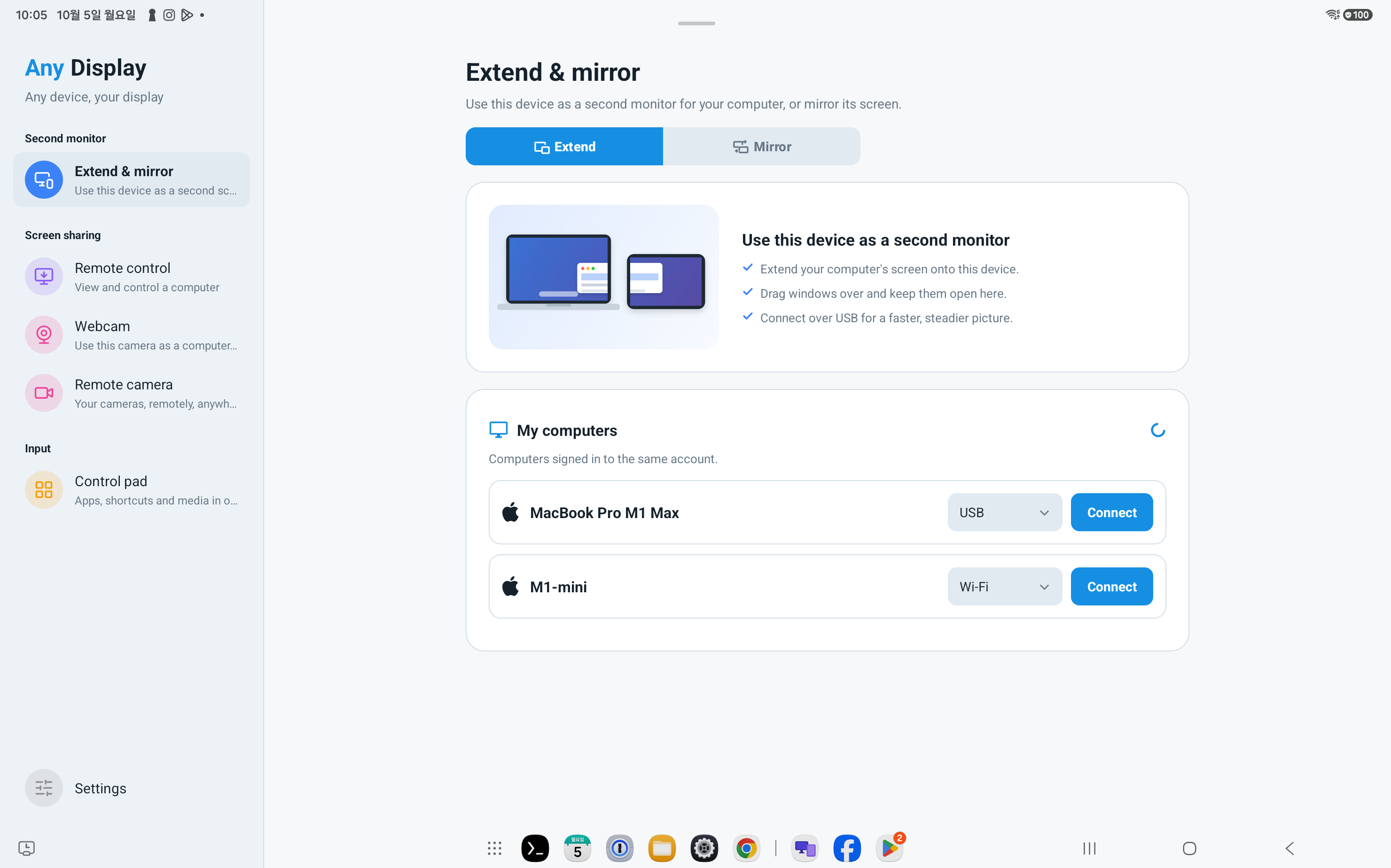
Choose Extend or Mirror on the tablet · Android tablet · English - 04
Choose the computer and connect
Check the computer name under My computers. A data cable offers USB; a shared network offers Wi-Fi. Press Connect beside the connection method. On the computer, check the device name and Connected status in Extend & mirror. If Android is missing, open Set up Android USB and follow the debugging and device authorization prompts. A charge-only cable cannot carry the connection.
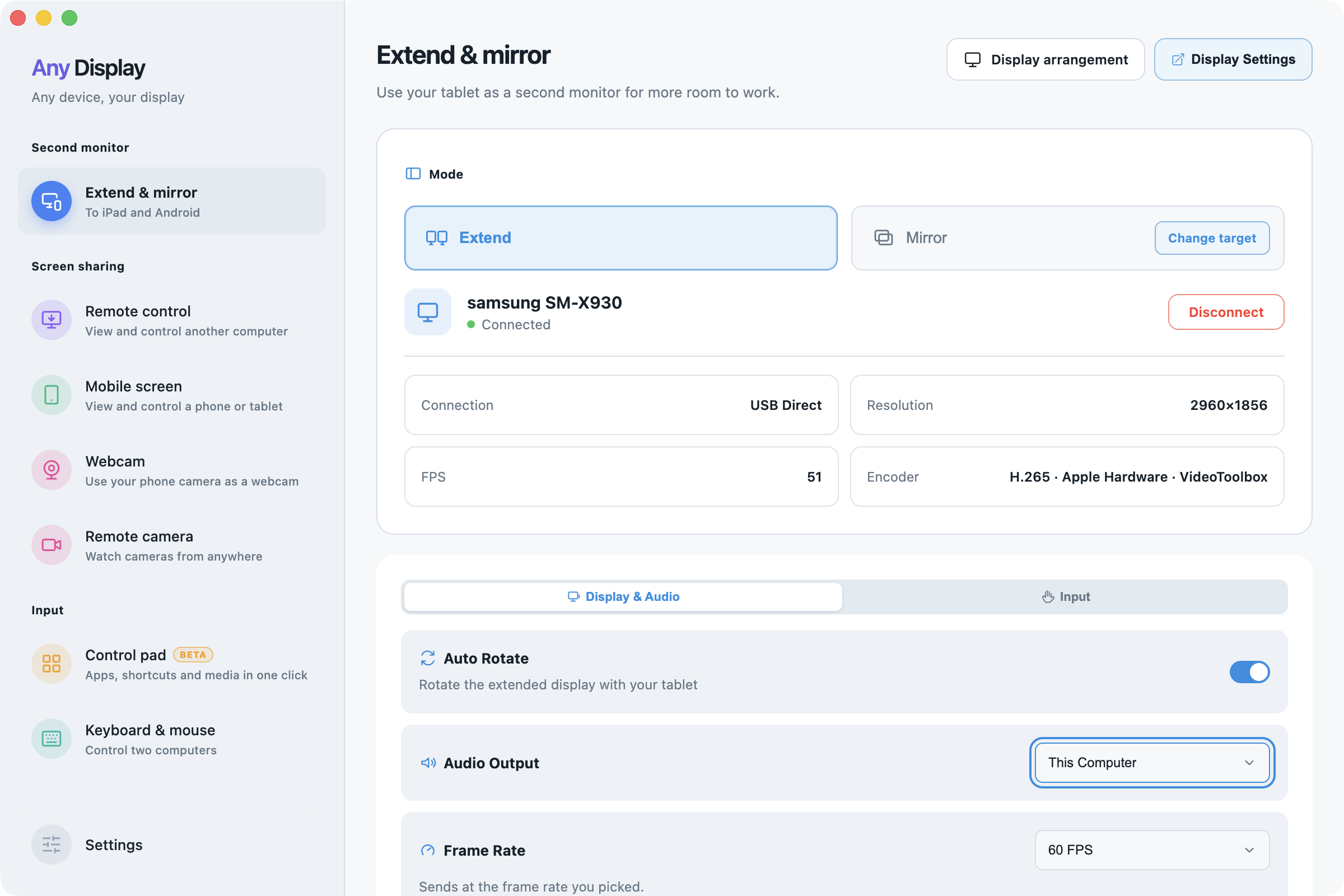
Choose the computer and connect · macOS · English - 05
Move a window onto the extended display
Check Extend on the computer. This creates a separate workspace rather than duplicating the desktop. Drag a document or drawing window across the display edge onto the tablet. An empty desktop can simply mean no window has been moved there yet. If the pointer crosses on the wrong side, correct the arrangement first.
- 06
Arrange displays and Apply
Open Display arrangement at the top right. Drag the tablet tile to match its physical position: right, left, above or below the computer monitor. Tiles must share an edge for the pointer and windows to cross that boundary. Press Apply, then move the pointer and a document window across that edge. With multiple monitors, arrange the tablet against the intended monitor.
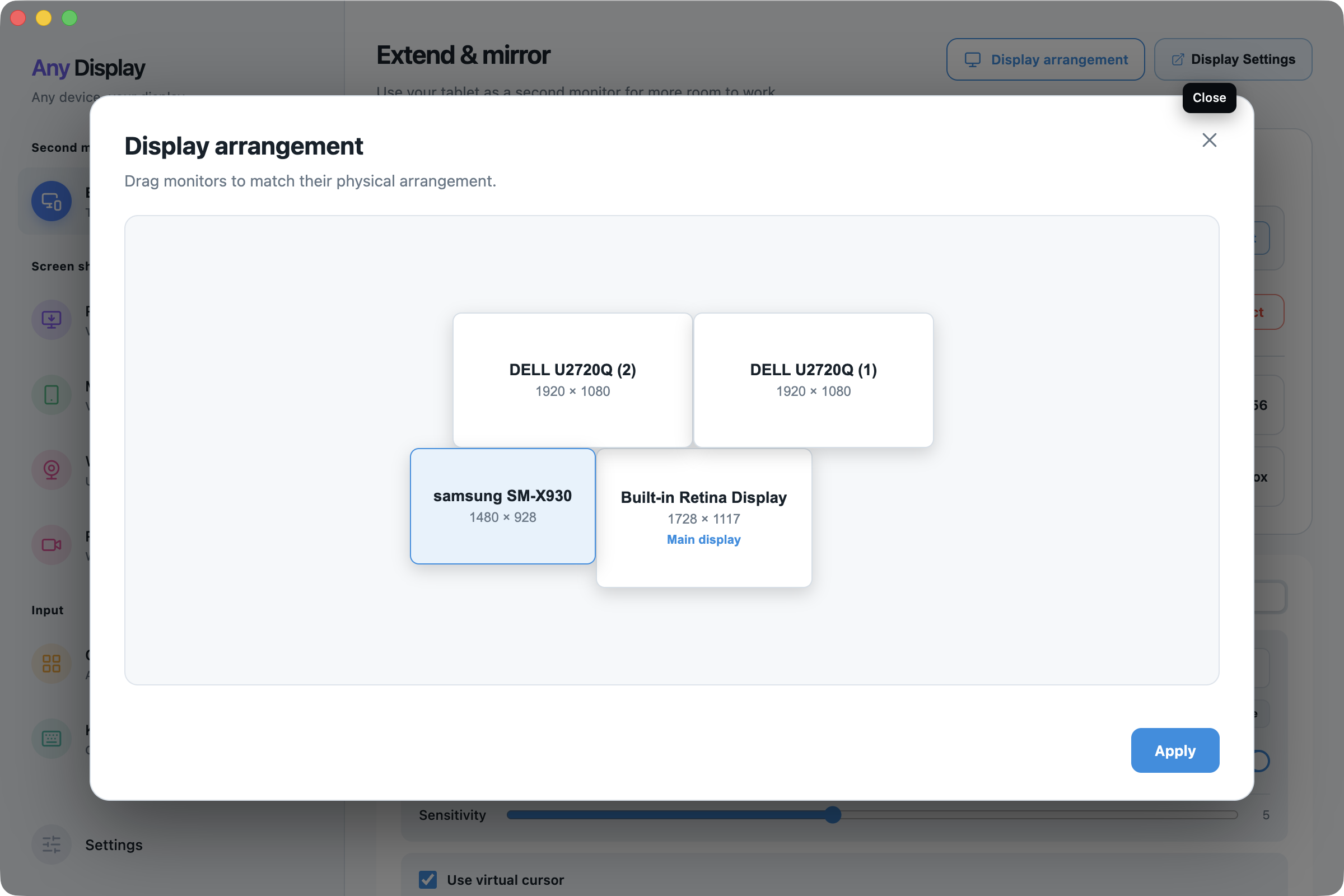
Arrange displays and Apply · macOS · English - 07
Set operating-system scale and display role
Display Settings opens the operating system display panel. On Mac, select Any Display in Displays and check Use as → Extended display. A lower displayed resolution makes text and controls larger. On Windows, open Settings → System → Display and check extension, scale and orientation for the selected display. Operating-system scale and the app’s transmitted resolution are separate settings.
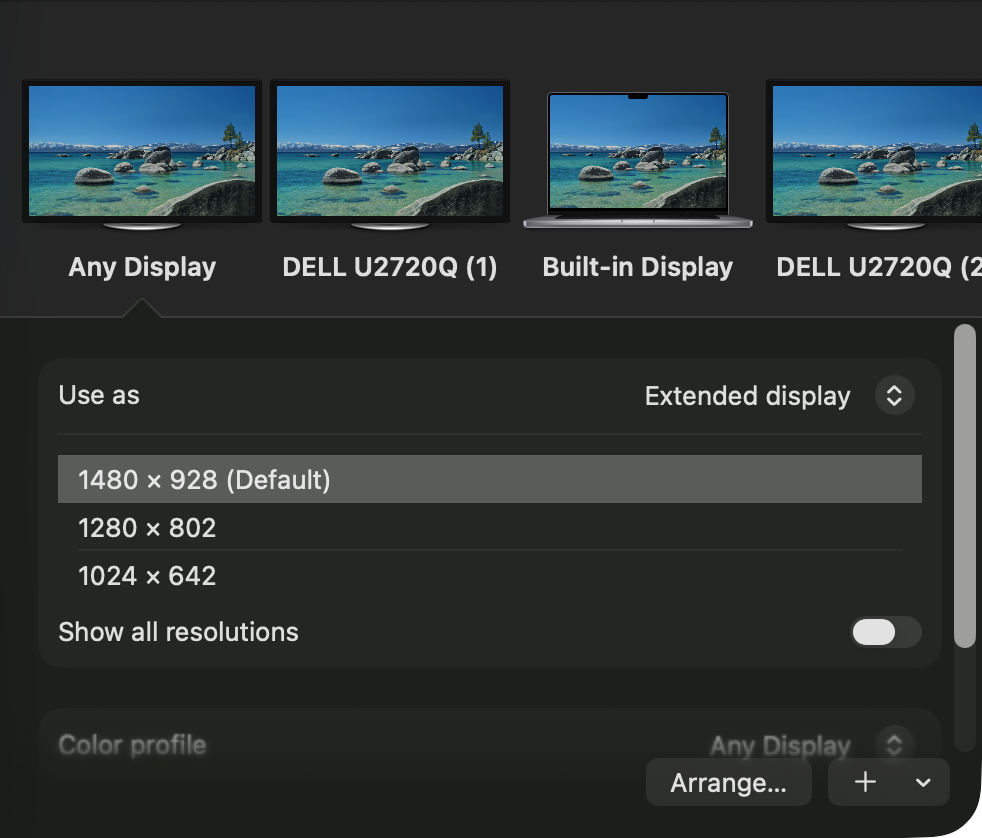
Set operating-system scale and display role · macOS · English - 08
Rotation, resolution and frame rate
In Display & Audio, Auto Rotate follows the tablet orientation in Extend. Mirror follows the source aspect ratio. Resolution controls video size and Frame Rate controls smoothness. Start with Native and 60 FPS, then lower resolution or frame rate to compare when the connection stutters. Start with Auto for Encoder and follow any compatibility status shown.
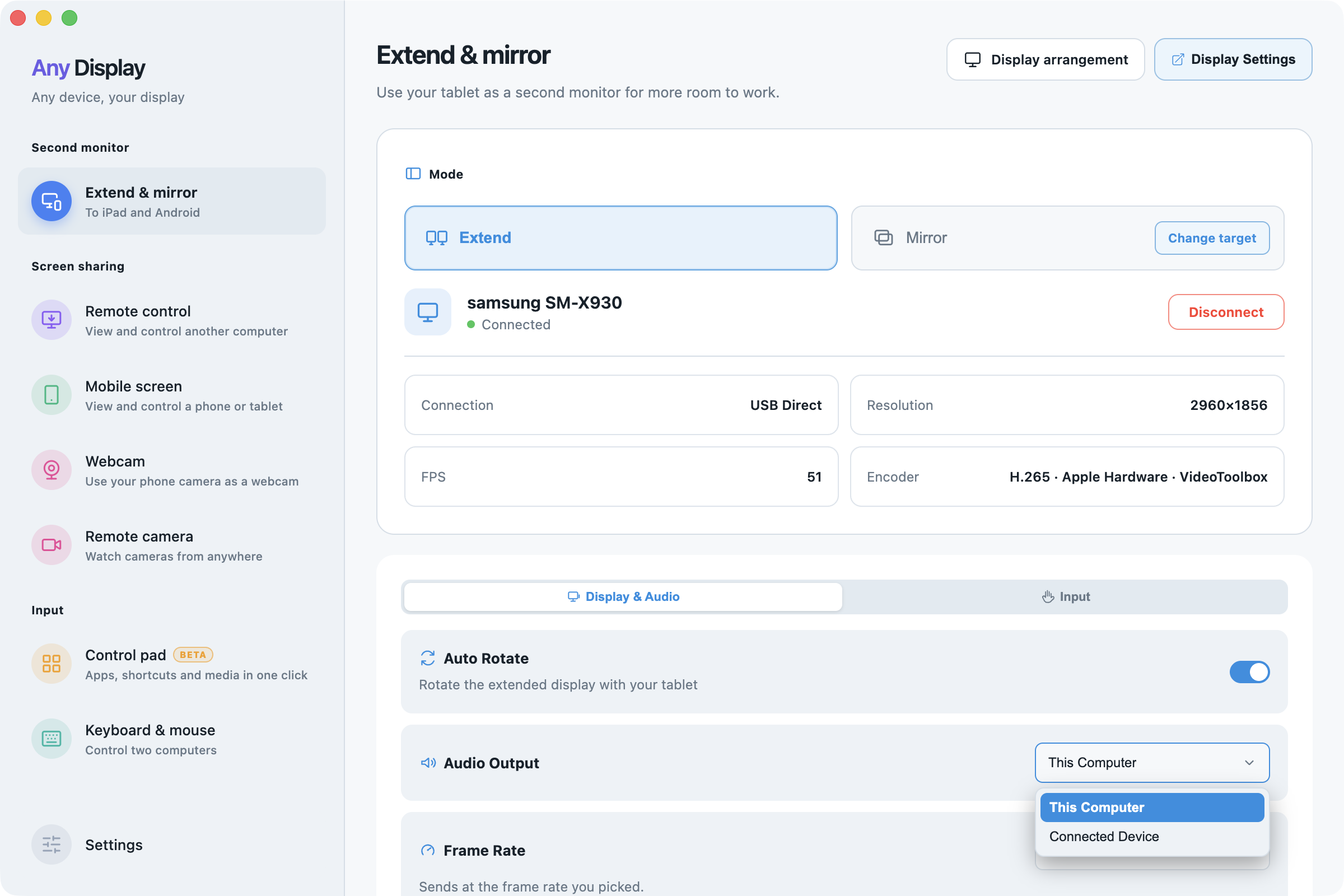
Rotation, resolution and frame rate · macOS · English - 09
Disconnect and troubleshoot
Use Disconnect on the computer or Back on the tablet. For a missing device, check the account, both apps, network, data cable and authorization. For a black picture, check Screen Recording and the Mirror source; for missing input, check Accessibility. Resolution, FPS and Encoder readings describe the current session, not a guaranteed performance level for every device.
Explore more features.
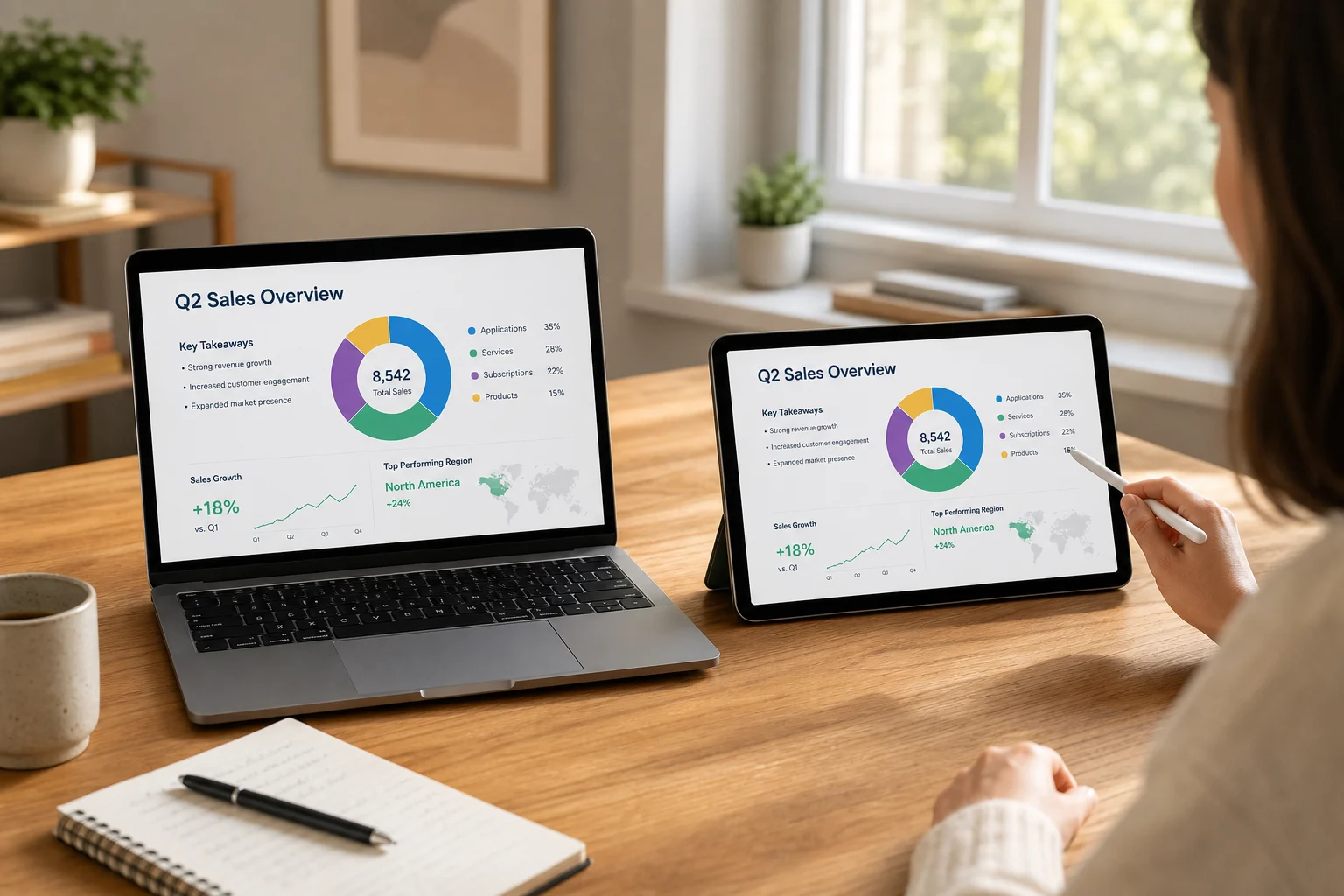
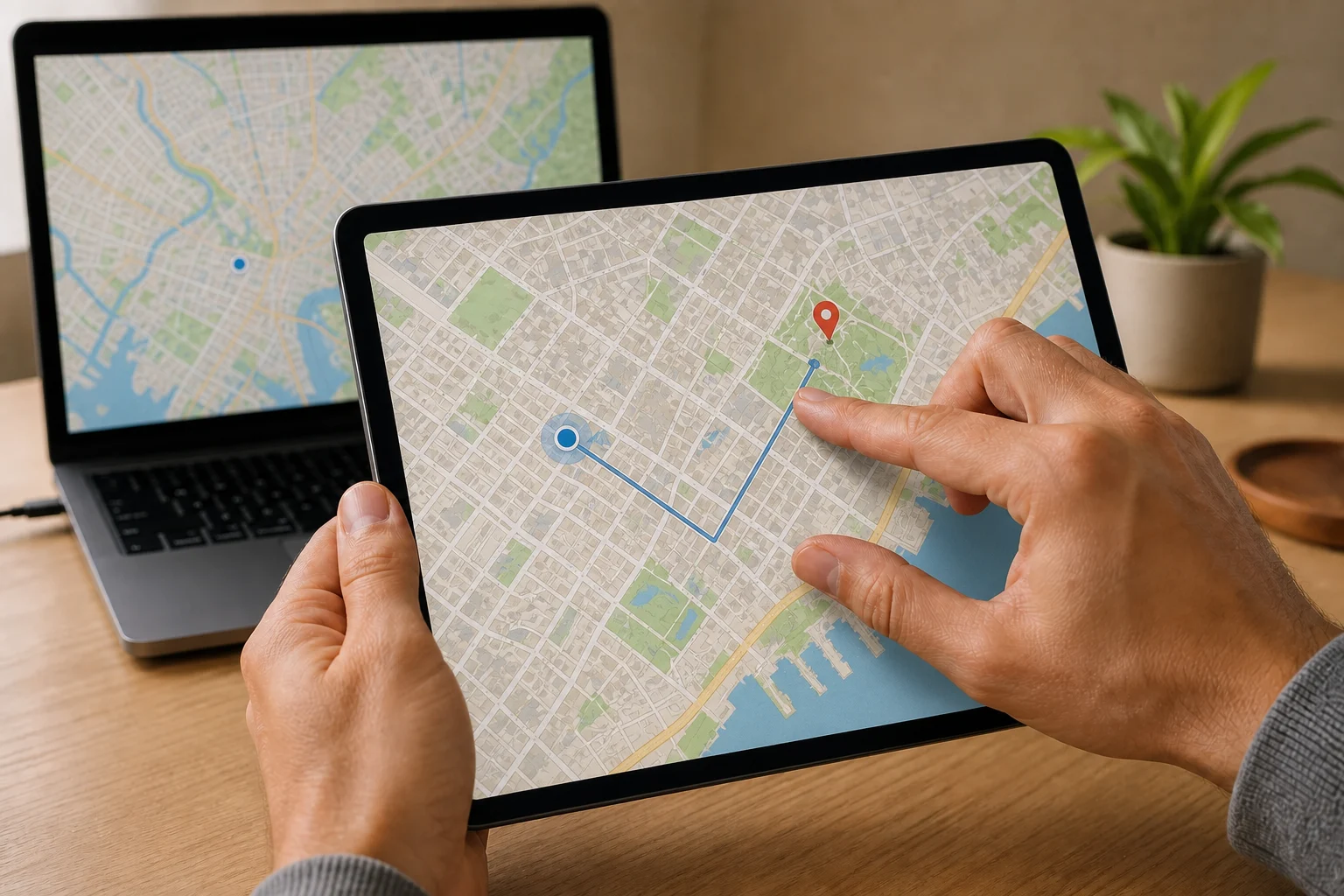
Extend your workspace to your tablet.
Free download