Mobile webcam
Turn your mobile camera into a desktop webcam.
Select an iPhone, iPad, or Android camera like a regular webcam in meeting and recording apps on Mac or Windows.
Start on my devices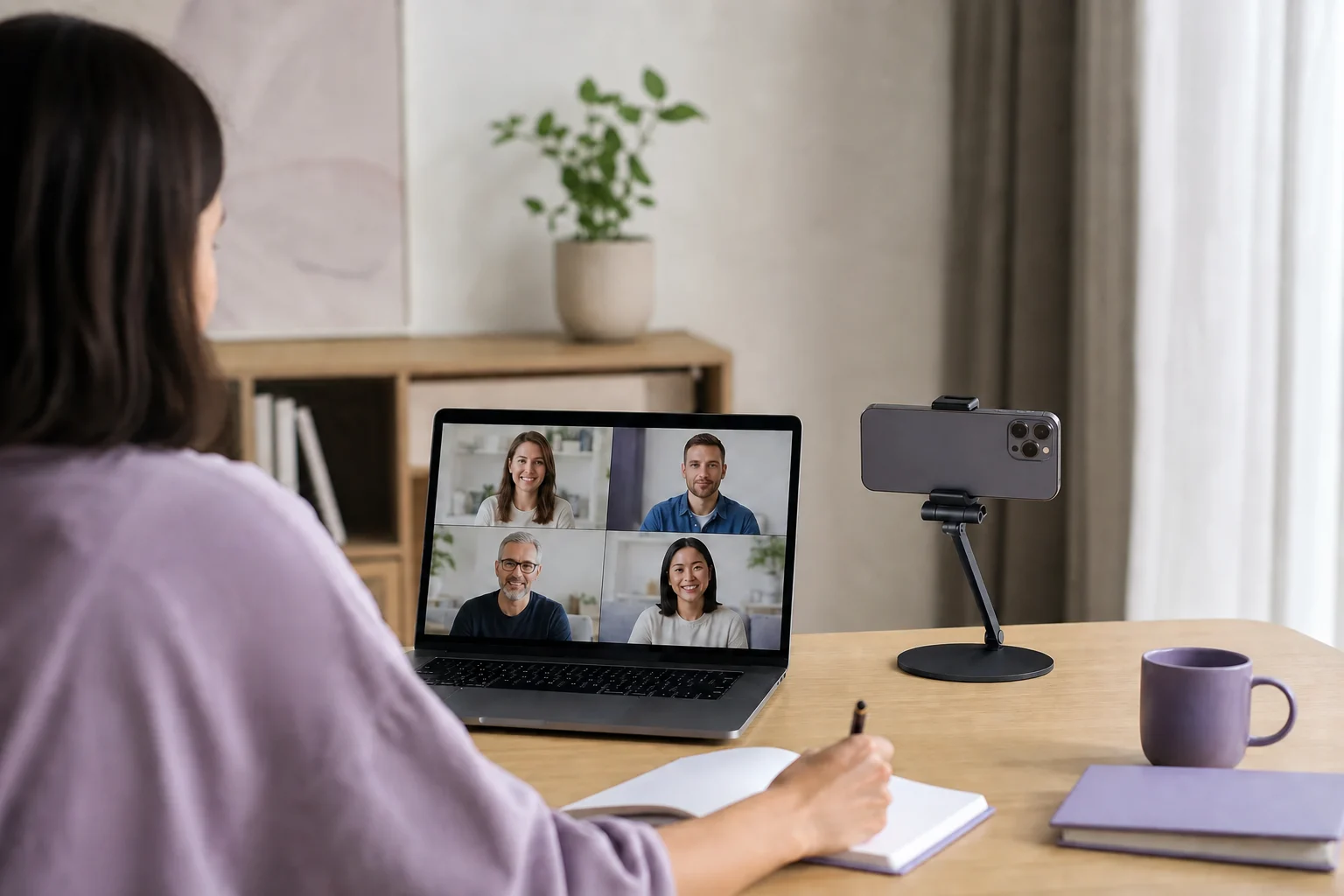 Any Display · Mobile webcam
Mobile webcam
Clear about what it does.
See the result first, without translating settings or technical terms.
Adjust resolution and FPS
Available as a desktop webcam
User guides
Mobile webcam
Select an iPhone, iPad, or Android camera like a regular webcam in meeting and recording apps on Mac or Windows.
- 01
Sign in to the same account
On the computer and mobile device, open Settings → Sign in. Use Google, Apple, Microsoft or email; on first launch, continue directly from the sign-in screen. Use the same provider and account on both devices, then verify the account name and access. Another account may not appear in device discovery. Complete the trial/license prompt on an unlicensed computer before connecting.
- 02
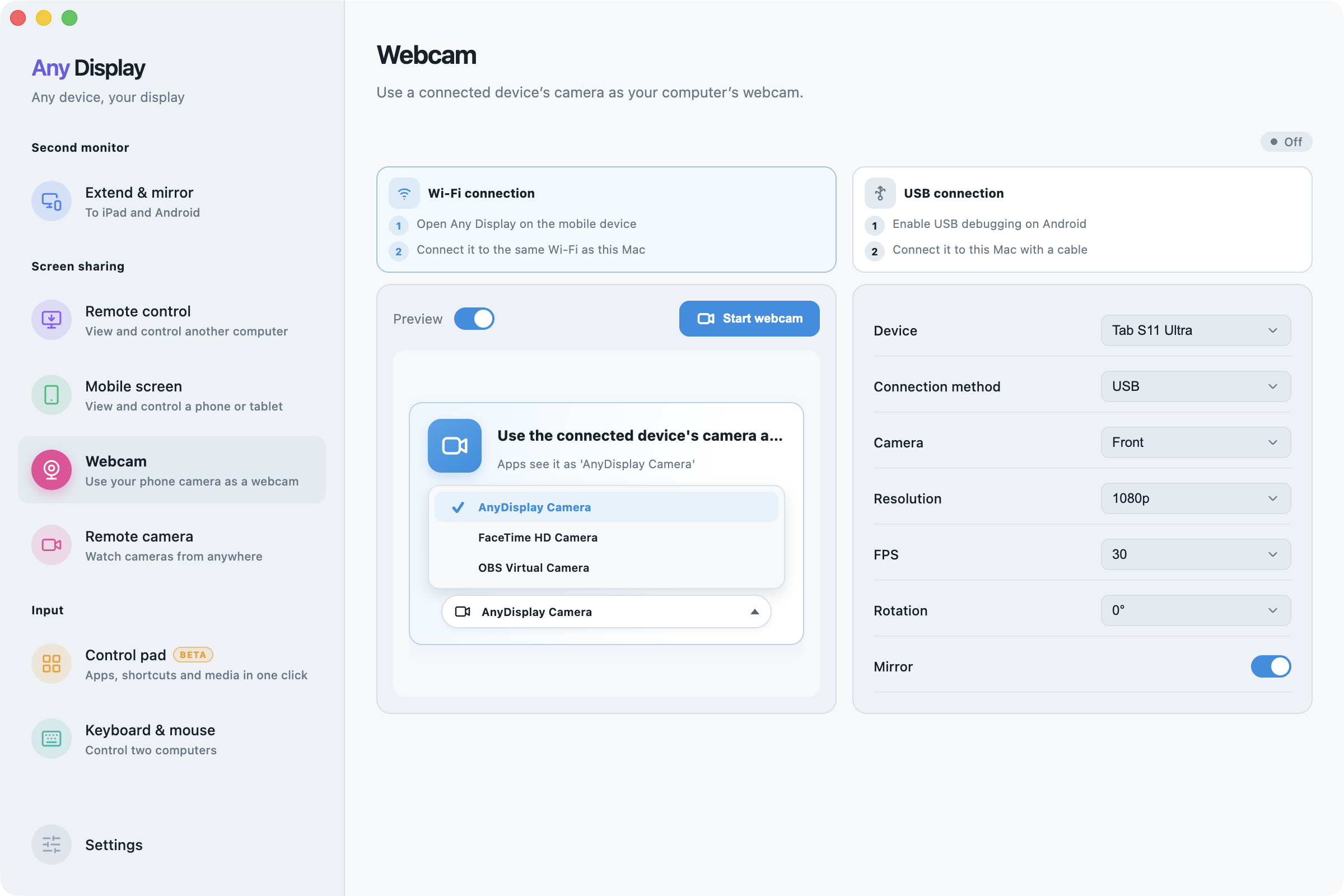
Choose Webcam, not Remote camera
For a phone camera in a meeting app, open Webcam on the computer. Remote camera is a separate viewing/recording feature. Webcam provides AnyDisplay Camera to the receiving app; it does not mirror the mobile screen.
Choose Webcam, not Remote camera · macOS · English - 03
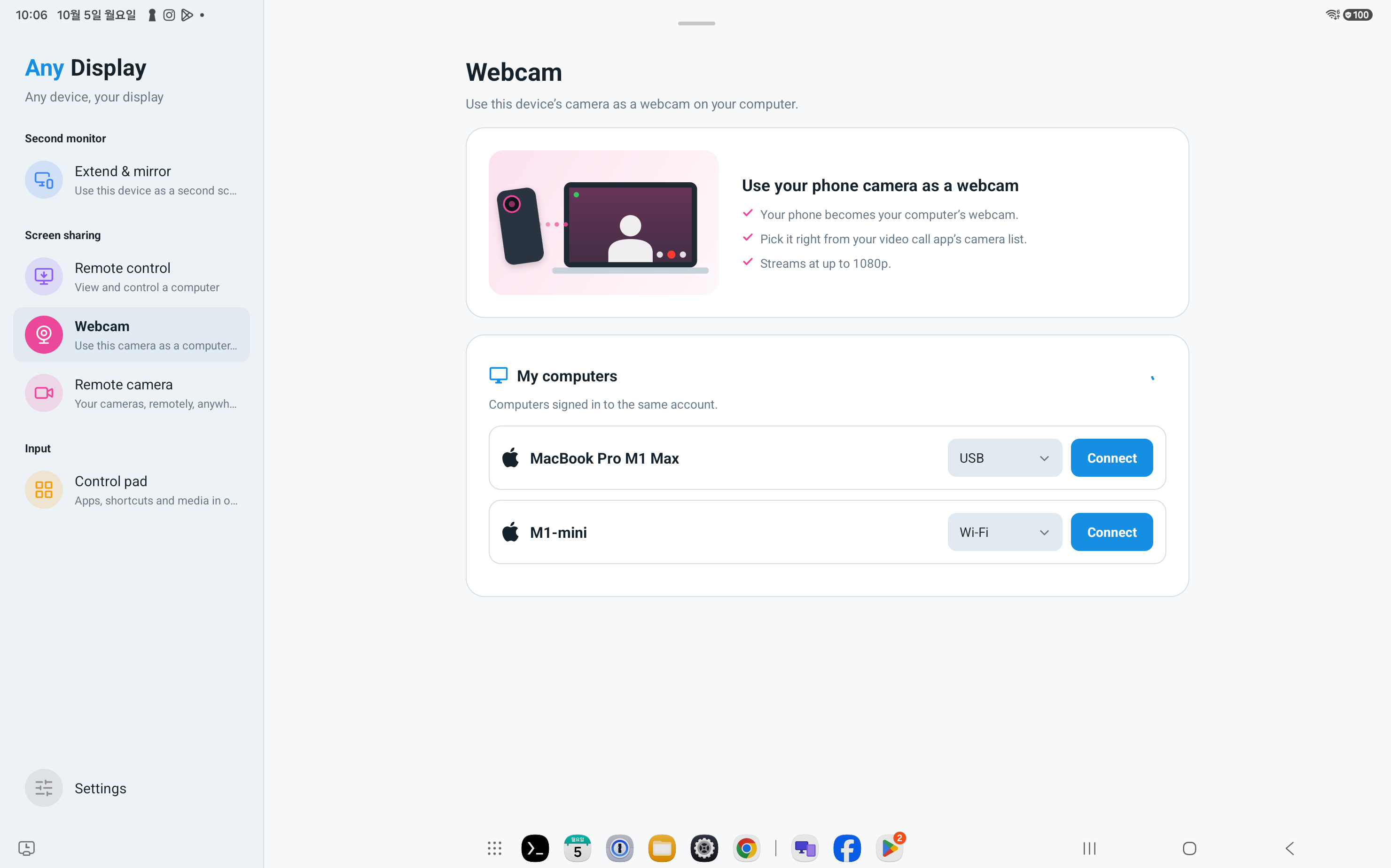
Choose the device and connection
On the mobile device, open Webcam and press Connect beside the computer. On the computer, check Device and Connection method. Wi-Fi needs the same network; USB needs a data cable and may require Android USB debugging. Allow camera access when requested.
Choose the device and connection · Android tablet · English - 04
Prepare AnyDisplay Camera
Complete any virtual-camera installation/activation instructions on Mac. The receiving app must select AnyDisplay Camera. A preview inside Any Display does not automatically select the camera in a meeting app.
- 05
Choose lens, resolution and FPS
In Webcam, choose Camera, Resolution and FPS. Available values depend on the selected device and lens. Mount the device securely and lower resolution or FPS to compare if the stream is unstable. Check the lens and framing in Preview.
Choose lens, resolution and FPS · macOS · English - 06
Rotate, mirror and start
Set Rotation for the mounting orientation and Mirror for left/right reversal. Press Start webcam and check its status. Preview only controls the preview inside Any Display; use Stop webcam to stop transmission.
- 07
Select the camera in the receiving app
Choose AnyDisplay Camera in the meeting/recording app’s camera settings. If missing, check virtual-camera setup and reopen that app. Check its own preview mirroring when filming text. Select a microphone separately in its audio settings.
Explore more features.
Turn your mobile camera into a desktop webcam.
Free download