Remote camera
Your devices. Your home security camera.
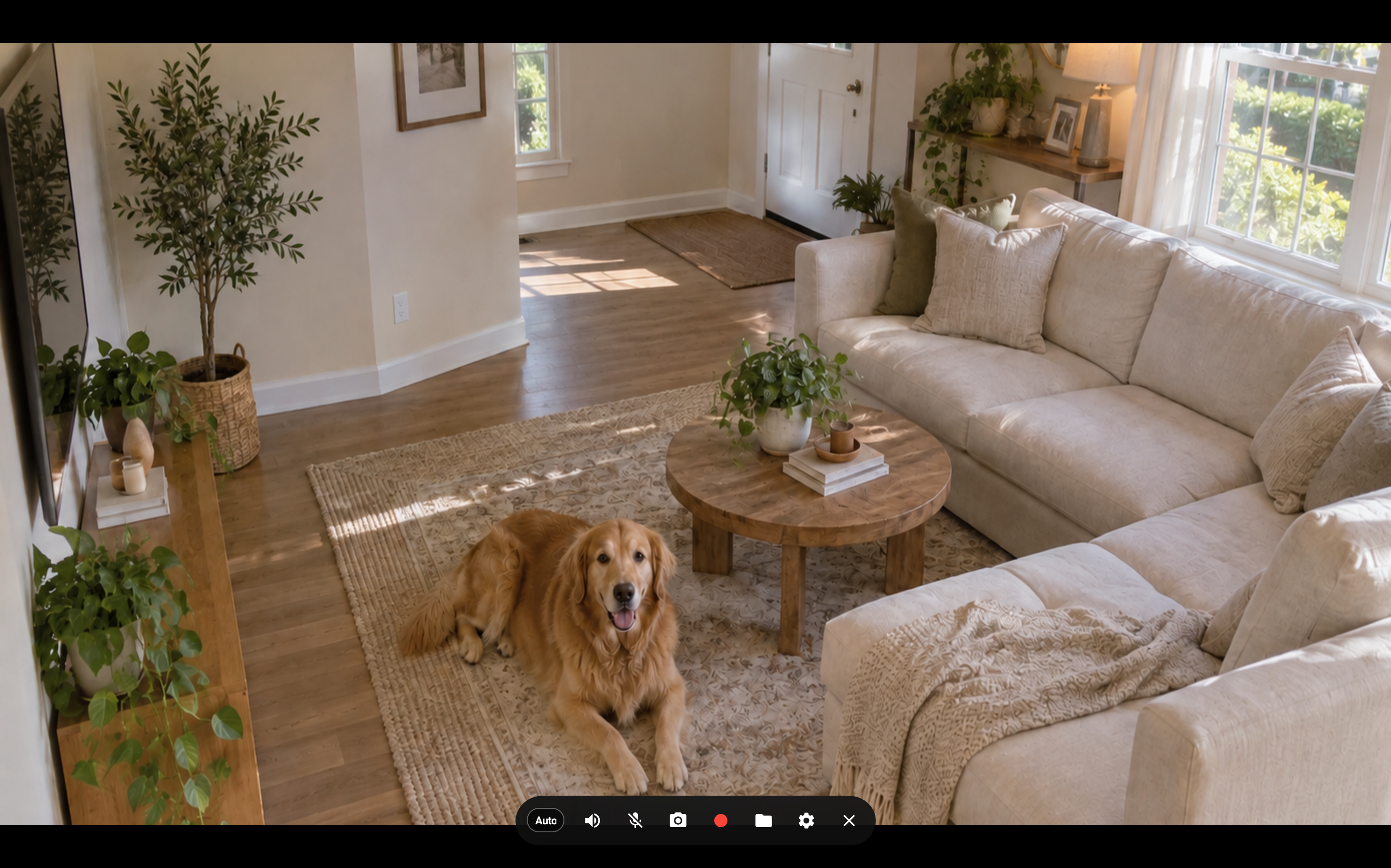
Keep an eye on your home or office from anywhere with a phone, tablet, or computer camera. Watch live from devices on the same account, and save what matters on your computer with continuous, scheduled, or motion-triggered recording.
Start on my devices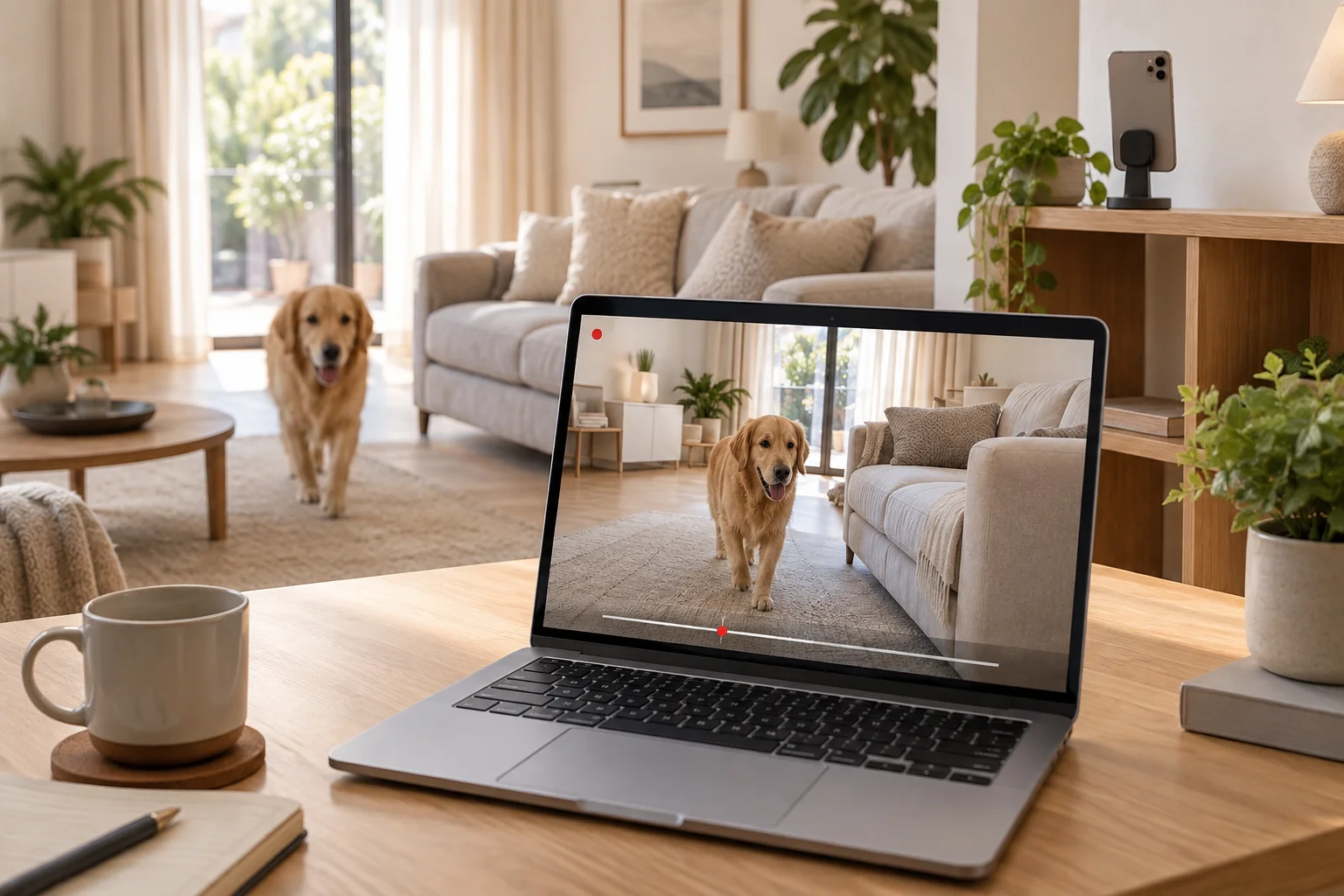 Any Display · Remote camera
Remote camera
Clear about what it does.
See the result first, without translating settings or technical terms.
Scheduled recording
Motion-triggered recording
User guides
Remote camera
Keep an eye on your home or office from anywhere with a phone, tablet, or computer camera. Watch live from devices on the same account, and save what matters on your computer with continuous, scheduled, or motion-triggered recording.
- 01
Sign in on both devices
On the computer and mobile device, open Settings → Sign in. Use Google, Apple, Microsoft or email; on first launch, continue directly from the sign-in screen. Use the same provider and account on both devices, then verify the account name and access. Another account may not appear in device discovery. Complete the trial/license prompt on an unlicensed computer before connecting.
Install Any Display on the camera and viewing devices and sign in to the same account. Remote camera is available with Premium or the trial. Both devices need internet access.
- 02
Share a camera
On the phone or tablet, open Remote camera → Share this device’s camera → Start sharing. Allow camera and microphone access and keep the sharing screen open. Check the lens and microphone; use Stop sharing to end. For a computer camera, keep Any Display running and signed in and check camera permission.
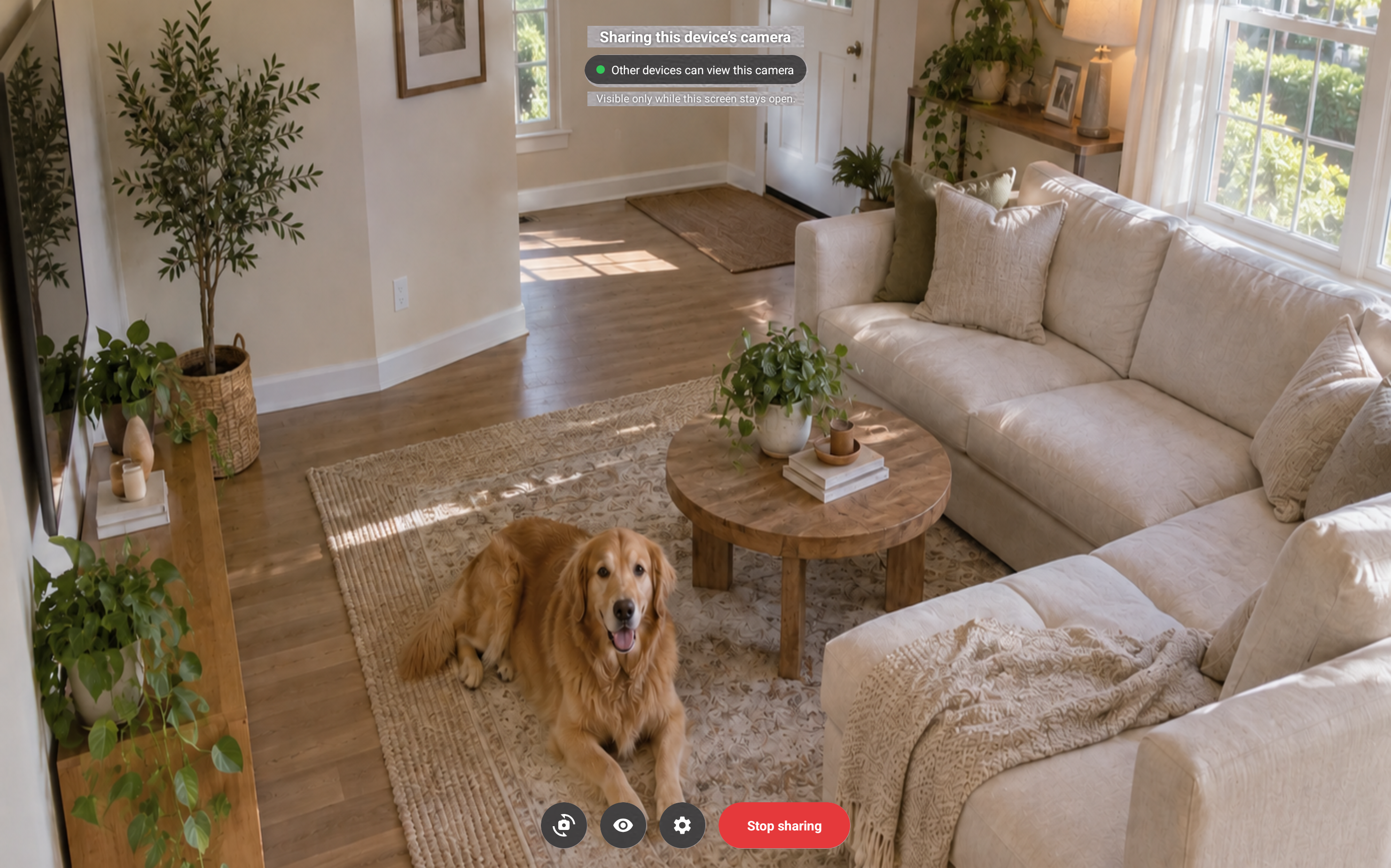
Share a camera · Android tablet · English - 03
- 04
Continuous recording
Open the gear button in the camera viewer, then Recording settings → With the record button. Close settings and press the red record button to save video continuously. Press it again to stop.
Recording runs on the viewing device. Keep the desktop viewer window or mobile viewing screen open and the camera connected. Closing the session or quitting the app prevents further recording.
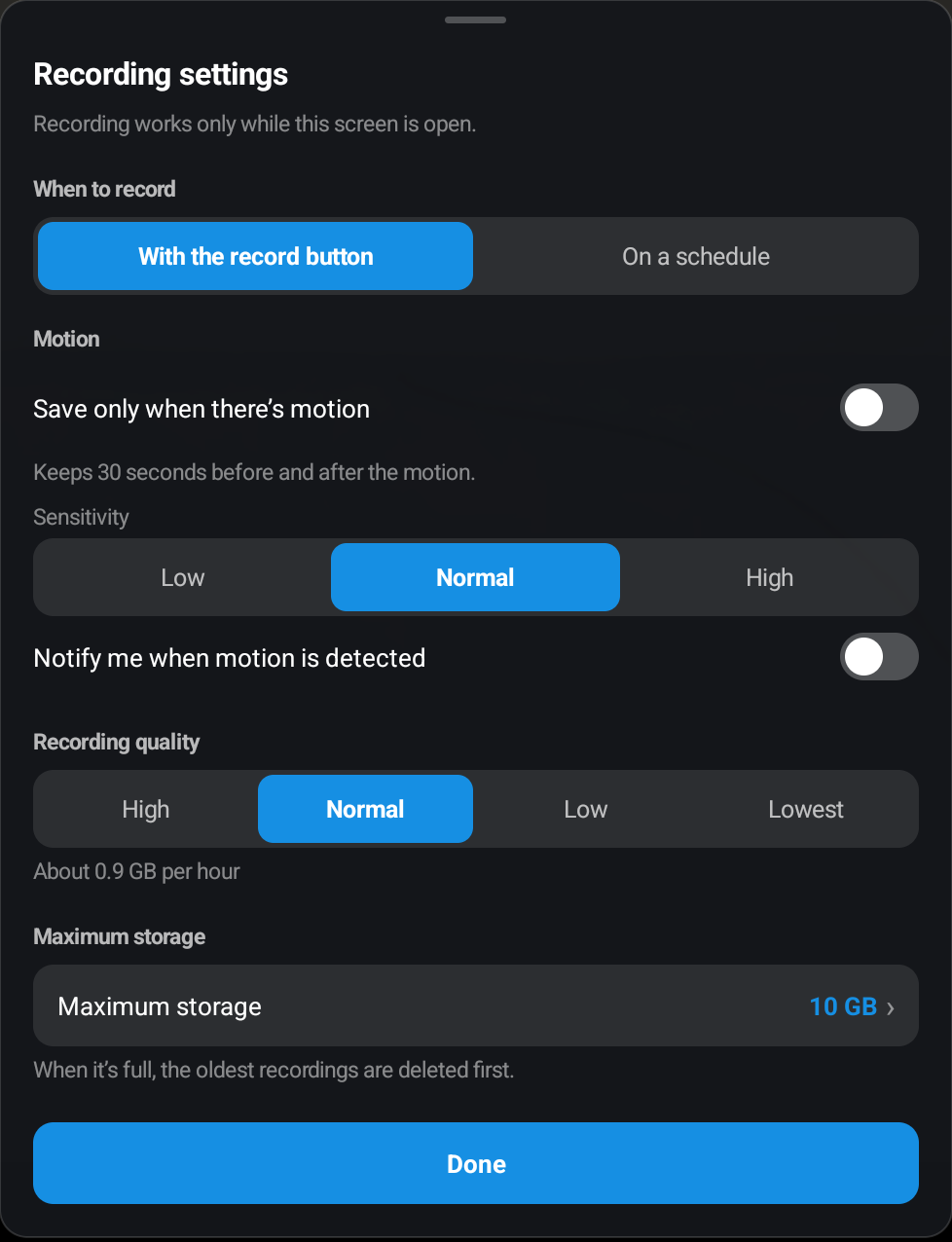
Continuous recording · Android tablet · English - 05
Scheduled recording
Open the gear button → Recording settings → On a schedule. Select weekdays and start/end times. For example, Mon–Fri, 09:00–18:00 records during those hours. Times use the viewing device’s local clock.
Camera device: keep Any Display running and signed in to the same account, with camera/microphone permissions and internet access. Phones and tablets must keep Share this device’s camera open. Stopping sharing or quitting the app makes the camera unavailable.
Saving on a computer: leave the computer powered on, awake, and the desktop app running and signed in with Premium or trial access. The viewer need not already be open: the app opens it and connects at the scheduled time. It stops recording at the end, and closes a viewer opened by the schedule. A fully quit app or sleeping/shut-down computer cannot run the schedule.
Saving on a phone or tablet: keep the camera viewing screen open and connected throughout the scheduled period. Saving a schedule and closing the screen or quitting the app does not cause the app to reopen automatically.
An end time earlier than the start spans midnight, starting on the selected weekday. Equal start/end times mean the whole selected day. Combine a schedule with motion-only saving to keep motion clips within scheduled hours. Video from a disconnected or unavailable camera cannot be saved or recovered afterward.
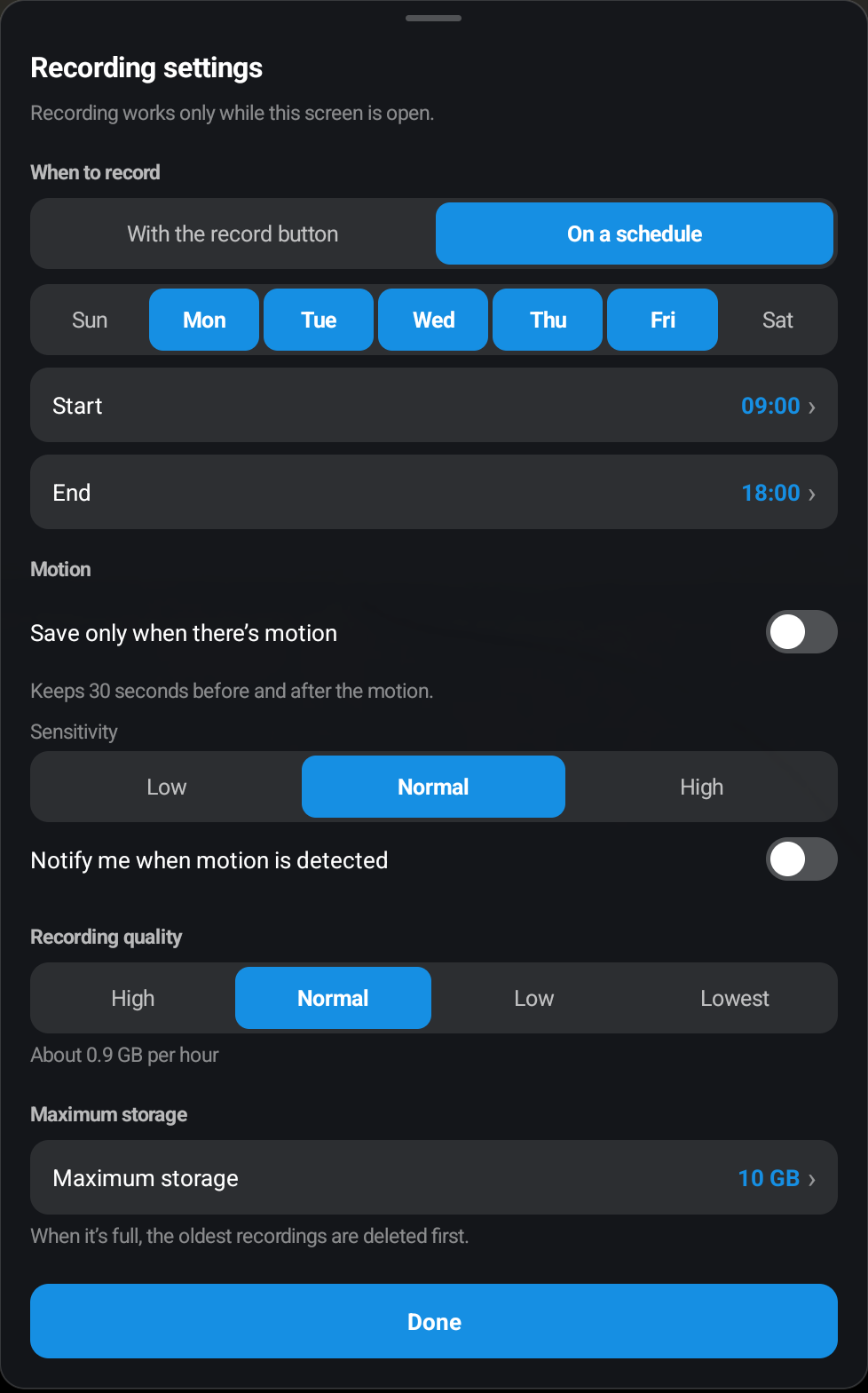
Scheduled recording · Android tablet · English - 06
- 07
Storage and quality
Choose recording quality and maximum storage in settings. Computers also offer a destination folder. Recordings and screenshots are saved on the viewing device.
When the storage limit is reached, the oldest recordings for that camera are deleted first. Open the folder button in the viewer to review saved videos. Mobile recording works only while the viewing screen is open.
Explore more features.
Your devices. Your home security camera.
Free download