Connect computers
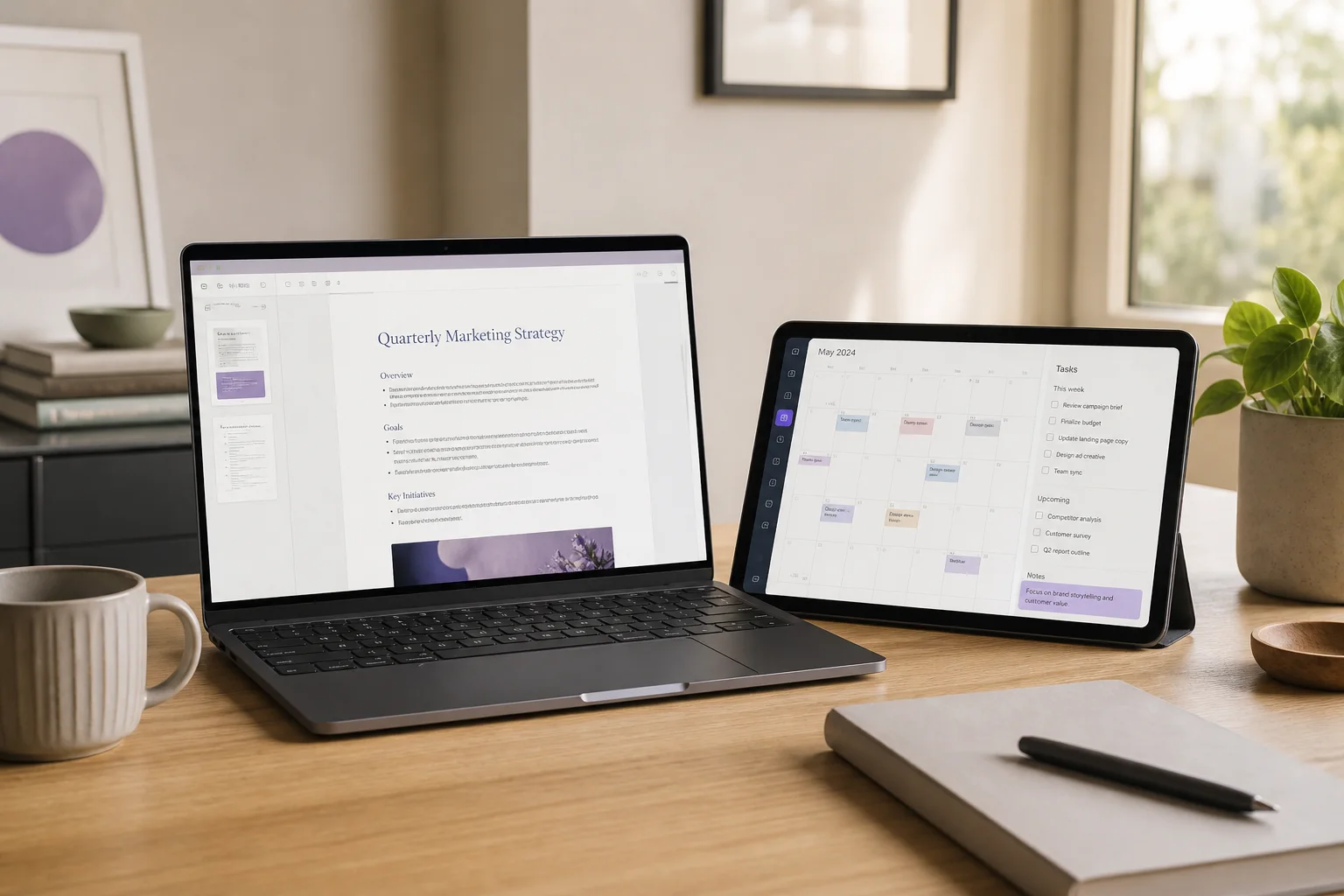
Two computers. One workspace.
Extend or mirror between Mac and Windows. Move between computers using one keyboard and mouse.
Start on my devices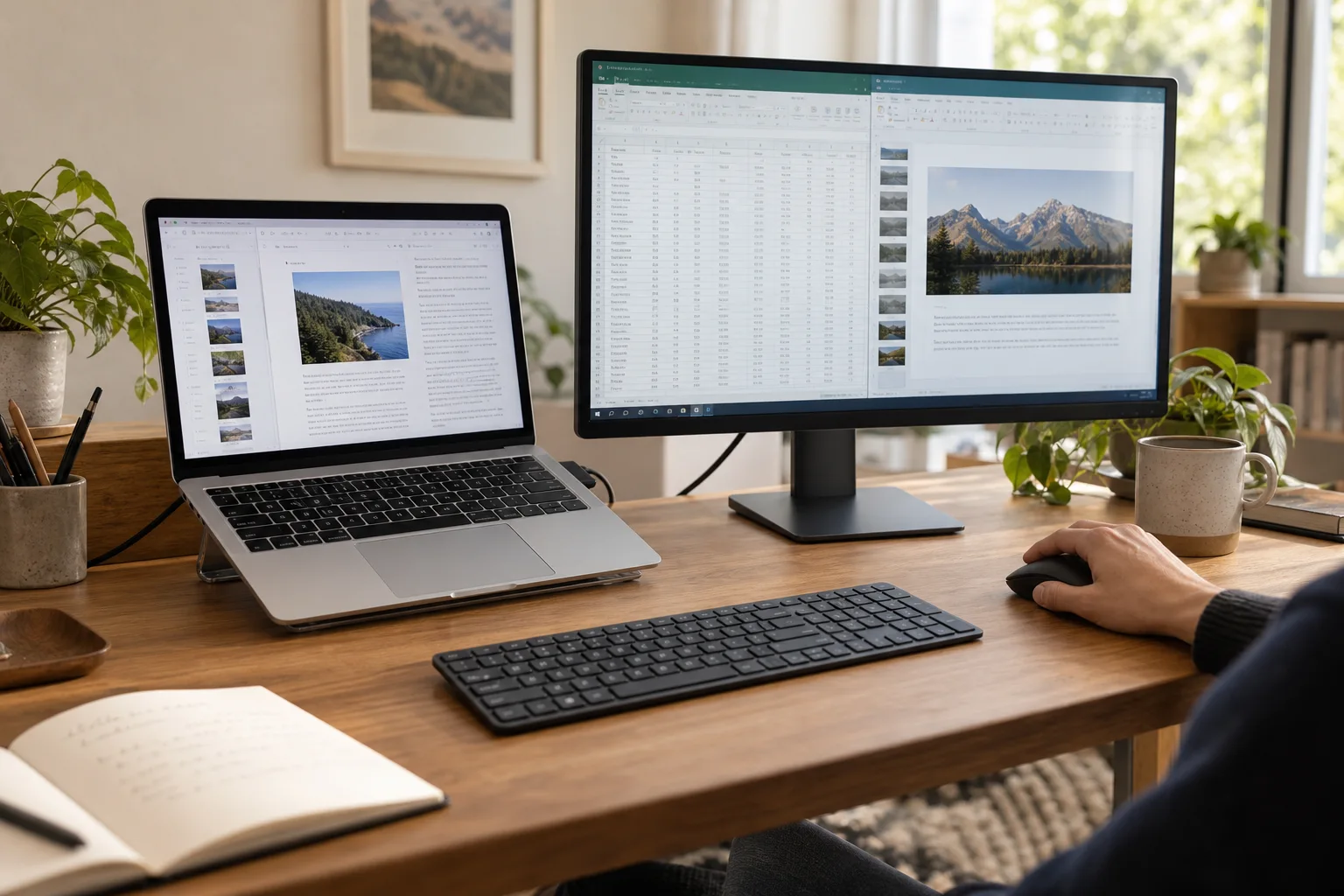 Any Display · Connect computers
Connect computers
Clear about what it does.
See the result first, without translating settings or technical terms.
Keyboard and mouse sharing
Works with Mac and Windows
User guides
Connect computers
Extend or mirror between Mac and Windows. Move between computers using one keyboard and mouse.
- 01
Sign in to the same account
On the computer and mobile device, open Settings → Sign in. Use Google, Apple, Microsoft or email; on first launch, continue directly from the sign-in screen. Use the same provider and account on both devices, then verify the account name and access. Another account may not appear in device discovery. Complete the trial/license prompt on an unlicensed computer before connecting.
- 02
Use another computer as a second monitor
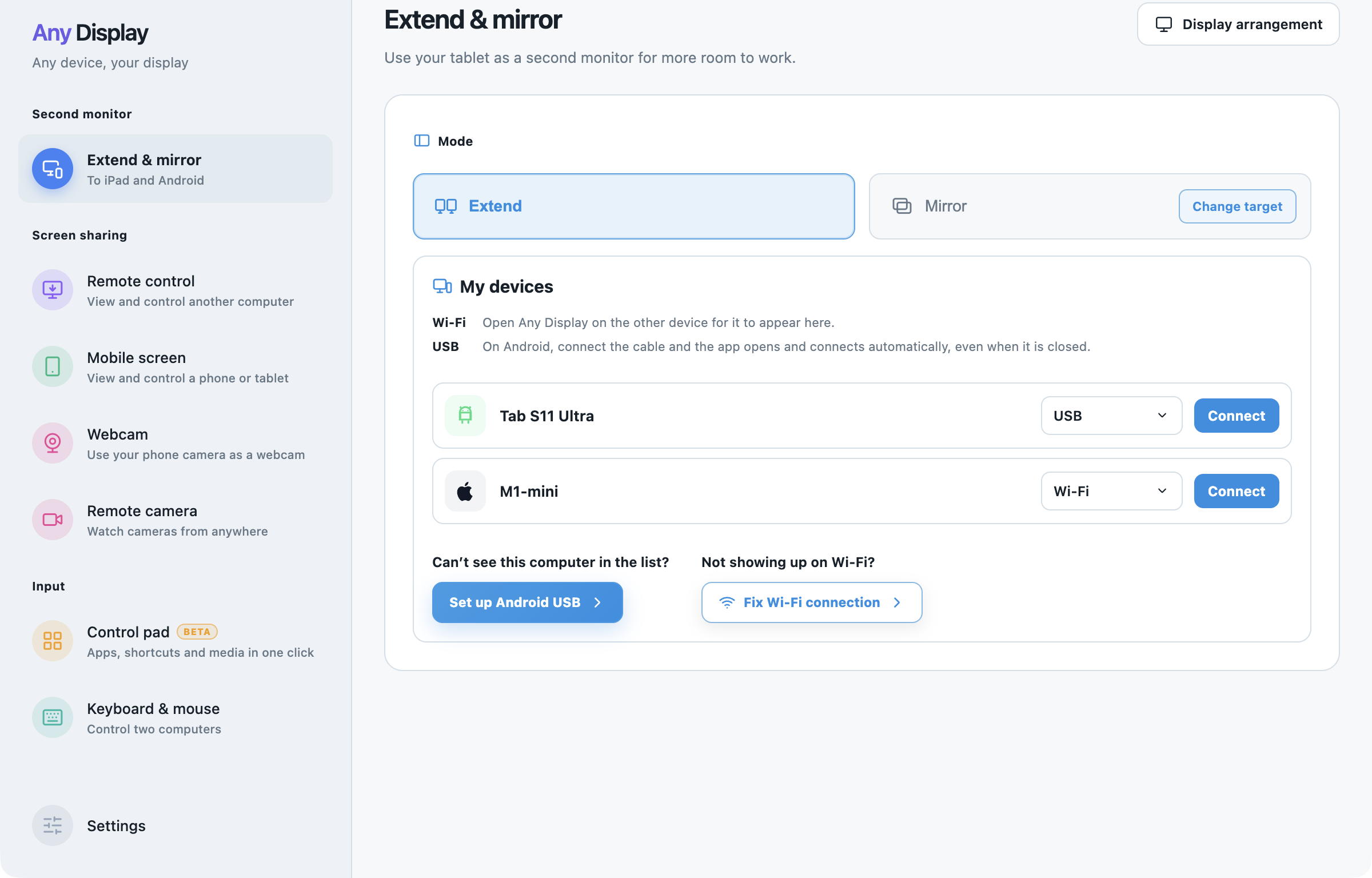
Run both apps and sign in to the same account. On the sending computer, open Extend & mirror and choose Extend or Mirror first. In My devices, verify the receiving computer and Wi-Fi, then click Connect. Review and Accept the request on that computer. Extend creates a separate workspace; Mirror sends the Screens or Windows chosen in Change target. For extension, set the physical position with Display arrangement → Apply and drag a document window across to check it.
Use another computer as a second monitor · macOS · English - 03
Share input while keeping each computer’s own screen
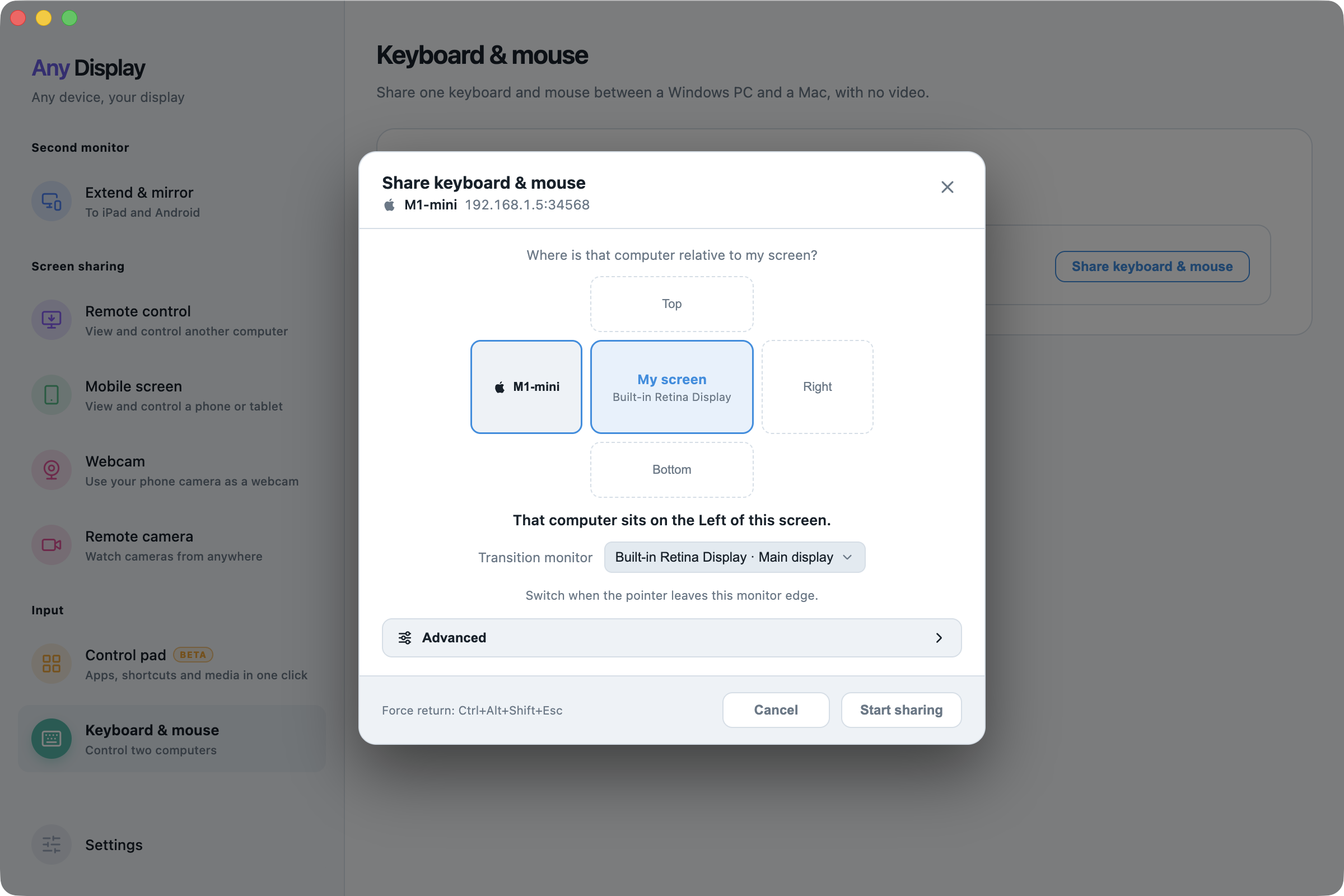
For input without video, open Keyboard & mouse → Share keyboard & mouse. Choose the other computer’s Left, Right, Top or Bottom position and Transition monitor; click Start sharing and accept on the other computer. Move the pointer across that edge. Use Ctrl+Alt+Shift+Esc if input does not return, and Disconnect when finished.
Share input while keeping each computer’s own screen · macOS · English - 04
Get ready
Install and open Any Display 1.8.0 or later on the computer you want to control, and install the latest Any Display app on your phone or tablet. On a Mac, allow Screen Recording (to send the screen) and Accessibility (to accept remote input). Remote control on the same network needs Pro or higher; connecting from another network needs the Premium plan.
- 05
Request a connection from another computer
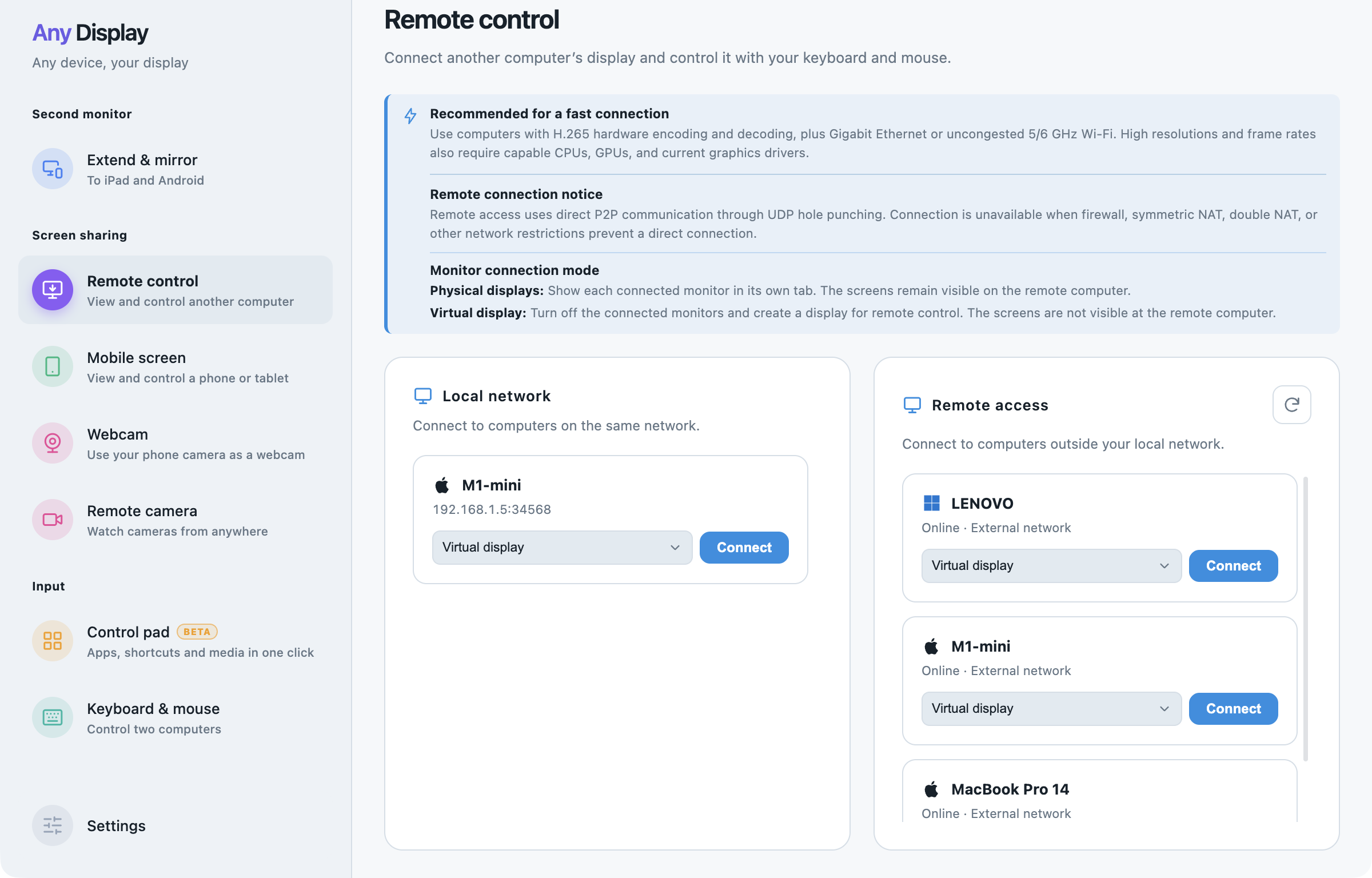
To control a computer from another computer, open Any Display on both and open Remote control on the computer you will view from. Choose a computer found on the same network, or one signed in to the same account, and request a connection. If two computers share a name, confirm the target first.
Request a connection from another computer · macOS · English - 06
Approve and control in a window
The other computer shows the request with Accept, Decline, Always allow this device, and Ignore requests from this device. Once connected, its screen opens in a window where you control it with your keyboard and mouse. Resolution, quality, and zoom can be set separately, and the Windows lock screen and administrator prompts can be operated remotely.
- 07
Connection status and permissions
Follow the session through states such as Connecting, Waiting for screen, and Showing screen. The controlled computer shows that it is being controlled remotely. Either side can end the session with Disconnect. Change automatic approval or ignored devices in Settings → Manage connection permissions. Over Remote access, video travels directly between your devices (P2P) without passing through our servers, encrypted packet by packet with AES-256-GCM on the direct UDP path, or with WebRTC encryption on the fallback path.
Explore more features.

Two computers. One workspace.
Free download