Phone mirroring & control
Put your phone down. Pick up where you left off.
Bring your phone screen to your computer and use your mouse and keyboard. Connect Android over USB; iPhone control requires Bluetooth setup on Mac.
Start on my devices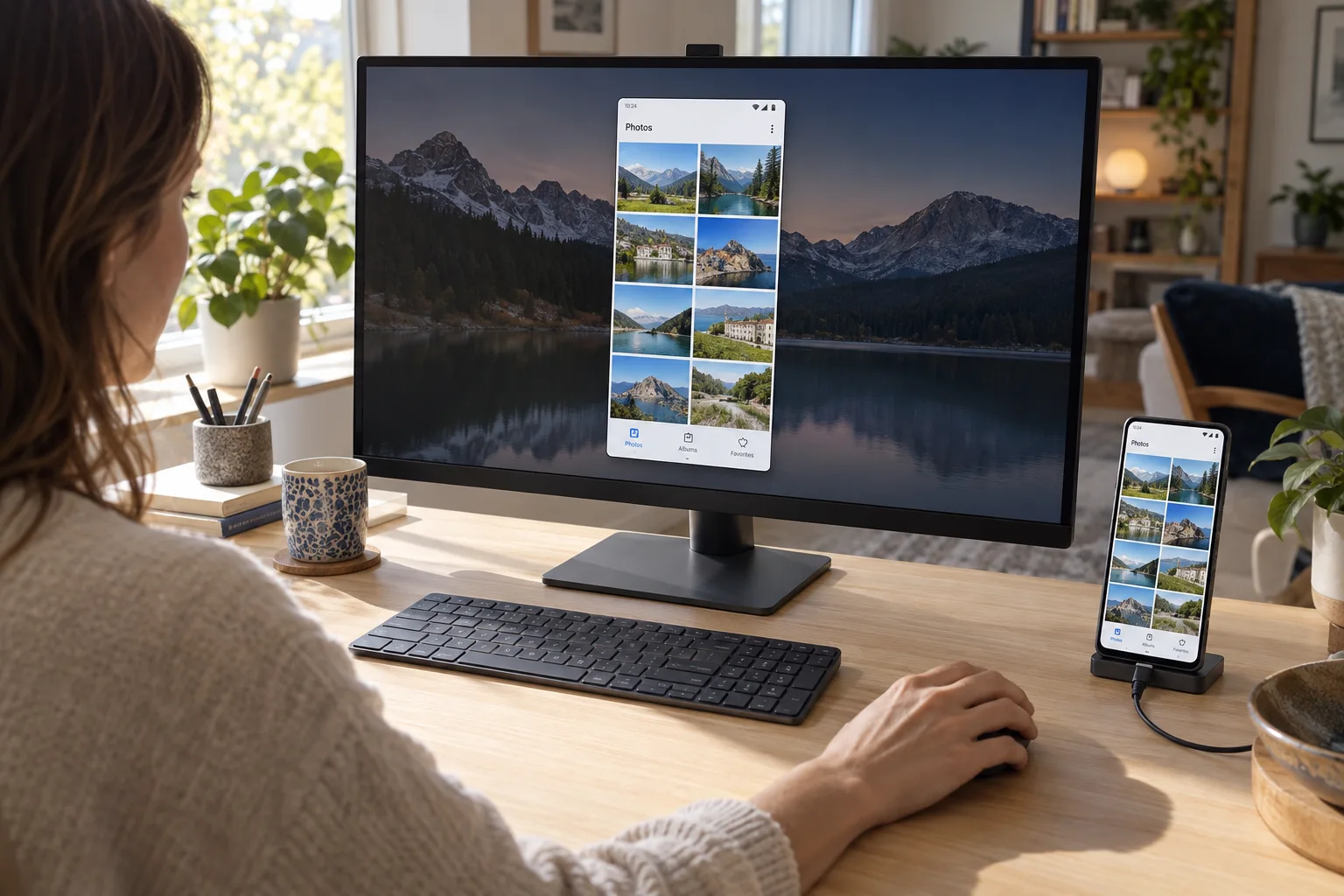 Any Display · Phone mirroring & control
Phone mirroring & control
Clear about what it does.
See the result first, without translating settings or technical terms.
iPhone control: Mac + Bluetooth and AssistiveTouch
Use phone apps on a bigger screen
User guides
Phone mirroring & control
Bring your phone screen to your computer and use your mouse and keyboard. Connect Android over USB; iPhone control requires Bluetooth setup on Mac.
- 01
Sign in to the same account
On the computer and mobile device, open Settings → Sign in. Use Google, Apple, Microsoft or email; on first launch, continue directly from the sign-in screen. Use the same provider and account on both devices, then verify the account name and access. Another account may not appear in device discovery. Complete the trial/license prompt on an unlicensed computer before connecting.
- 02
Open the actual Mobile screen menu
Choose Mobile screen on the computer. It displays and controls apps running on a phone or tablet. Mobile games on a bigger screen is a use case, not a separate app menu. Start the game on the mobile device and use the same Mobile screen connection.
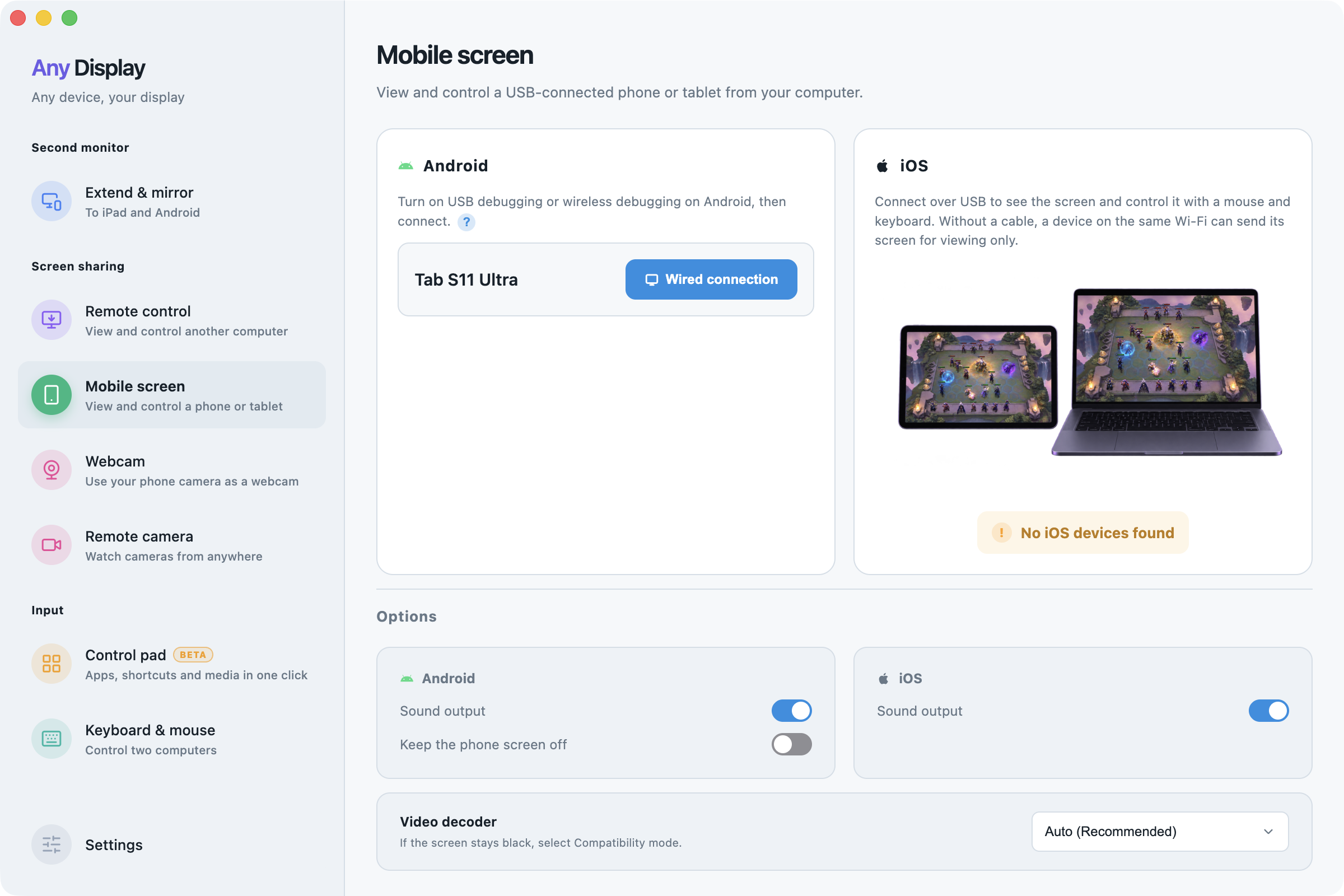
Open the actual Mobile screen menu · macOS · English - 03
Prepare Android USB debugging
Open the question mark beside Android: How to connect with debugging. In Android Settings, find Build number under About phone/tablet (often Software information), tap it seven times, then enable Developer options → USB debugging. Connect a data cable and approve the intended computer with Allow. Locations vary by manufacturer.
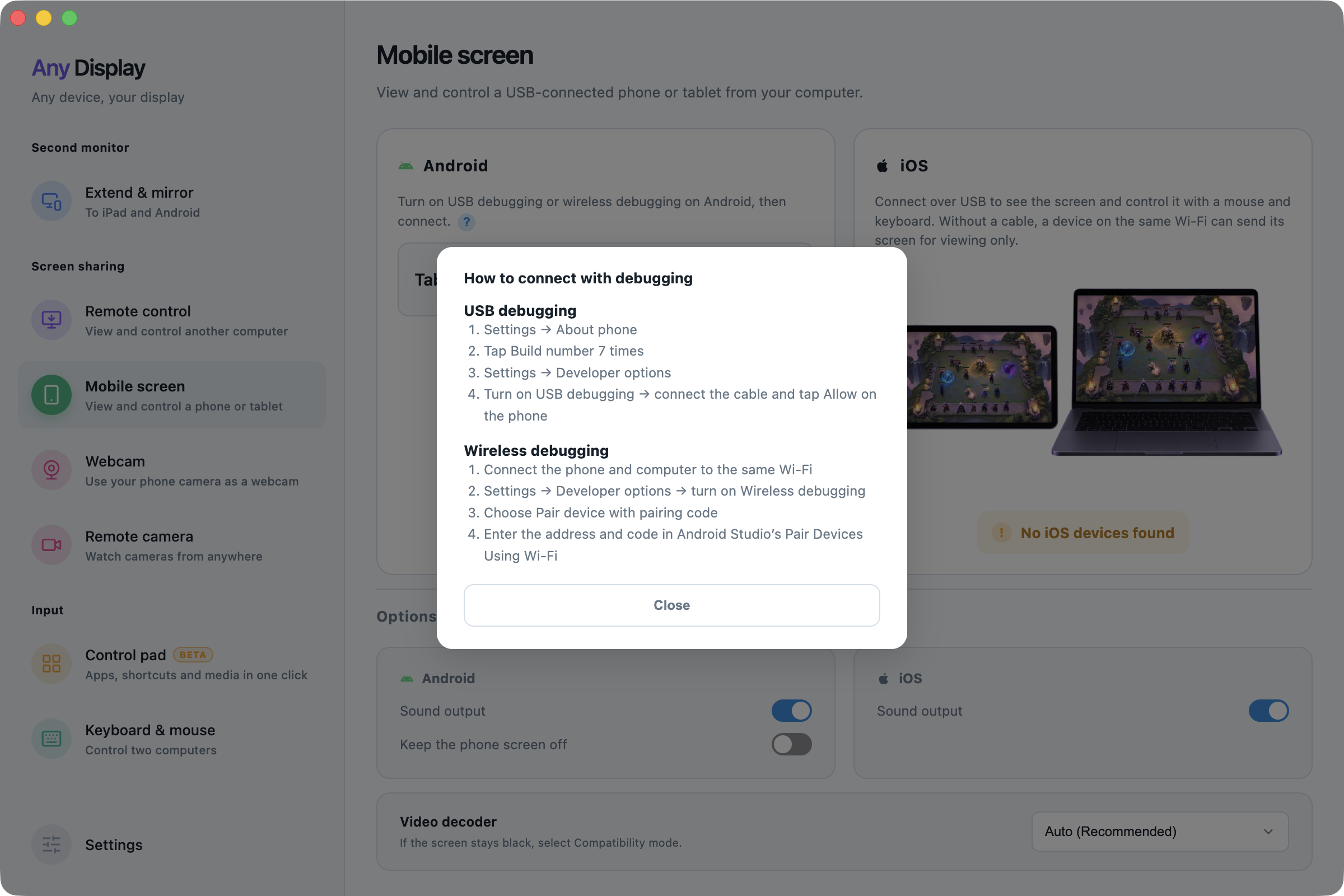
Prepare Android USB debugging · macOS · English - 04
Open Wired connection
Check the listed Android device name and press Wired connection. In the viewer, open an app with the mouse and type with the keyboard. Disconnect an active display-extension session first. If approval is pending, unlock the device and check its prompt. For Offline, check the cable and debugging state.
- 05
Audio and the physical screen
Under Options → Android, Sound output plays mobile audio on the computer. Keep the phone screen off darkens the physical device while retaining the computer viewer. This does not quit the app or disconnect it. Check picture, input and sound independently.
Audio and the physical screen · macOS · English - 06
View an iPhone or iPad
Open Any Display on iOS and sign in to the same account. For USB, approve Trust This Computer. Select the device under Mobile screen → iOS. When the app offers broadcasting, press Start Broadcast on the device. Wi-Fi broadcasting is view-only. USB viewing with input requires the separate setup below.
- 07
Set up iOS mouse and keyboard input
On Mac, follow the Mouse & Keyboard and Bluetooth prompts offered for USB viewing with input. Follow the app’s AssistiveTouch instructions on iPhone; iPad requirements may differ. Seeing the screen does not mean mouse and keyboard input is already connected.
- 08
Decoder and disconnect
Start with Options → Video decoder → Auto (Recommended). For a persistent black picture, check authorization and connection, then compare Compatibility mode; software decoding can increase CPU load. Games continue to run on the mobile device. End with Disconnect in the viewer.
Explore more features.
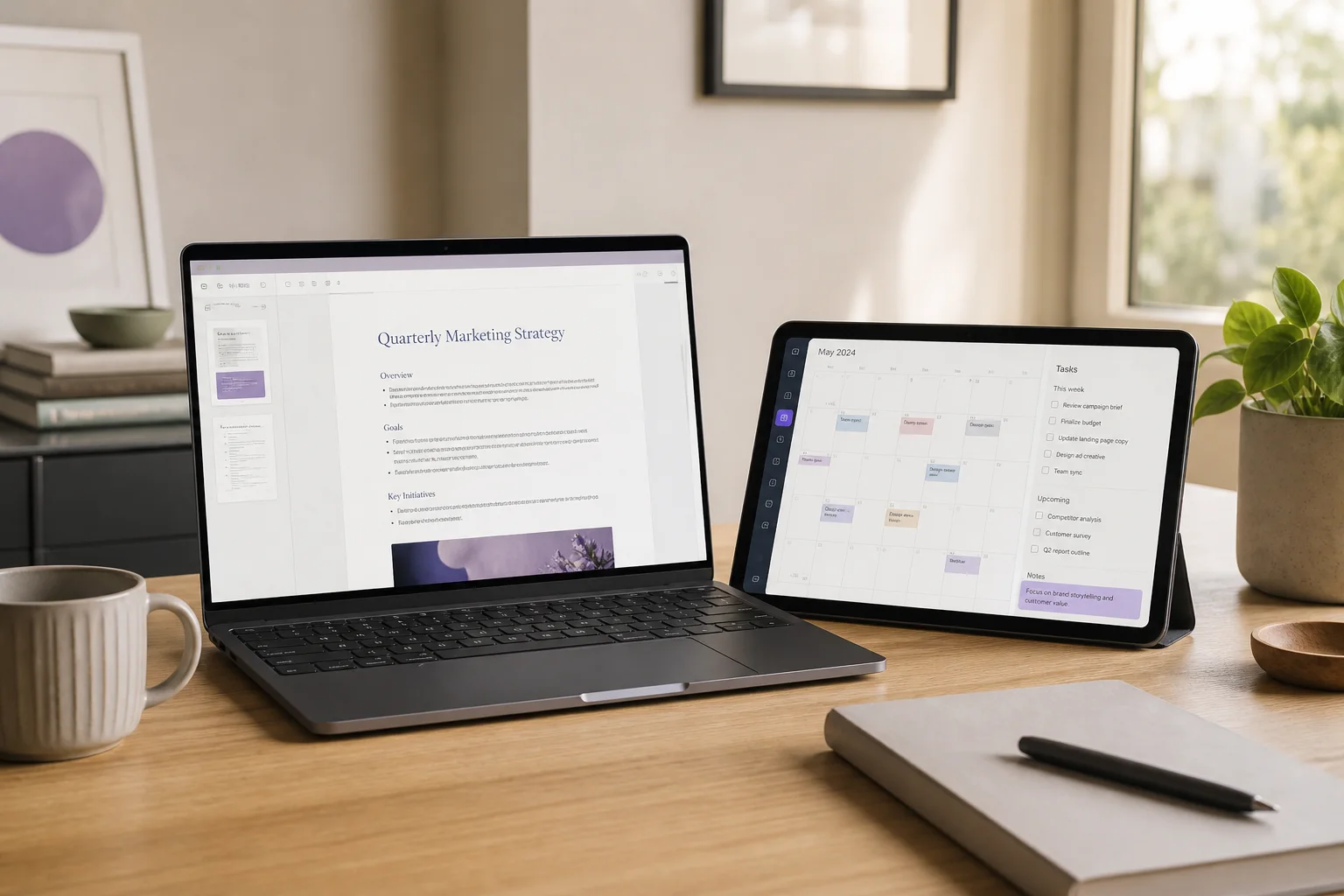
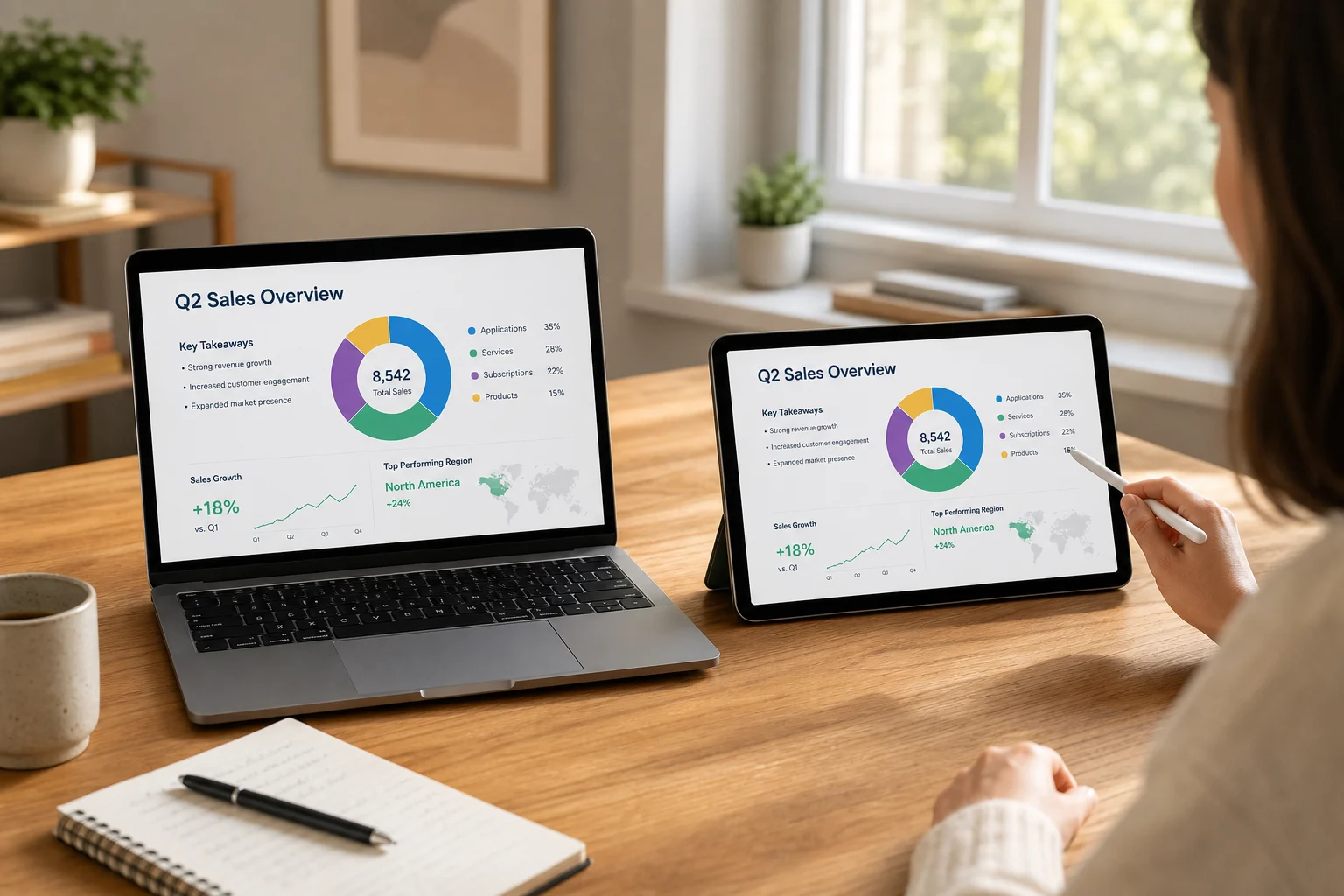
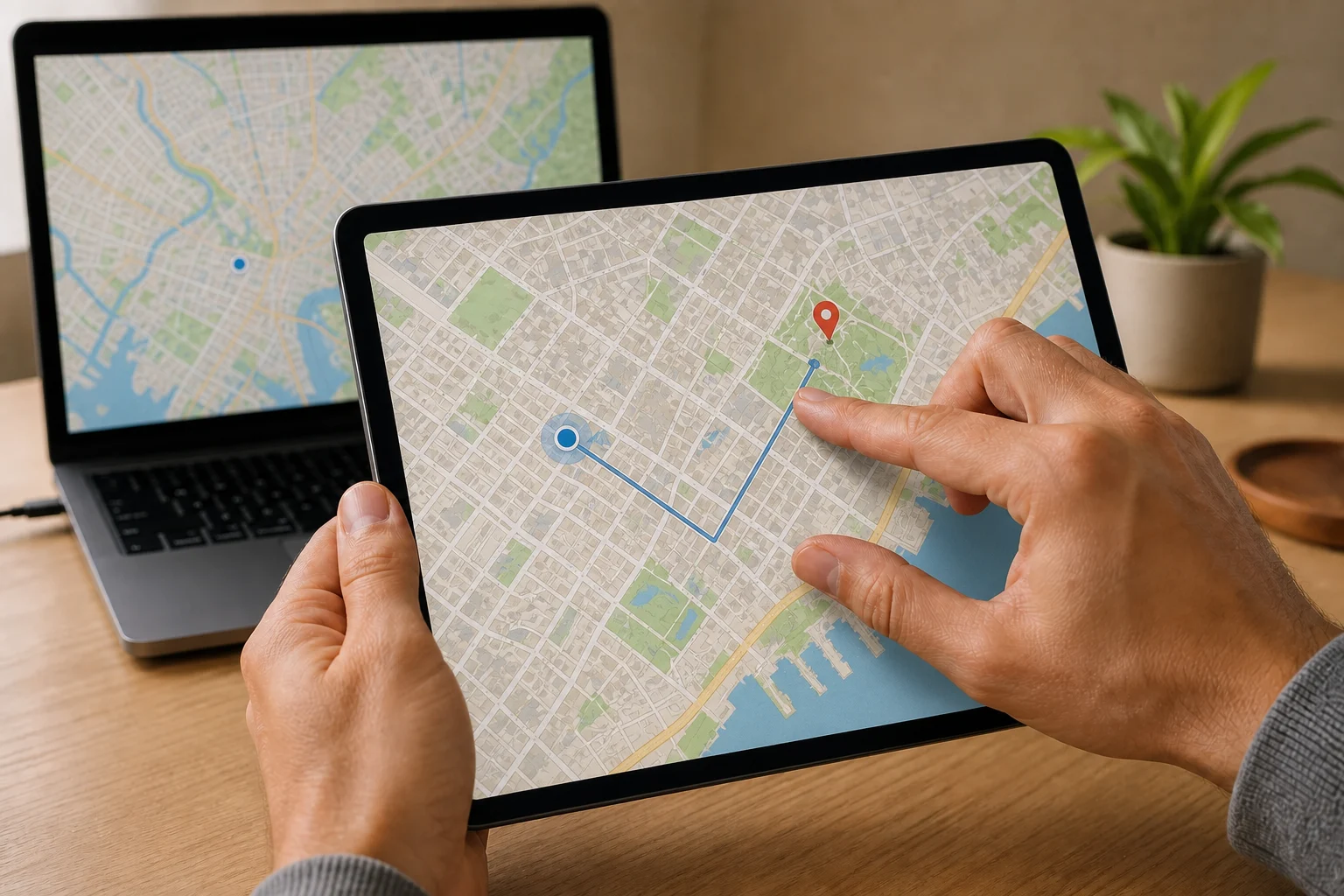
Put your phone down. Pick up where you left off.
Free download