Extend & mirror
Use an iPad or Android device as another screen. Connect over USB or Wi-Fi, choose an independent workspace or a copy of your screen, and configure display, sound, touch and pen input.
- 1
Connect and grant permissions
Open Any Display on both devices. On Mac, Screen Recording allows screen transmission and Accessibility allows remote input. For Wi-Fi, use the same network and select the computer in the mobile app. For USB, use a data cable and follow Android USB setup if shown. Check the device’s authorization prompt when it is not detected.
- 2
Extend or mirror
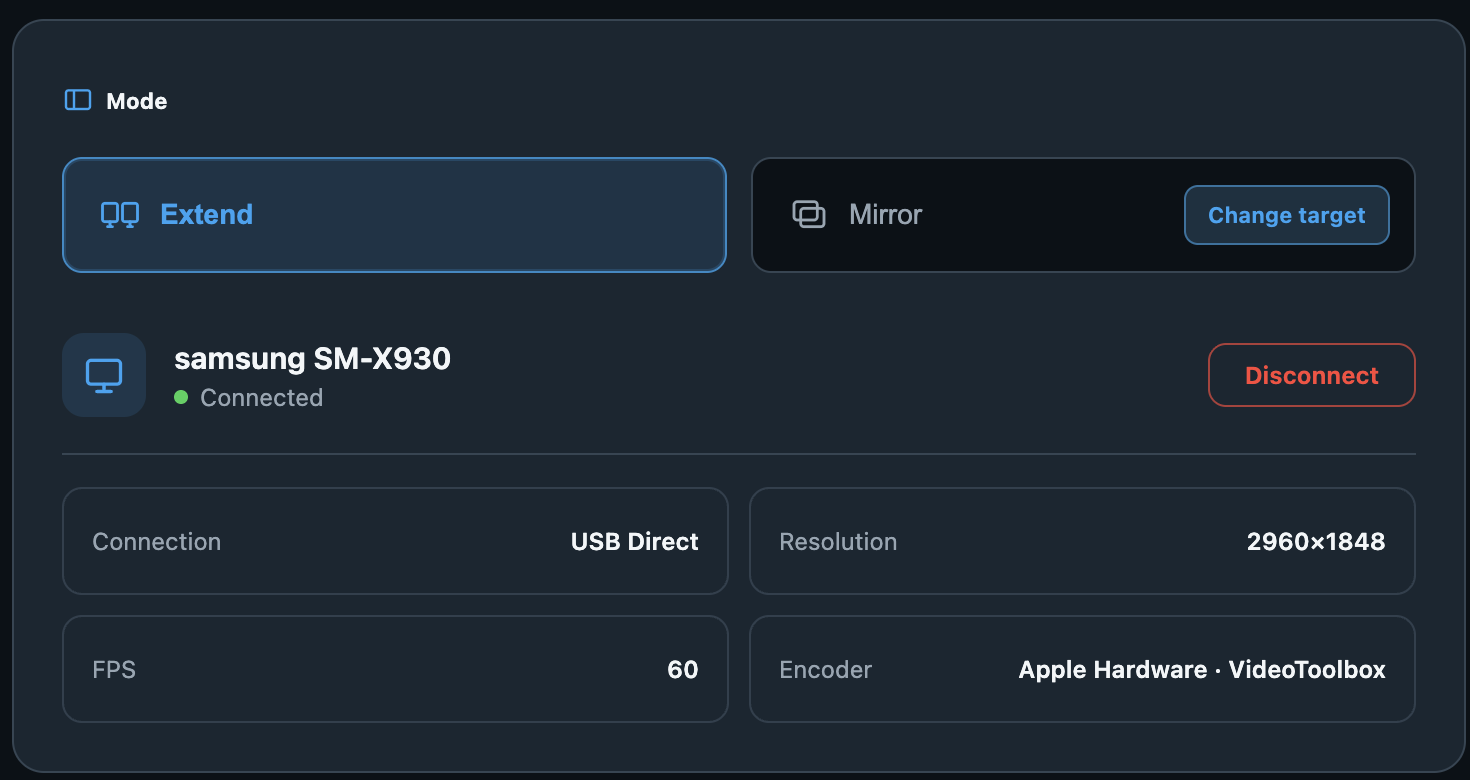
Extend creates a separate workspace: drag windows across the display boundary. Mirror sends the selected existing screen. Use Change source to choose a screen or individual window, and check the selection before sharing. An entire screen can include other windows that appear on it.
Extend or mirror · Any Display 1.6.2 - 3
Arrange displays and rotate
Open Display arrangement and match the relative positions to your desk. The pointer crosses the adjoining edges. Display settings opens the operating system’s display settings. Auto Rotate follows the mobile device’s orientation for the extended display; mirroring follows the source aspect ratio.
- 4
Resolution and frame rate
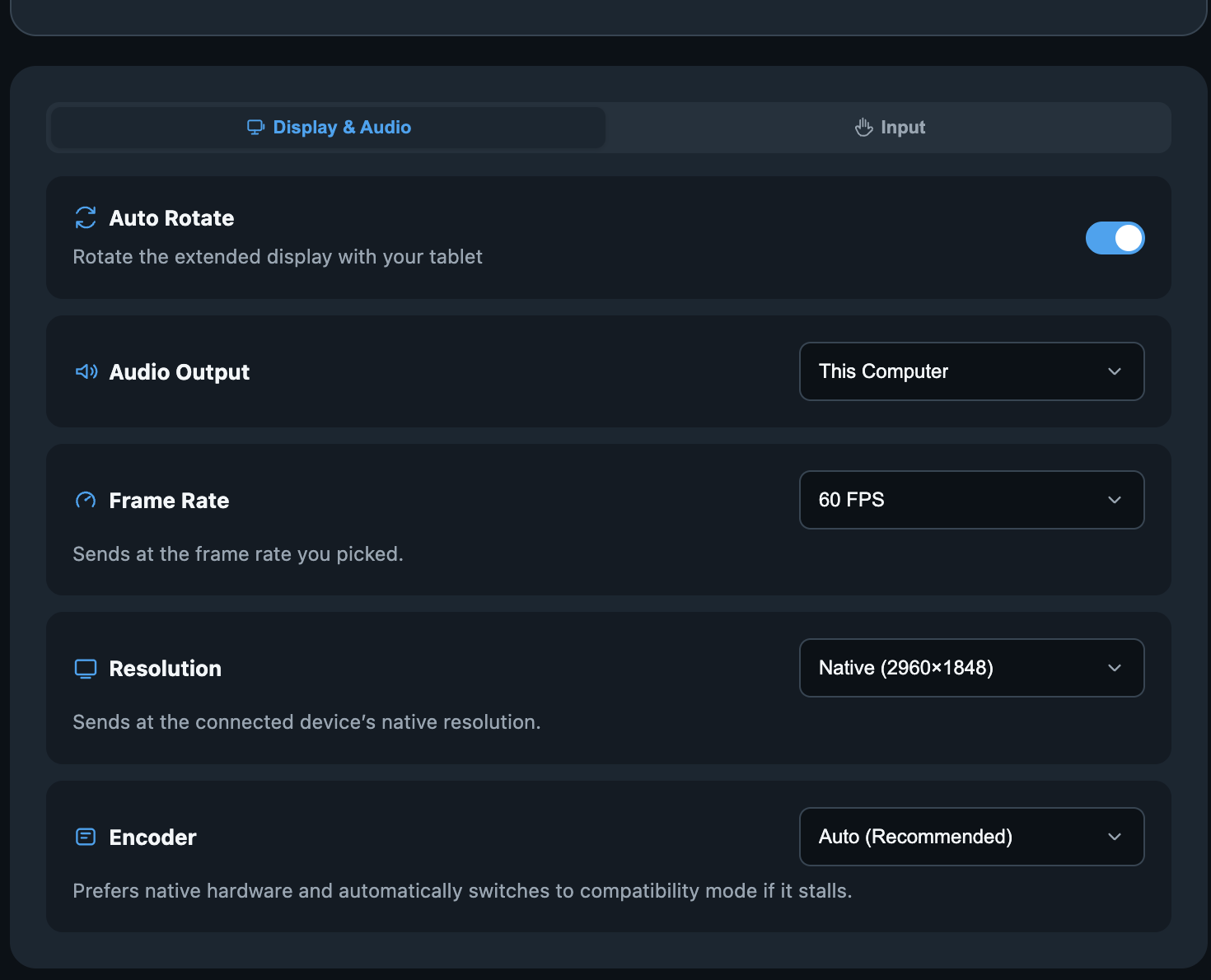
Choose resolution and frame rate in the connected display controls. Higher resolution makes text sharper but increases processing and transmission load. Auto frame rate adapts between 60, 45 and 30 FPS; a fixed selection uses that rate. Lower resolution or frame rate if motion stutters.
Choose an encoder: The encoder turns the computer screen into video for transmission. Auto (Recommended) prefers native hardware and falls back to compatibility mode if needed. Native Hardware and Compatibility (WebCodecs) can also be selected directly. Check the encoder named on the connection card. This is separate from the video decoder used for viewing a phone screen.
Resolution and frame rate · Any Display 1.6.2 - 5
Sound output
Under Display & Sound, select This Computer or Connected Device. The latter sends computer audio to the connected device. If silent, check the selected destination, both volume controls and the audio status message.
- 6
Touch modes and gestures
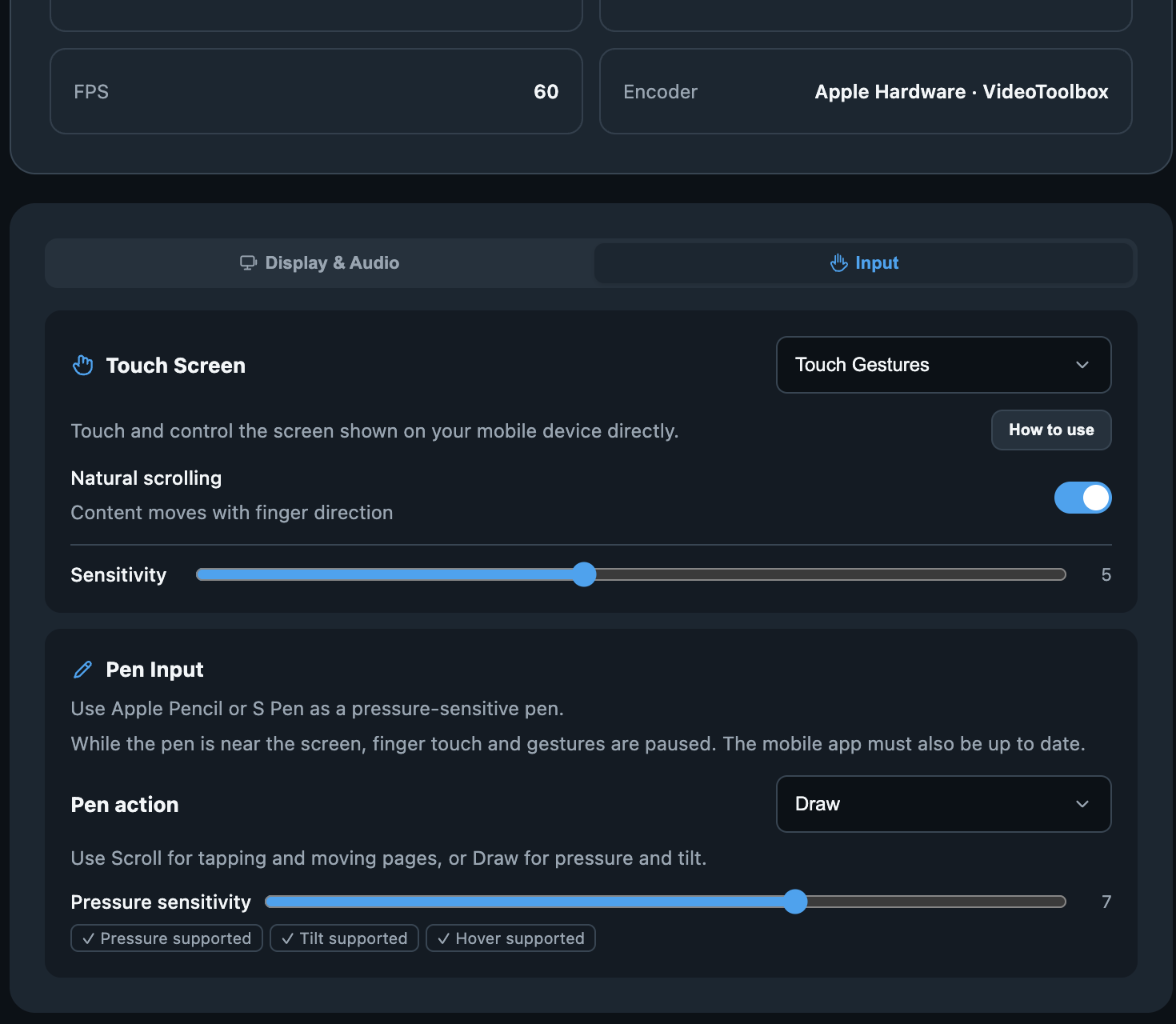
Touch Gestures controls the displayed screen directly: tap clicks, double-tap double-clicks, one-finger drag scrolls, double-tap and drag moves an item or selects text, and pinch zooms. Trackpad moves the pointer across all computer screens: one-finger drag moves the pointer and two-finger drag scrolls. Open the controls help for the selected mode. Natural scrolling changes scroll direction; sensitivity adjusts the amount from 1 to 10.
Touch modes and gestures · Any Display 1.6.2 - 7
Pen input
Use a supported Apple Pencil or S Pen for pressure input. On Mac, choose scrolling or drawing under Pen interaction and adjust pressure sensitivity. Finger gestures pause while the pen is near the screen to reduce palm input. On Windows, check Windows Ink in your drawing app. Read the connected pen status for actual device capabilities.
- 8
Another computer and disconnecting
The PC · Mac area can use another computer as your monitor: open Any Display there, select it and accept the request on that computer. To view its existing screen instead, use Another computer. Disconnect when finished. Check network/cable and device authorization for discovery issues, Screen Recording for black output, and Accessibility for missing input.