How to Use Your iPad as a Drawing Tablet for Mac or Windows
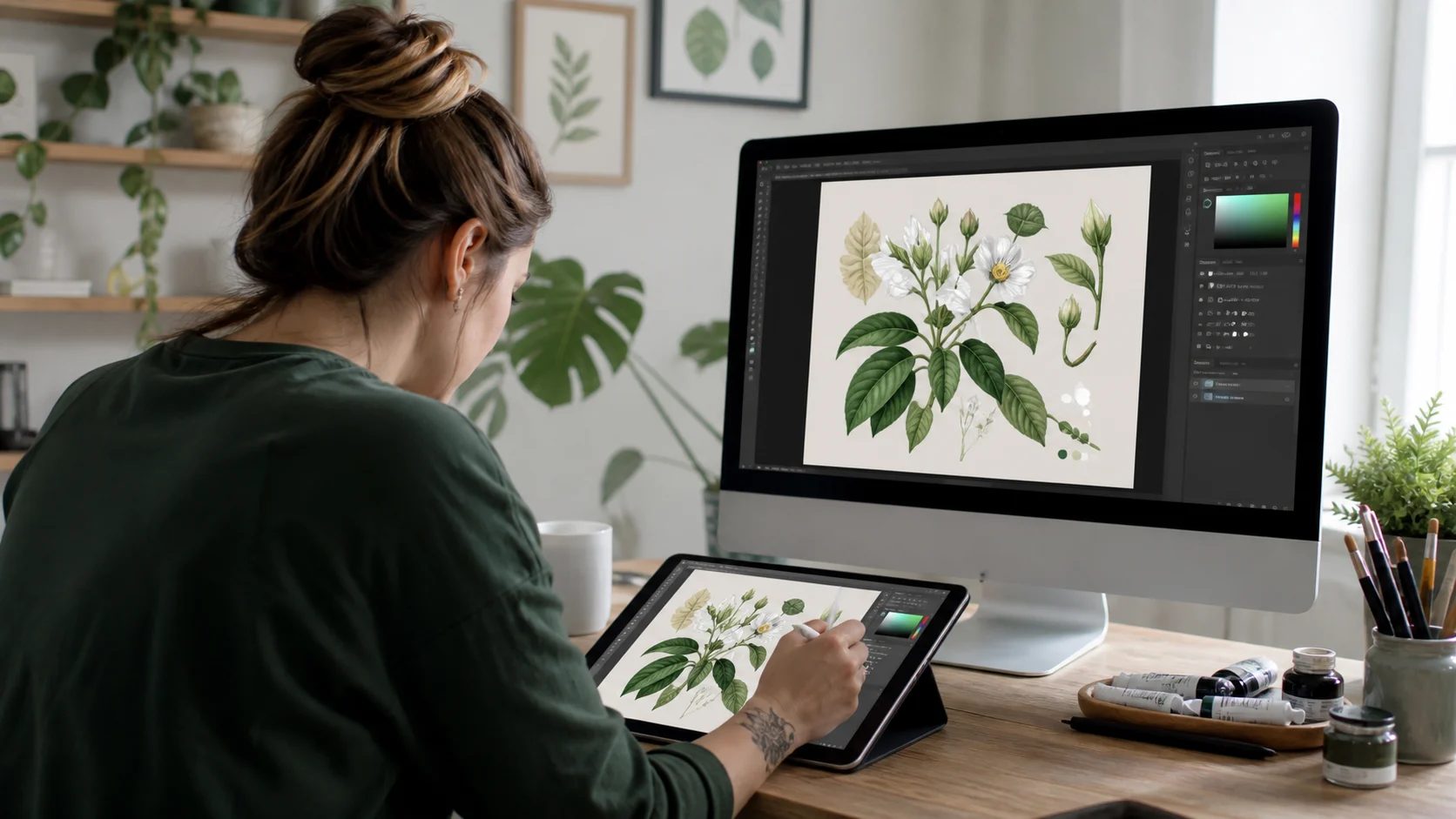
If you already own an iPad and an Apple Pencil, you do not need to buy a pen display. Turn on pen input in Any Display and the iPad becomes a pen tablet for your Mac or Windows PC, passing pressure and tilt straight into the drawing apps installed on the computer. The screen is streamed to the iPad over WebRTC while pen coordinates travel back on a separate data channel, so you draw directly on top of what you see. Android tablets and the S Pen work the same way — and barrel-button and eraser support is actually better there.
- 1
1. Install Any Display on the computer and the tablet
Install the Any Display desktop app on macOS or Windows, and install Any Display from the App Store on the iPad. Pen input only works when both apps are up to date, so update both if you were already using them.
- 2
2. Connect over Wi-Fi or USB
On the same Wi-Fi network the tablet app finds the computer automatically. For drawing, where stroke response matters, a USB cable is the steadier choice. Connecting an iPad over USB on Windows requires the Apple Devices app from the Microsoft Store.
- 3
3. Turn on pen input in the desktop app
Open the desktop app's settings and enable Pen Input. Bring the Apple Pencil near the iPad while connected and the status changes from Ready to Active, with badges showing which of pressure, tilt and hover this particular combination can actually deliver.
- 4
4. On Windows, switch your drawing app to Windows Ink
Any Display injects pen input through Windows Ink (WM_POINTER). In apps that let you pick an input method — Photoshop, Clip Studio Paint and others — select Windows Ink mode. Left on WinTab, the app will not see the pen at all. No equivalent setting is needed on macOS.
- 5
5. Dial in pressure sensitivity
Use the Pressure sensitivity slider in the desktop app to shape the curve from 1 to 10. Lower values reach a thick stroke with a light touch; higher values require you to press harder. Draw a few test strokes with your usual brush and adjust from there.
How to Use Your iPad as a Drawing Tablet for Mac or Windows
- Does Apple Pencil pressure come through?
- Yes. Pressure, tilt and azimuth are all transmitted, so stroke width and opacity respond to how hard you press. Sensitivity is adjustable across ten steps in the desktop app. Hover works on M2 iPads or later paired with Apple Pencil 2. Check which Apple Pencil you have: the Pencil Pro, 2nd generation and 1st generation support pressure, while the USB-C model does not.
- Does this work with an Android tablet and S Pen?
- Yes, and the Android side supports more. Pressing the S Pen button performs a right-click, and flipping the pen switches to the eraser. The Apple Pencil exposes neither its barrel-button state nor an eraser tool type to apps, so those two features are unavailable on iPad.
- Can it replace a dedicated tablet like a Wacom?
- For sketching, roughs, note-taking, signing and photo retouching — anything where you draw while watching the screen — it covers the job, and it costs nothing extra because you use the tablet you already own.. the screen arrives over a wireless stream, so if you are sensitive to per-stroke latency, use USB or keep a dedicated pen display alongside it.
- My drawing app treats the pen as a mouse
- On Windows the app's input method is most likely still set to WinTab. Switch it to Windows Ink mode in the app's settings. If that does not help, confirm pen input is enabled in the desktop app and that both apps are on the latest version.
- Will my hand resting on the screen ruin the stroke?
- No. While the pen is near the screen, finger touch and gestures pause automatically, so you can rest your hand on the iPad and the cursor will not jump.