Mobile webcam
Use a mobile camera as your computer’s webcam. Select the source and lens, adjust picture quality and orientation, then choose AnyDisplay Camera in your meeting or recording app.
- 1
Select the device
Open Mobile webcam and choose Device. A USB-connected Android device can also work without its mobile app when the computer’s instructions offer that route. For app-based connections, choose camera sharing on the device and allow camera access. Confirm the selected device name.
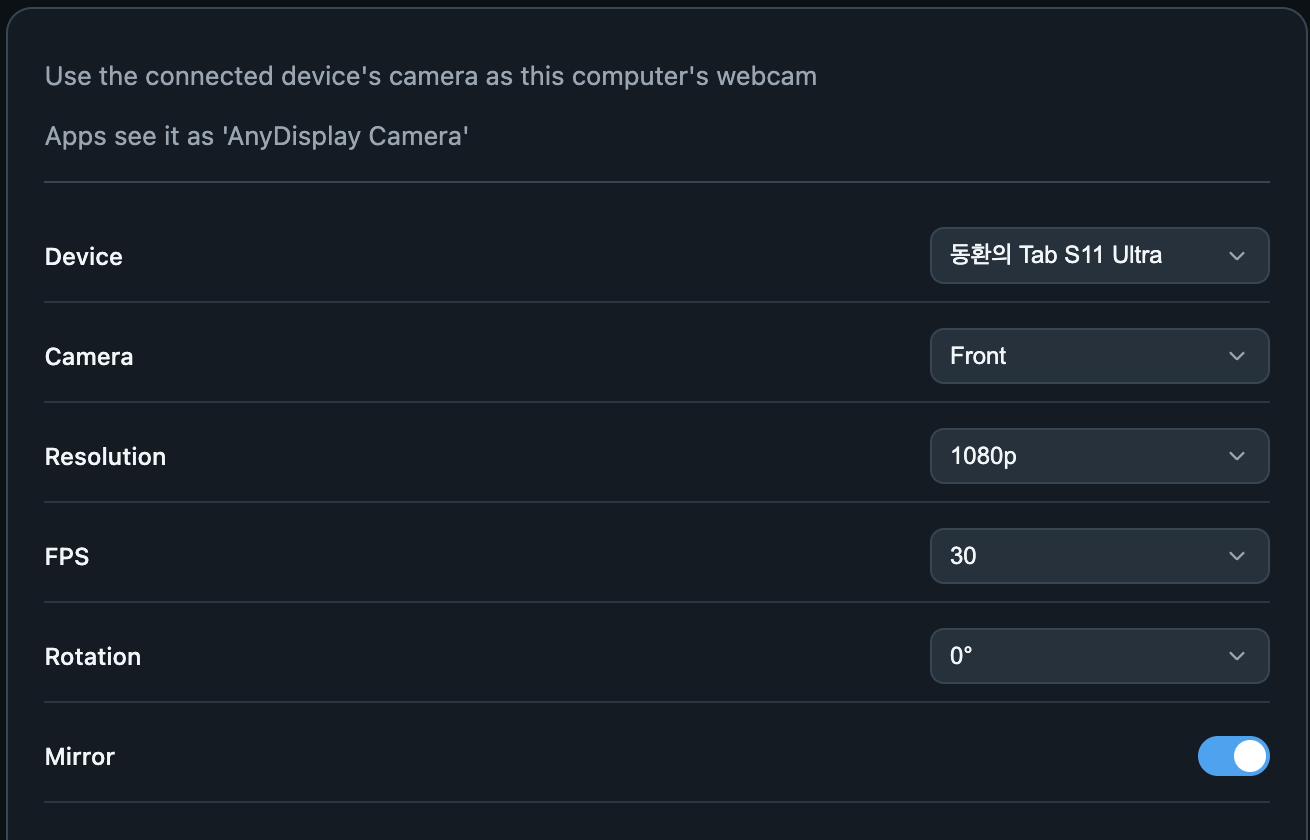
Select the device · Any Display 1.6.2 - 2
Prepare the virtual camera
Follow the virtual-camera setup prompt if shown. Other apps receive the video through AnyDisplay Camera. Seeing a preview here does not automatically select that camera in your meeting app.
- 3
Lens, resolution and FPS
Choose the available front or rear camera. Resolution controls detail; higher values increase processing and transfer load. FPS controls motion smoothness. Options depend on the selected device and lens. If unstable, lower resolution or FPS and compare.
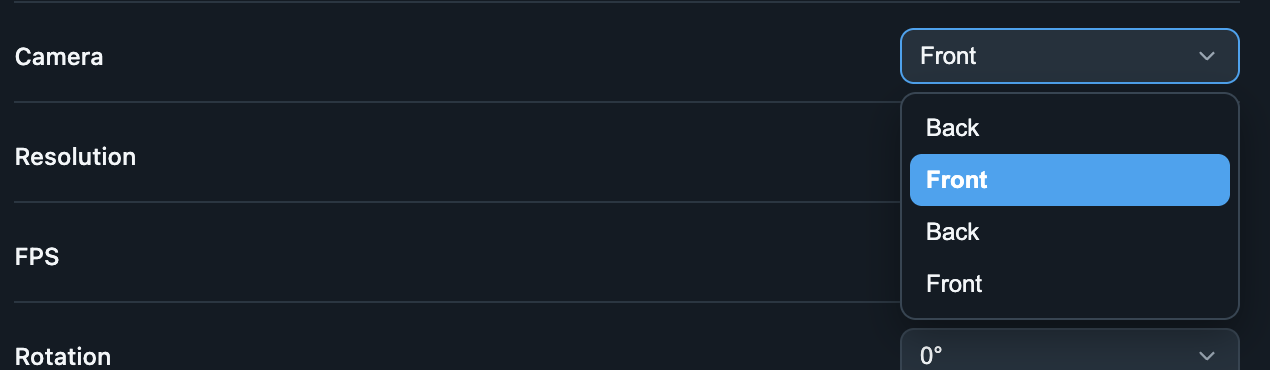
Lens, resolution and FPS · Any Display 1.6.2 - 4
Rotation and mirroring
Set Rotation for the device’s mounting direction. Mirror reverses left and right. For documents, check that text reads correctly in the receiving app as well; that app may apply its own preview mirroring.
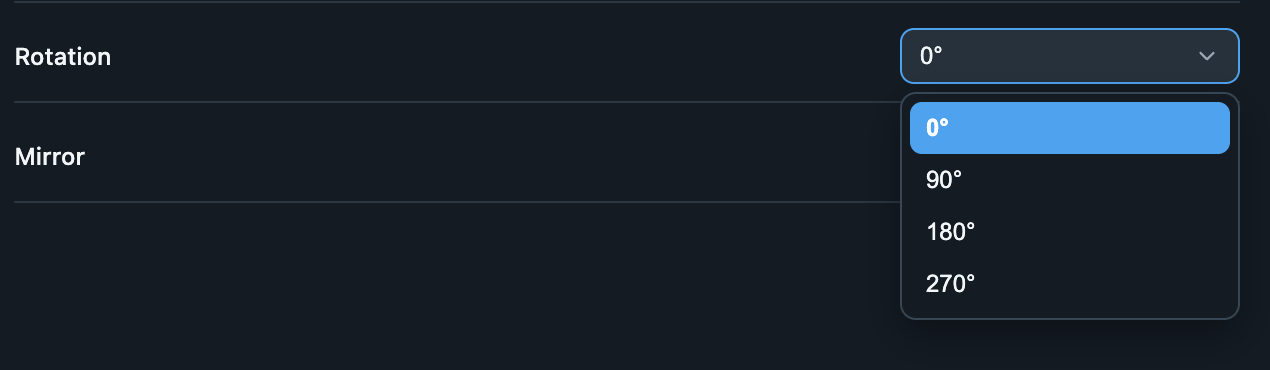
Rotation and mirroring · Any Display 1.6.2 - 5
Preview, start and stop
Preview controls the image shown inside Any Display. Start webcam begins transmission. Hiding Preview is different from stopping the camera; use Stop webcam when finished. Check the camera status after starting.
- 6
Use in another app
Choose AnyDisplay Camera in the receiving app’s video settings. Reopen that app if its camera list is stale. Select the microphone separately in its audio settings. Check framing, orientation and actual video before beginning a call or recording.