Another computer
View another Mac or Windows computer in a window and operate it with your keyboard and mouse. Follow the request, approval and connection controls on both computers.
- 1
Prepare and select a computer
Open Any Display on both computers on the same network. On the viewing computer, open Another computer, select the discovered machine and choose View screen. To send your own workspace as an extended display, use Extend & mirror instead.
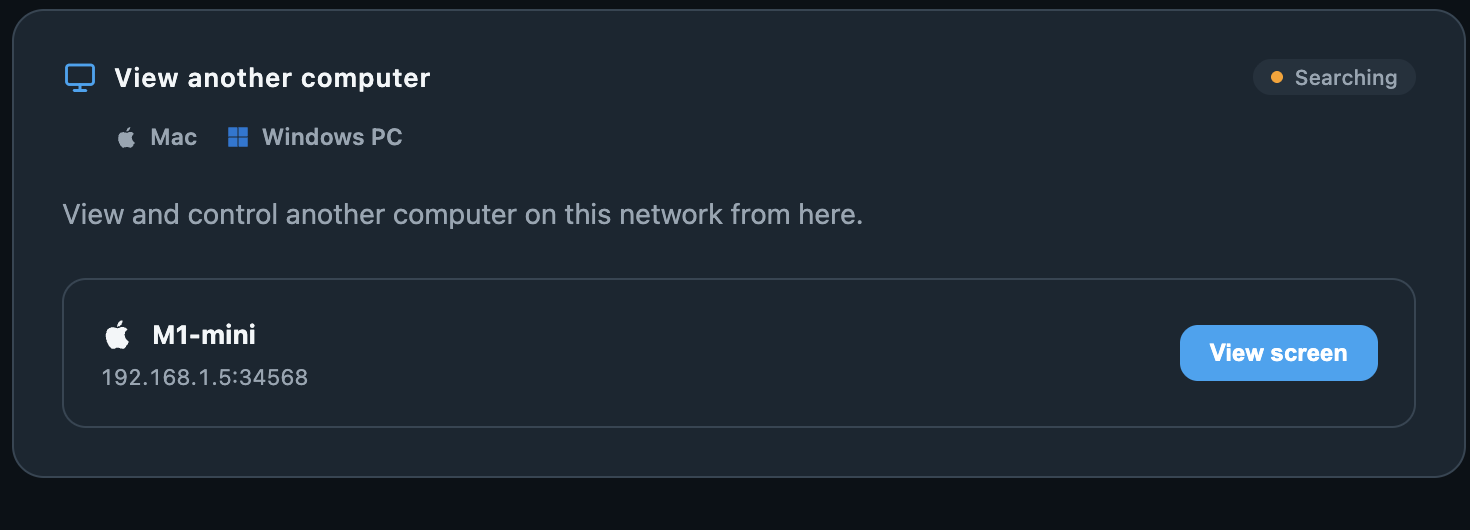
Prepare and select a computer · Any Display 1.6.2 - 2
Accept the request
The other computer receives a screen-viewing request. Accept allows this connection; Decline cancels it. Always allow this device remembers permission for later requests, while Ignore requests from this device changes future request handling. Verify the requesting computer before saving a choice.
- 3
View and control
The remote screen opens in a window you can close. Use the mouse and keyboard inside that window. The sending computer shows that another computer is controlling it. On Mac, check Accessibility permission if video works but input does not.
- 4
Connection status
Connecting, waiting for the screen and streaming states show progress. Check the peer name and elapsed time to identify the current session. A busy computer may need its existing session closed first. If a display configuration change ends the session, reconnect after the new arrangement is ready.
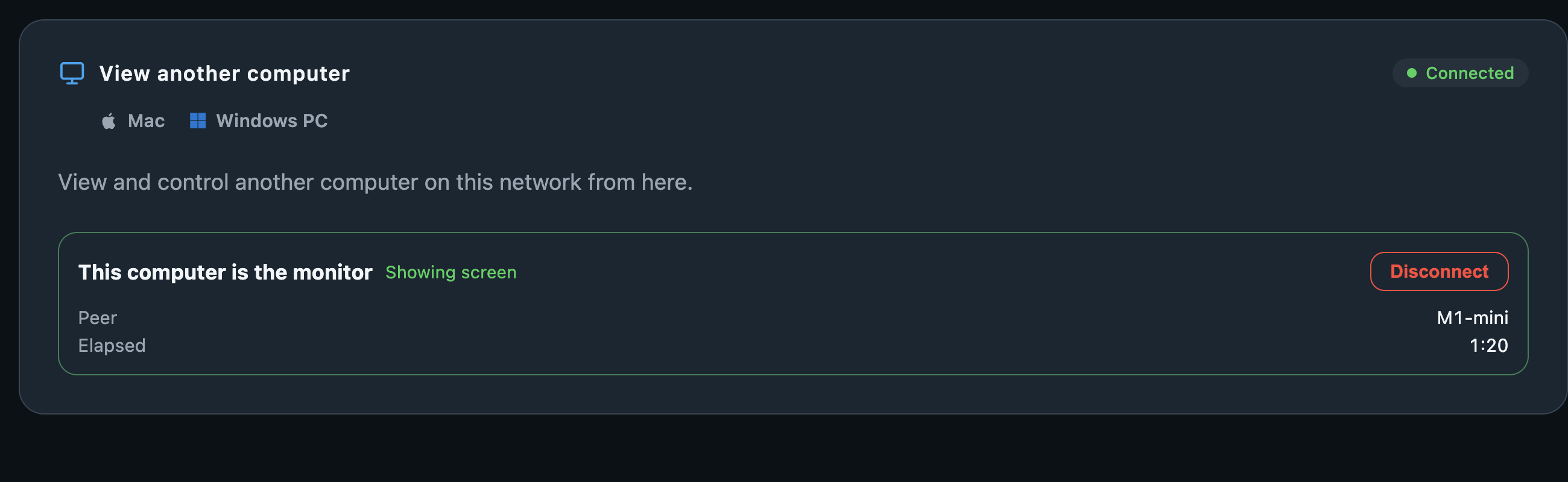
Connection status · Any Display 1.6.2 - 5
Disconnect and manage permission
Use Disconnect on either computer. Open Settings → Manage connection permissions to change remembered allow/ignore decisions. If you only need to move your keyboard and mouse between computers while using their own monitors, choose Keyboard & mouse sharing.