Wireless Second Monitor App for iPad and Android
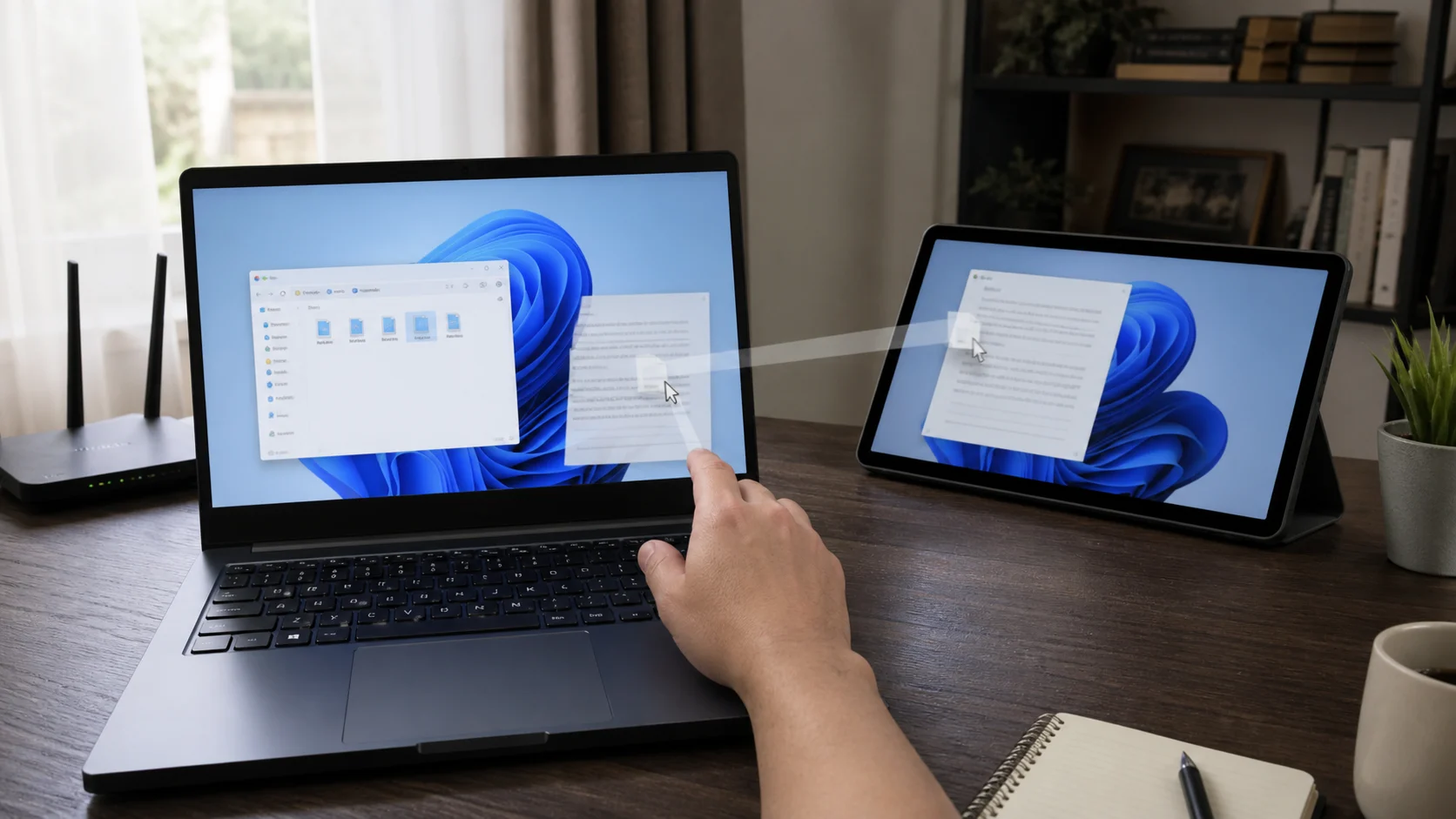
Any Display is a wireless second monitor app that turns your iPad or Android tablet into a second screen for Mac and Windows over Wi-Fi. No cables and no extra hardware required.
- 1
Install the apps on both devices
Install the server app on your Mac or Windows PC, and the client app on your iPad or Android tablet. No extra hardware needed.
- 2
Join the same Wi-Fi network
Connect both your computer and tablet to the same Wi-Fi network. Any Display finds them automatically and lists them for you.
- 3
Pick your PC on the tablet
Tap the discovered PC in the tablet app to connect instantly. No IP addresses to type and no pairing codes.
- 4
Choose Extend or Mirror
Pick Extend mode to widen your workspace, or Mirror mode to show the same screen. You can also control the tablet by touch.
- 5
Stabilize your Wi-Fi
Use the 5GHz band and stay close to the router to cut latency. If you need even lower latency, switch to a direct USB connection.
Wireless Second Monitor App for iPad and Android
- Is there a lot of lag over wireless?
- Any Display uses low-latency WebRTC H.264 streaming that stays smooth for everyday work. For the lowest latency, switch to a direct USB connection.
- Is it really free?
- Yes, to start. Every install includes a 3-day free trial of all Premium features with no payment details. To keep using it, pay once in the Any Display app on your computer for a Basic, Pro, or Premium lifetime license; your tablet needs no separate purchase.
- What if it won't connect?
- Make sure both the PC and tablet are on the same Wi-Fi network. Firewalls or guest networks can block discovery. If it still fails, try connecting over USB.
- Do I need any cables or extra gear?
- Nothing is required for wireless — just Wi-Fi. Use a cable only if you want a direct USB connection for lower latency.
- Which operating systems are supported?
- The server runs on macOS (arm64 and x64) and Windows. The client runs on iPadOS and Android.