How to Use Your iPad as a Second Monitor for Mac
Any Display turns an iPad into an extended or mirrored Mac display over Wi-Fi or USB, without requiring matching iCloud accounts or Sidecar-compatible hardware.
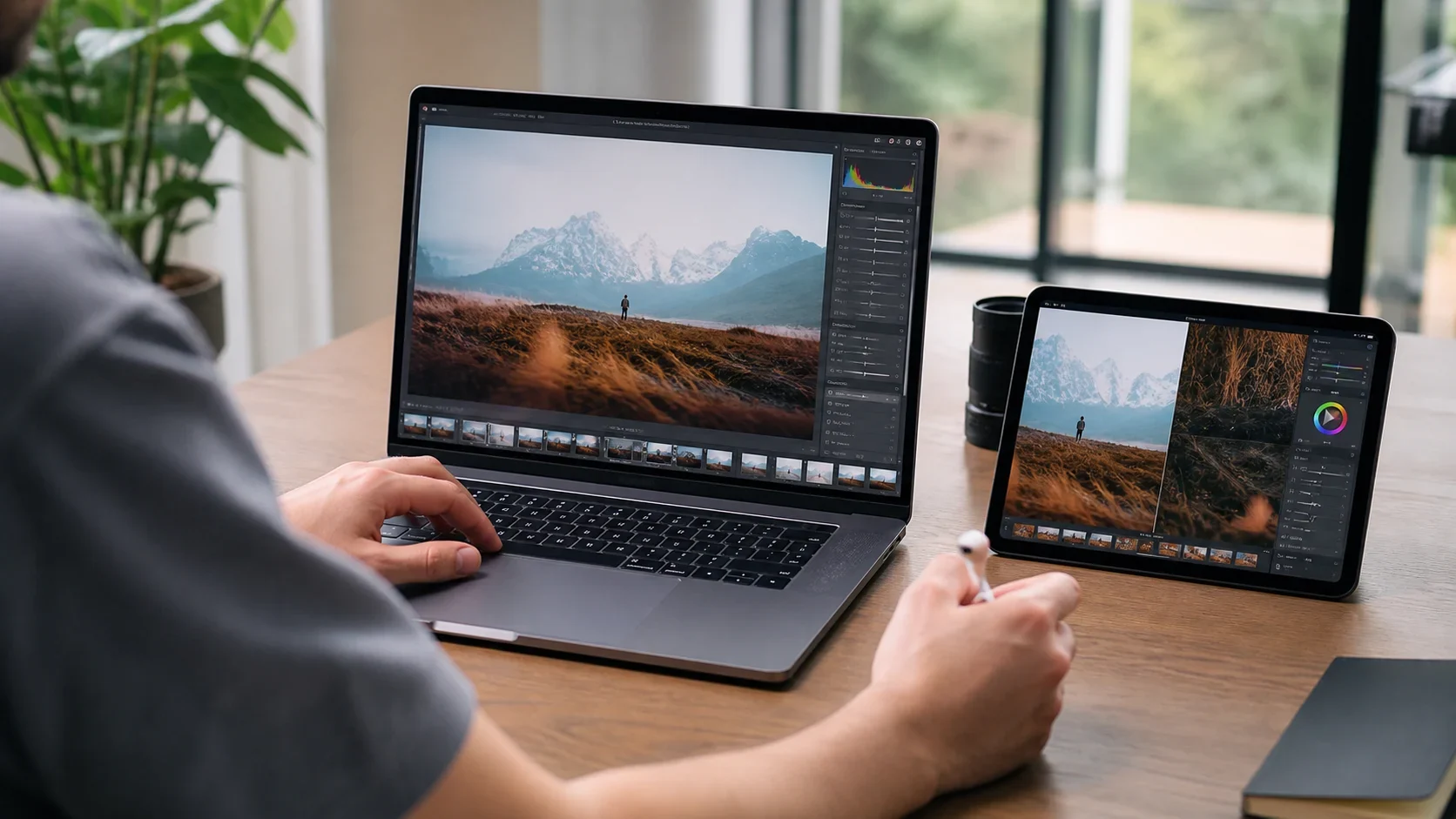
Running out of screen space? Turn the iPad on your desk into a second display for your Mac. Apple's Sidecar only works smoothly on certain devices, but Any Display runs on both Intel and Apple Silicon Macs and lets you connect over Wi-Fi or with a direct USB cable for even lower latency. No extra hardware needed. Just follow the steps below and you'll be set up in minutes.
- 1
1. Install the Any Display server on your Mac
Download and launch the Any Display app (server) on your Mac. Builds are available for both Apple Silicon (arm64) and Intel (x64), so pick the one that matches your Mac. On first launch, grant screen recording permission.
- 2
2. Install the Any Display app on your iPad
Get the Any Display app for iPad from the App Store and open it. As long as your Mac and iPad are both on and connected to the same network, you're ready for the next step.
- 3
3. Connect over Wi-Fi or USB
If both devices are on the same Wi-Fi, just tap your Mac when it appears in the iPad app to connect automatically. Want the lowest latency? Plug your iPad into your Mac with a cable. A direct USB link is fast and stable regardless of network conditions.
- 4
4. Choose extend or mirror
Once connected, your iPad is recognized as an additional screen for your Mac. Pick extend mode to gain more workspace, or mirror mode to show the same screen. Drag a window toward the iPad and start using it right away.
- 5
5. Adjust resolution and arrangement
In System Settings > Displays on your Mac, arrange the iPad screen's position so your cursor moves naturally between displays. HiDPI support keeps text and icons crisp.
How to Use Your iPad as a Second Monitor for Mac
- Does it work on Intel Macs?
- Yes. Any Display supports both Intel (x64) and Apple Silicon (arm64) Macs, so you can use your iPad as a second monitor even on older Macs where Sidecar is limited.
- How much latency is there?
- It uses low-latency streaming based on WebRTC H.264. Wi-Fi feels smooth for most work, and if you need faster response you can connect over USB to cut latency even further.
- Is it free?
- Yes, to start. Every install includes a 3-day free trial of all Premium features with no payment details. To keep using it, pay once in the Any Display app on your computer for a Basic, Pro, or Premium lifetime license; your tablet needs no separate purchase.
- Do I have to connect with USB?
- No. If both devices are on the same network, Wi-Fi is all you need. USB is an option when you want the lowest latency and the most stable connection.
- Which operating systems are supported?
- The server runs on macOS (Intel and Apple Silicon) and Windows, while the client is an iPadOS or Android tablet. This guide focuses on the Mac and iPad combination.
- Can I control my Mac by touching the iPad?
- Yes. Touching the iPad screen sends input back to your Mac, so you can interact with the screen directly.