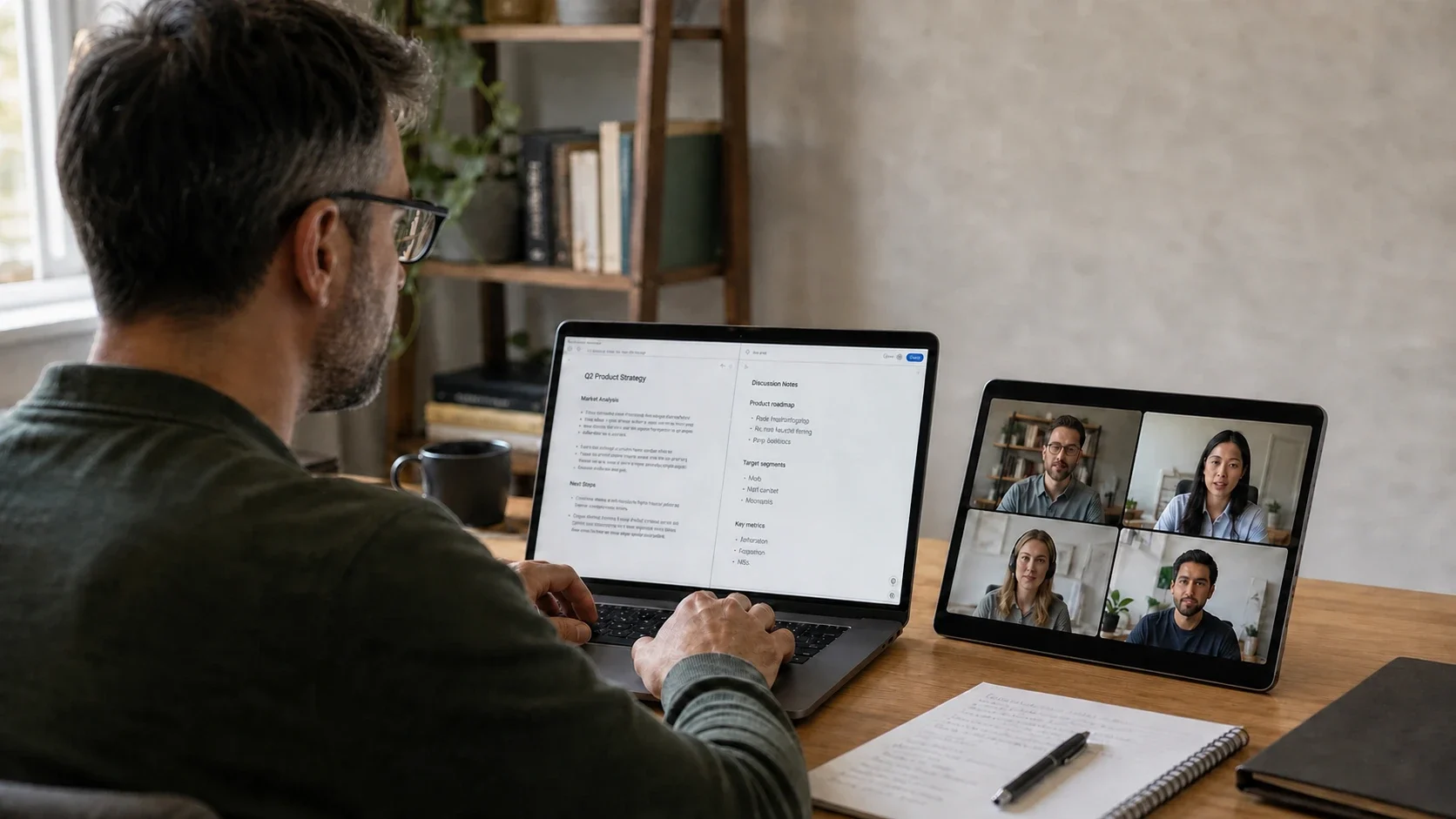
Use an Android Tablet as a Second Monitor for Windows or Mac
Any Display product team·
Install the Any Display second monitor app on a Windows PC or Mac and an Android tablet or Galaxy Tab. Connect over Wi-Fi or USB, then use the tablet as an extended or mirrored display with touch input.
Reuse an Android tablet or Galaxy Tab as a second screen instead of buying another monitor. Any Display connects to Windows or Mac over Wi-Fi or USB, supports Extend and Mirror modes, touch input, and optional system-audio forwarding to the tablet. You can test the setup on your actual hardware for free.
Key points
Works with Android tablets and Galaxy Tab models as a second monitor for Windows or Mac.
Choose Wi-Fi for convenience or USB Direct for a fixed 25 Mbps connection and lower, more consistent latency.
Send system audio to the connected tablet so video and sound come from the same device.
Download and run the Any Display server app on your Mac (Apple Silicon or Intel) or Windows. It detects tablets on the same Wi-Fi network.
2
Install the Android app
Get Any Display from Google Play on your Android tablet. Make sure the tablet and PC are on the same network.
3
Connect via Wi-Fi or USB
On the same Wi-Fi, tap your PC in the list to connect. For the lowest latency, plug in a USB cable. USB may require USB debugging enabled.
4
Choose Extend or Mirror
Use Extend mode to grow your workspace or Mirror mode to show the same screen. Touch input on the tablet is supported. Under Audio Output, choose Connected Device when you want the computer's system audio to play from the tablet.
5
Arrange the display in Windows 11
Open Settings > System > Display, identify the tablet, and drag it to match its physical position. Increase scaling if text is too small.
6
Arrange the display in macOS
Open System Settings > Displays > Arrange, place the tablet to the correct side of the Mac, and select a comfortable resolution and scale.
7
Test touch, S Pen, or Apple Pencil
Touch works as general pointer input. Under Input, enable Pen Input and check the live pressure, tilt, and hover capabilities for a supported S Pen or Apple Pencil setup.
8
Troubleshoot discovery in order
Confirm both Wi-Fi names, disable guest-network or AP isolation, allow the desktop app through the firewall, and restart both apps. Use USB Direct to separate a network problem from an app problem.
Use an Android Tablet as a Second Monitor for Windows or Mac
Use an Android Tablet as a Second Monitor for Windows or Mac
When sending audio to the tablet is useful
Audio forwarding is optional. Select Connected Device in the desktop app only when you want the tablet to become the screen and the speaker for that session.
Keep Bluetooth earbuds paired to one device
Pair your earbuds with the tablet once. Listen to the tablet normally, then select Connected Device in Any Display and the PC's system audio reaches the same earbuds through the tablet. You do not have to re-pair or switch the earbuds between the PC and tablet. This forwards audio output only; the earbud microphone is not sent back to the PC.
Follow a tutorial beside your main work
Keep a coding lesson, course, or how-to video on the tablet while your editor stays on the main monitor. The voice and picture both come from the tablet beside you, so the sound does not feel detached from the video.
Move a meeting or presentation to the side
Put a video call, recorded demo, or presentation on the tablet and keep the main display free for notes and documents. Sending audio with the picture makes the tablet behave more like a self-contained side screen.
Use one cable on crowded Wi-Fi
In an office, hotel, or shared network, USB Direct carries the display and audio without depending on local Wi-Fi quality. It is the better choice when consistency matters more than being wireless.
Which Android tablets are supported?
Most modern Android tablets work. Wi-Fi is all you need, and for a direct USB connection you may have to enable USB debugging under Developer options.
How much latency is there?
Any Display uses low-latency WebRTC H.264 streaming. It's fast over Wi-Fi, and if you need even less delay we recommend a direct USB connection.
Is it free?
Yes, to start. Every install includes a 3-day free trial of all Premium features with no payment details. To keep using it, pay once in the Any Display app on your computer for a Basic, Pro, or Premium lifetime license; your tablet needs no separate purchase.
Do I need a USB connection?
No. On the same network, Wi-Fi alone works. USB is optional when you want to reduce latency even further.
Can the tablet play my computer's audio too?
Yes. In the desktop app, set Audio Output to Connected Device. Over Wi-Fi, audio uses the existing WebRTC connection; over USB Direct, it travels through the USB media connection. Audio output is exclusive: while this option is active, sound plays on the tablet instead of simultaneously playing through the computer speakers.
Review basis
Reviewed the current Any Display Windows, macOS, Android, iPad, Wi-Fi, USB Direct, touch, pen-input, and audio-forwarding flows on August 27, 2026. The lifestyle images are generated illustrations of those workflows.
Limitations to know
Connected Device audio replaces computer-speaker output for the session; it does not play on both devices at once.
Protected DRM video may block screen capture and appear black even when ordinary apps and videos display correctly.
USB Direct may require USB debugging on Android. If you prefer not to enable it, use Wi-Fi on the same local network.