How to Use Your iPad as a Second Monitor on Windows
Install Any Display on your Windows PC and iPad to use the tablet as an extended or mirrored second display over Wi-Fi or USB. You can test the iPad you already own before buying a portable monitor.
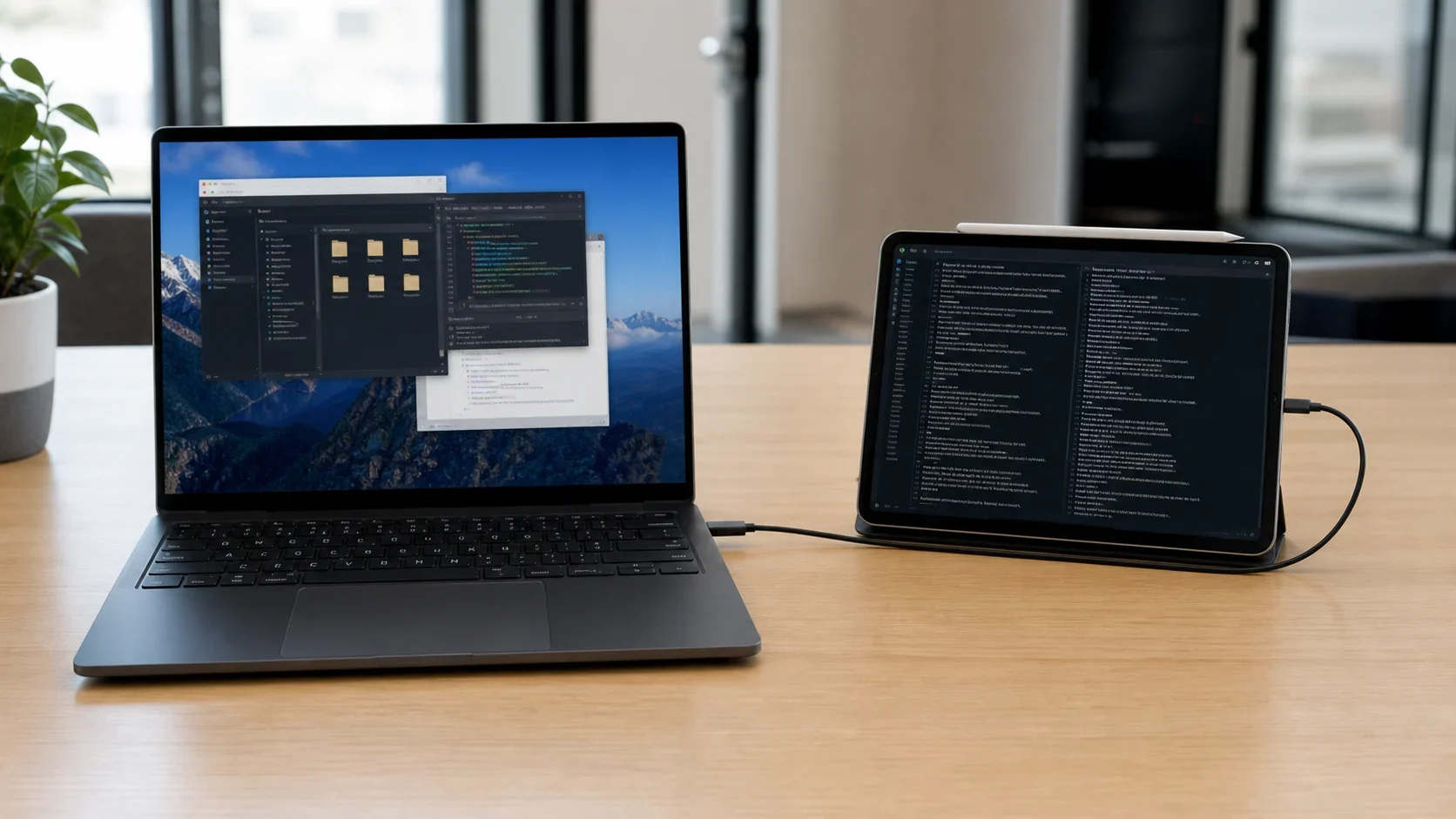
Got an iPad lying around? Put it to work as a second screen for your Windows PC. Any Display creates a virtual display and streams it over WebRTC, so you can add an extra workspace without cable adapters or dedicated hardware. Connect wirelessly over Wi-Fi, or plug in with USB when you want the lowest latency. Try every feature free for 3 days, then choose a yearly or lifetime plan if it fits your setup.
- 1
1. Install the Any Display server on Windows
Download and install the Any Display server app on your Windows PC. Once launched, it runs from the tray and waits for a device on the same network to connect.
- 2
2. Install the Any Display app on iPad
Search for Any Display in the App Store and install it on your iPad. Anything running iPadOS 16 or later is good to go.
- 3
3. Connect over Wi-Fi or USB
Keep your iPad and Windows PC on the same Wi-Fi network and the app discovers the server automatically. For lower latency, connect them directly with a USB cable instead. Just tap your PC in the iPad app to link them.
- 4
4. Switch to extend mode
After connecting, turn on extend mode to make the iPad a fully independent second monitor. Drag windows across, or use mirror mode to show the same screen. You can even control the desktop by touching the iPad directly.
How to Use Your iPad as a Second Monitor on Windows
- Is the latency noticeable?
- Any Display uses low-latency WebRTC H.264 streaming together with a virtual display and jitter optimizations, which keeps it smooth for everyday work. For more instant feedback, such as video editing, connect over USB instead of Wi-Fi.
- What should I do if it won't connect?
- On Wi-Fi, make sure the iPad and PC are on the same network and that AP isolation or a firewall isn't blocking the traffic. If it still fails, a direct USB cable connection works regardless of your network setup.
- Can I use it for free?
- Yes, to start. Every install includes a 3-day free trial of all Premium features with no payment details. To keep using it, choose a yearly or lifetime Basic, Pro, or Premium plan in the Any Display app on your computer; your tablet needs no separate purchase.
- Do I really need a USB cable?
- No. As long as both devices are on the same Wi-Fi, the connection is wireless. USB is simply an option when you want the lowest latency or a more stable link.
- Which operating systems are supported?
- The server runs on Windows and macOS (arm64 and x64), and the client runs on iPadOS and Android tablets. So you can use not only an iPad but also an Android tablet as a second monitor for Windows.