Tablet Display App for a Wireless Second Screen
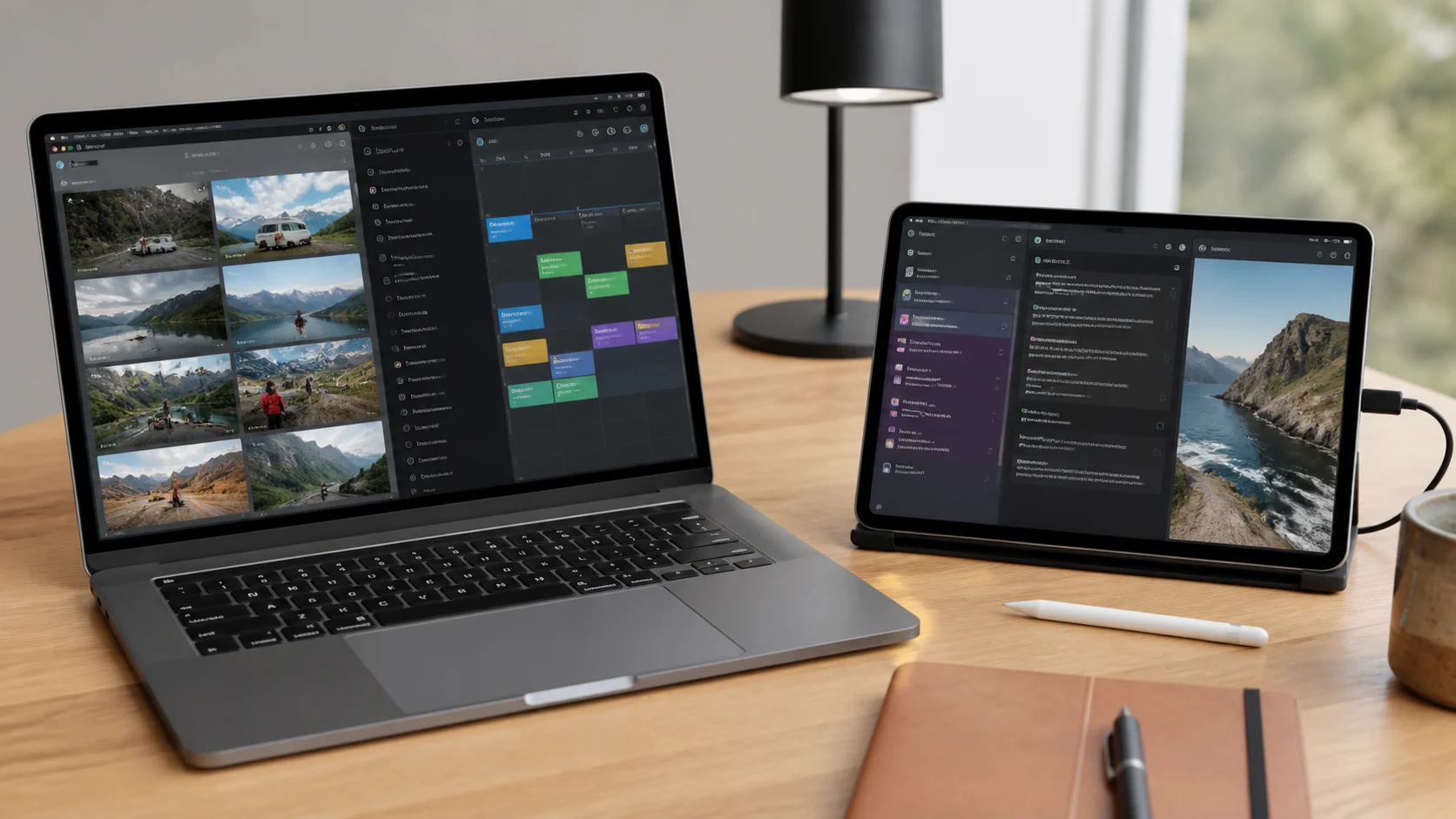
Any Display is a tablet display app that turns an iPad, Galaxy Tab, or Android tablet into a second display for Windows or Mac. Install it on both devices, connect over Wi-Fi or USB, and choose Extend or Mirror with touch input.
Try the tablet you already own before buying a portable monitor. Any Display works across Windows, macOS, iPadOS, and Android, and the 1-day free trial lets you check image quality, responsiveness, and compatibility on your actual devices.
Key points
- Use an iPad, Galaxy Tab, or Android tablet with Windows or Mac
- Connect wirelessly over Wi-Fi or directly over USB
- Test Extend, Mirror, and touch input with the 1-day free trial
- 1
1. Install the desktop app
Install Any Display on Windows 10 or 11, an Intel Mac, or an Apple Silicon Mac.
- 2
2. Install the tablet app
Get Any Display from the App Store for iPad or Google Play for Galaxy Tab and other Android tablets.
- 3
3. Connect over Wi-Fi or USB
Select the computer on the same Wi-Fi network or connect directly over USB. Guest networks and AP isolation can block discovery.
- 4
4. Choose a display mode
Use Extend for a separate workspace or Mirror for the same screen, then adjust position and scaling in the operating system.
Tablet Display App for a Wireless Second Screen
- What does a tablet display app do?
- It sends a computer display to a tablet so the tablet can work as an extended or mirrored screen. Any Display also sends touch input back to the computer.
- Does it work with both iPad and Galaxy Tab?
- Yes. Windows and Mac computers can connect to iPadOS and Android tablets, including Galaxy Tab models that can install the current app.
- Is it wireless only?
- No. Use the same Wi-Fi network for wireless display or connect directly over USB when the network is unreliable.
- Can I test it for free?
- Yes. Use the 1-day free trial to test installation, connection, image quality, and latency on your devices, then pay once for a Basic, Pro, or Premium lifetime license.
Review basis
Reviewed on August 20, 2026 against Any Display's published platform support and connection options.
Limitations to know
- Any Display must be installed on both the computer and the tablet.
- Wireless quality and latency vary with the router, distance, and computer performance.
- It is not a hardware monitor that accepts HDMI from a console or camera.