Try Your Existing Tablet Before Buying a Pen Display
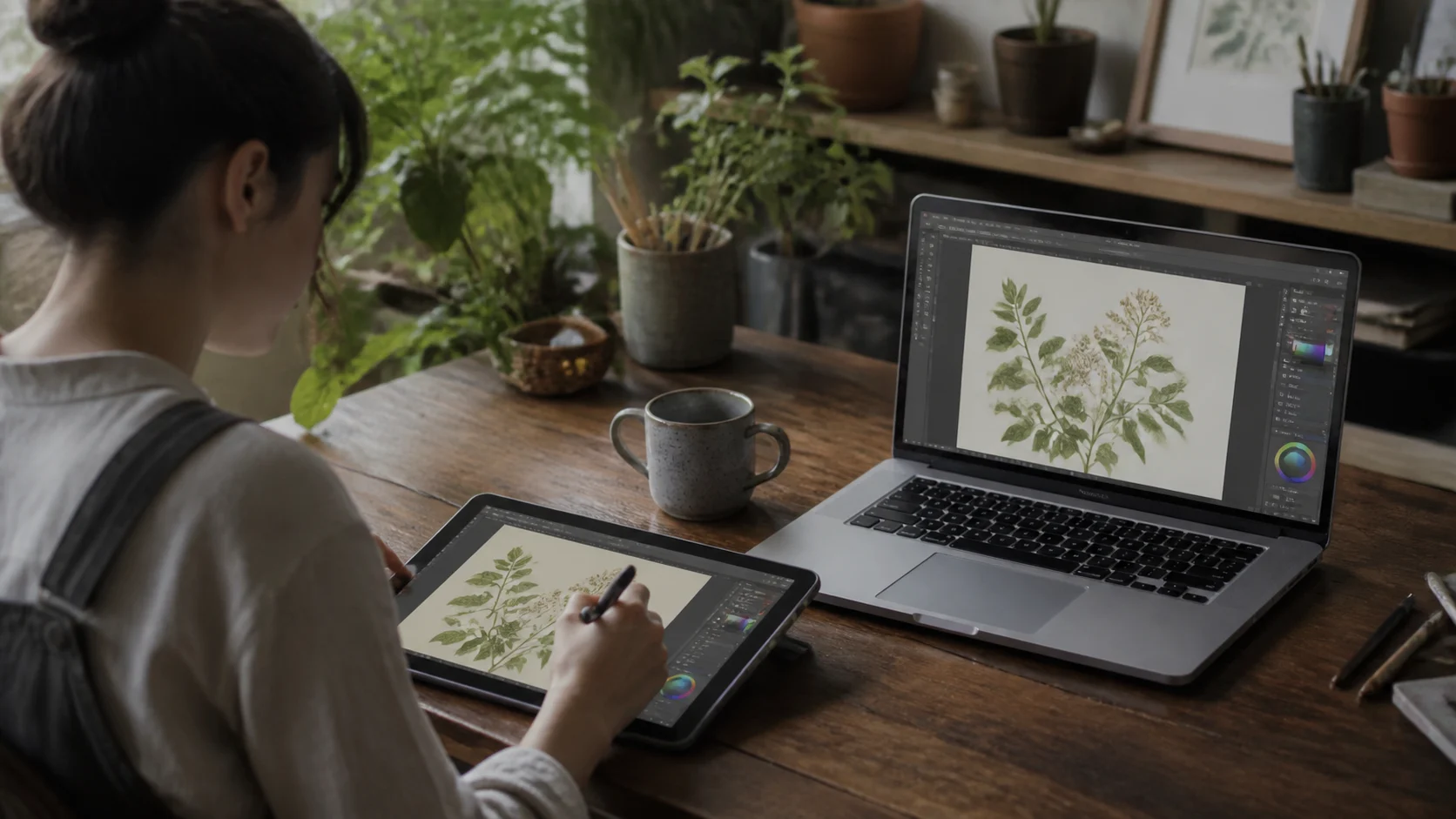
If you already own an iPad with a pressure-sensitive Apple Pencil or an Android tablet with an S Pen, test Any Display Pen Input before buying dedicated hardware. It shows the computer screen on the tablet while sending pen coordinates, pressure, and tilt back to Mac or Windows. Windows drawing apps must use Windows Ink..
Dedicated pen displays remain stronger for calibrated color, surface feel, WinTab workflows, hardware shortcuts, and predictable latency. Reusing a tablet is a lower-cost way to begin sketching, handwriting, signing, or retouching without another screen purchase.
Key points
- Supported Apple Pencil and S Pen models can send pressure and tilt
- Windows uses Windows Ink; direct WinTab input is not supported
- A low-cost use of hardware you own, not a universal replacement for professional pen displays
- 1
1. Check the stylus and tablet
Use a pressure-capable Apple Pencil Pro, 1st generation, 2nd generation, or a compatible Android stylus such as the S Pen. The USB-C Apple Pencil does not support pressure.
- 2
2. Connect the computer and tablet
Connect Mac or Windows to the tablet over Wi-Fi or USB. If a cable is acceptable, USB is the more stable choice for drawing.
- 3
3. Enable Pen Input
Turn on Pen Input in the Any Display desktop settings. The connection badges show whether the current combination supplies pressure, tilt, and hover.
- 4
4. Select Windows Ink
On Windows, set Photoshop, Clip Studio Paint, and other apps with an input-method choice to Windows Ink. WinTab mode may treat the stylus as a mouse or miss it.
- 5
5. Decide with your real workflow
Test lines, pressure, tilt, and palm contact with your usual brush. Use the 1-day free trial before deciding whether dedicated hardware is still necessary.
Try Your Existing Tablet Before Buying a Pen Display
- Does it completely replace a Wacom Cintiq?
- Not for every user. It can reduce cost for learning, hobbies, and secondary work when you already own a tablet. Choose dedicated hardware when calibrated color, WinTab, physical shortcuts, or a specific pen surface is essential.
- Does pressure sensitivity really work?
- Pressure and tilt are forwarded from supported Apple Pencil and Android stylus models. Confirm the live capability badges and test the result in your actual drawing app.
- What should I test first?
- Start with a short sketch, handwriting, a signature, or simple photo retouching. For long professional sessions, also evaluate latency, color, ergonomics, and application compatibility.
Review basis
Reviewed August 8, 2026 against the published capabilities and limits of the Any Display Pen Input. Pen behavior varies by tablet, stylus, and drawing-app settings.
Limitations to know
- The USB-C Apple Pencil does not provide pressure data.
- WinTab-only Windows apps must switch to Windows Ink.
- Color calibration, screen surface, and physical shortcut controls differ from dedicated hardware.
Official sources
- Wacom Cintiq pen displays (2026-08-08)
- XPPen Artist 12 (2nd Gen) (2026-08-08)