Meetings and presentations
Put microphone, audio, web links, and presentation shortcuts into one profile. Use the Teams, Zoom, and PowerPoint plugins to start from familiar actions.
If dedicated button hardware feels like an expensive extra for your desk, put the mobile device you already own to work. Any Display Control Pad is an independently built quick-action workflow with a similar purpose to Stream Deck: arrange buttons, pages, and profiles in the desktop app, then run them from a full-screen pad on your mobile device.
Install the desktop app on a Mac or Windows computer, then install the mobile app on the iPhone, iPad, Android phone, or Android tablet you want to use.
For wireless use, put both devices on the same Wi-Fi network and select the computer in the mobile app. Use a direct USB connection when the network is unreliable or you want the most consistent link.
After connecting, select Control Pad in the mobile app. It sends the button layout and state instead of streaming a desktop screen, so the experience stays focused on quick actions.
The default layout includes previous track, play or pause, next track, microphone, audio, volume, and a web shortcut. Add shortcuts, app launches, URLs, or multi-actions, then create pages and work-specific profiles.
Install ready-made actions for Chrome, Discord, Microsoft Teams, PowerPoint, Spotify, VLC, Visual Studio Code, Zoom, OBS Studio, and window layouts. Check each plugin’s supported actions and operating-system notes before using it.
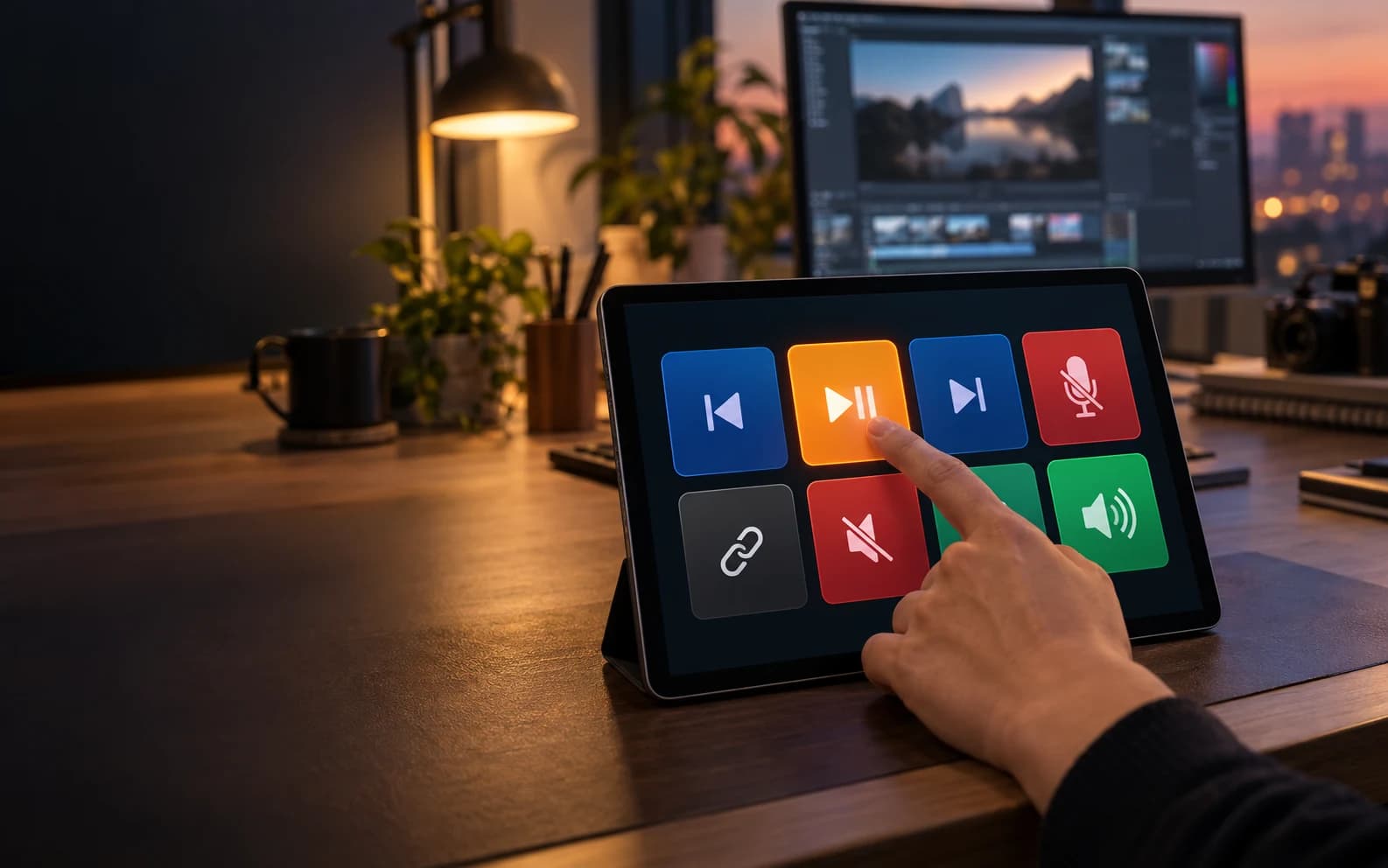
Before buying a dedicated device, test whether the phone or tablet you already carry covers the actions you actually repeat.
Put microphone, audio, web links, and presentation shortcuts into one profile. Use the Teams, Zoom, and PowerPoint plugins to start from familiar actions.
Keep Spotify or VLC playback, previous and next, and volume on large keys so you can control playback without switching windows.
Group Visual Studio Code, Discord, Chrome, and frequent shortcuts in a work profile. The window-layout plugin can place the current window left, right, or into a quadrant.
A profile linked to an app can switch when that app comes to the foreground. Keep a general profile for everyday actions and show app-specific keys only when they matter.
Reviewed September 18, 2026 against Any Display 1.6.0 Control Pad defaults, Wi-Fi and USB connection paths, and the published Plugin Marketplace catalog.