Build your Control Pad buttons on Mac
Put music playback, volume, display brightness and a Copy shortcut on one Any Display panel. Follow real Mac app screenshots to create a profile and set each button’s action, icon and colors. You can prepare the layout before connecting a mobile device.
- 1
Create a profile
Open Any Display on your Mac and choose Control pad on the left. Click the profile name above the preview, choose Add profile and enter a name such as Work & music. You can return to an existing profile from the same menu.
- 2
Choose a button action
Click an empty key to open its editor. Enter a short Label, then choose Shortcut, Open app, Open URL, Type text or Media & volume under Action. The fields below change to match the selected action.
- 3
Set the Copy shortcut
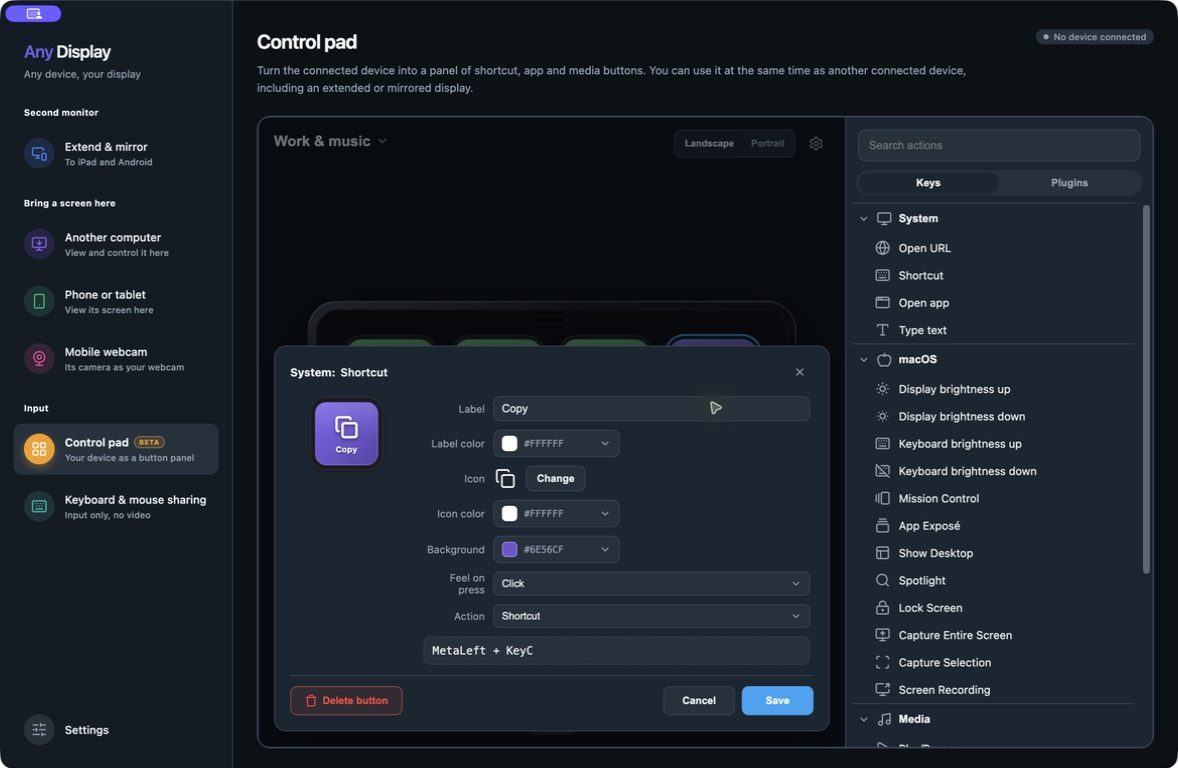
For the purple Copy key, choose Shortcut. Click the key-combination area, press Command and C together, then release them. Check that MetaLeft + KeyC appears. Naming a key Copy does not assign its shortcut: verify the recorded combination too.
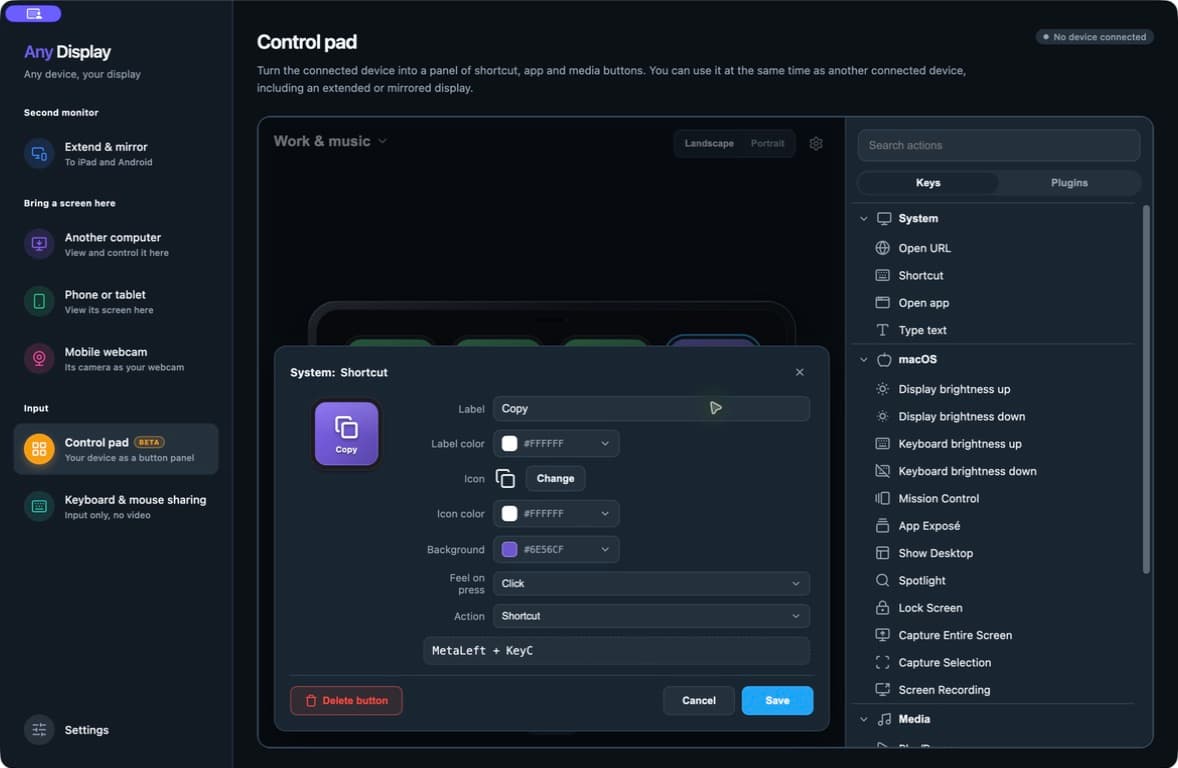
The actual Copy key editor, including the shortcut, icon, text color and background. - 4
Choose an icon and colors
Click Change beside Icon, search the built-in icons for copy and select the overlapping sheets. Use a purple Background with white Icon color and Label color. Give playback keys green backgrounds and transport icons, volume keys blue backgrounds, and brightness keys orange backgrounds. Click Save after editing.
- 5
Add media and brightness controls
Click another empty key and select Media & volume under Action. Under Command, choose Play/Pause, Previous, Next, Volume up/down or Display brightness up/down. Give each key its own label and matching icon, then save it. Brightness controls apply to displays whose brightness the Mac can adjust.
- 6
Review the whole layout
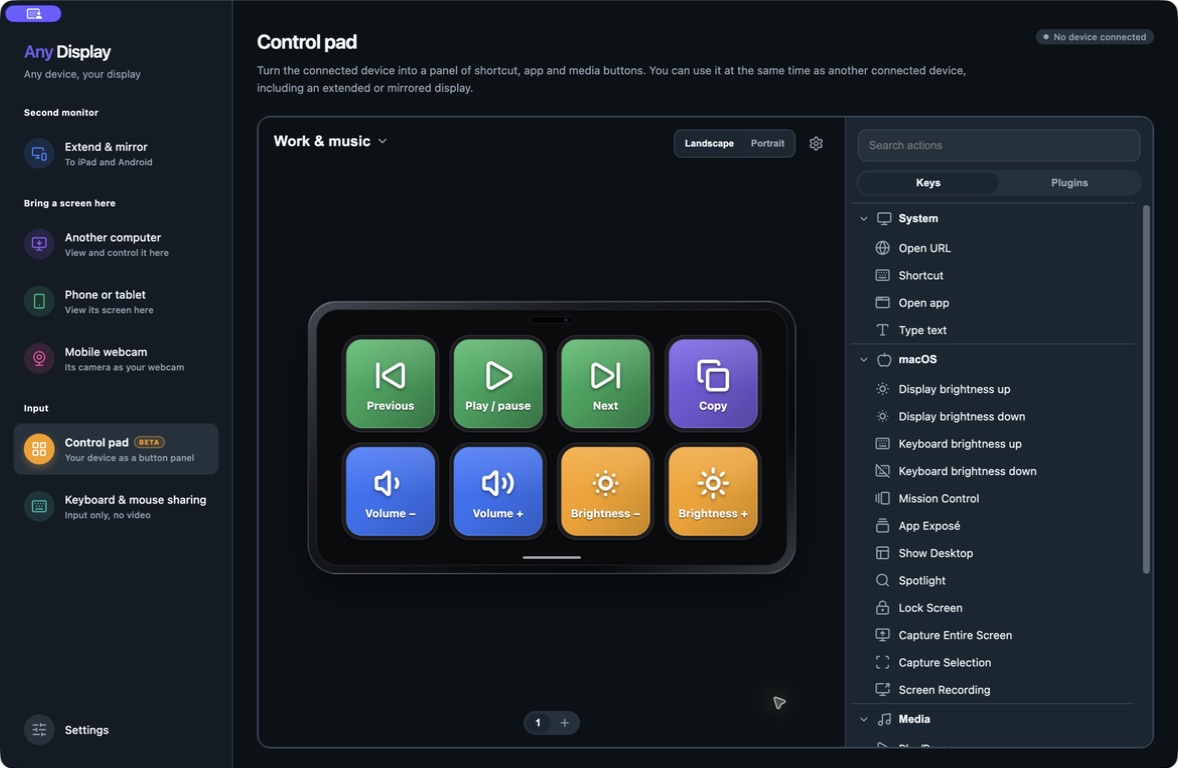
The example puts Previous, Play, Next and Copy in the top row, with volume and brightness pairs below. Check for clipped labels and make sure the icons match their actions. Use Landscape and Portrait to inspect each orientation, and Add page below the preview for more actions. The tablet-shaped area is an editor preview.
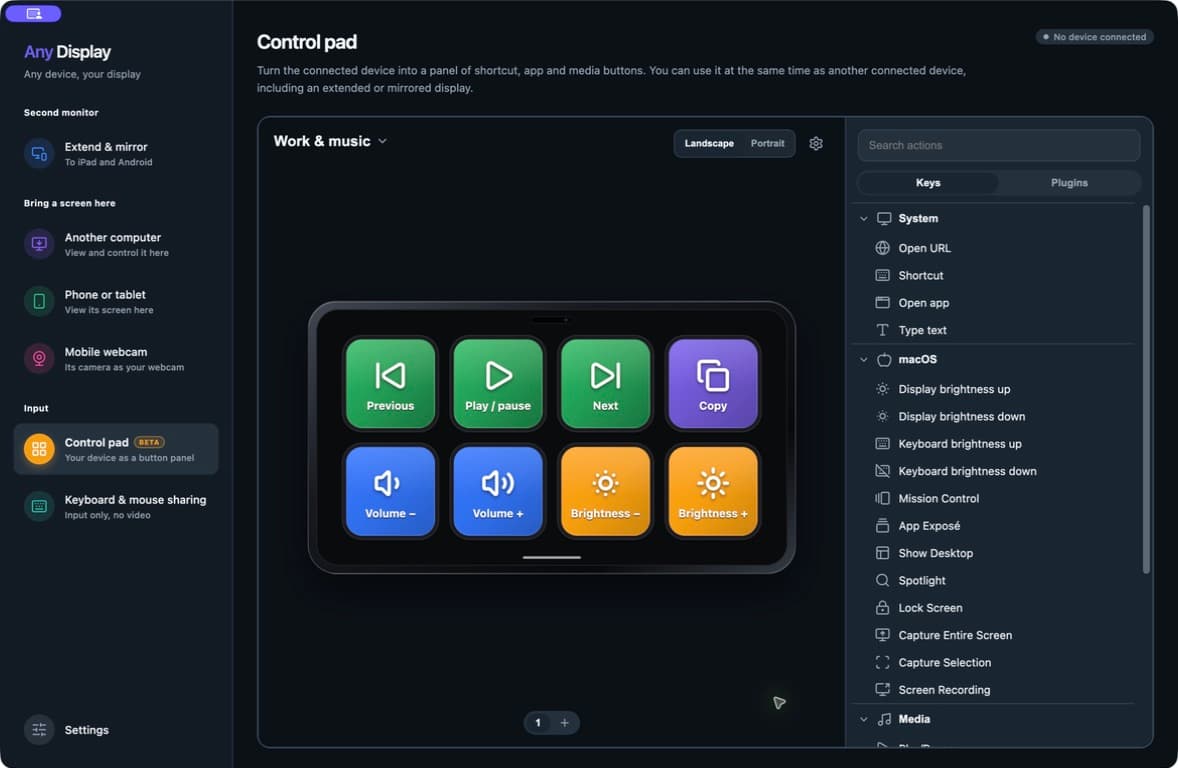
The real English Control Pad editor in Any Display 1.6.2. This eight-button layout was prepared before connecting a mobile device.
- Does changing app language translate my button names?
- The interface changes language, but names and labels you entered stay the same. Use Rename in the profile menu and edit each key’s Label to translate your own layout.