Keyboard & mouse sharing
Use one keyboard and mouse across Mac and Windows computers. Move across a screen edge to switch input, then customize modifier keys, language switching and key mappings.
- 1
Prepare both computers
Open Any Display on the same network. On the computer with your keyboard and mouse, open Keyboard & mouse sharing and select the other computer. Check Accessibility permission on Mac.
- 2
Direction and switching monitor
Choose whether the other computer is left, right, above or below your screen. Match the physical desk arrangement. With multiple monitors, select the Switching monitor: its chosen edge triggers the switch, not every display edge.
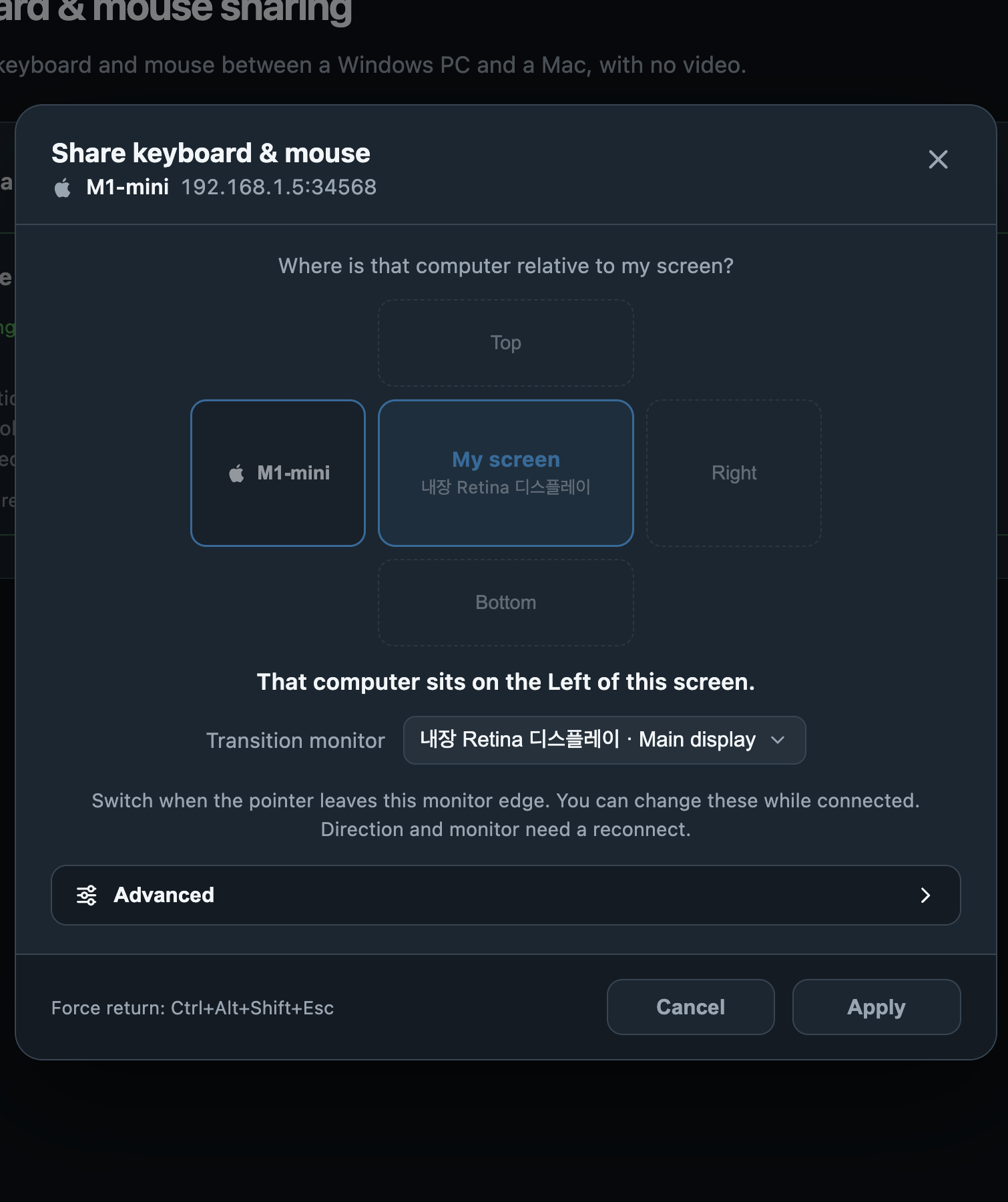
Direction and switching monitor · Any Display 1.6.2 - 3
Start and accept
Click Start sharing. On the other computer, verify the requesting device, direction and which computer supplies input before accepting. Always allow and Ignore requests save future permission behavior.
- 4
Local, remote and emergency return
Local screen and Remote screen indicate where input is going. No screen video is transmitted: use each computer’s own monitor. Press Ctrl+Alt+Shift+Esc for an emergency return to local control.
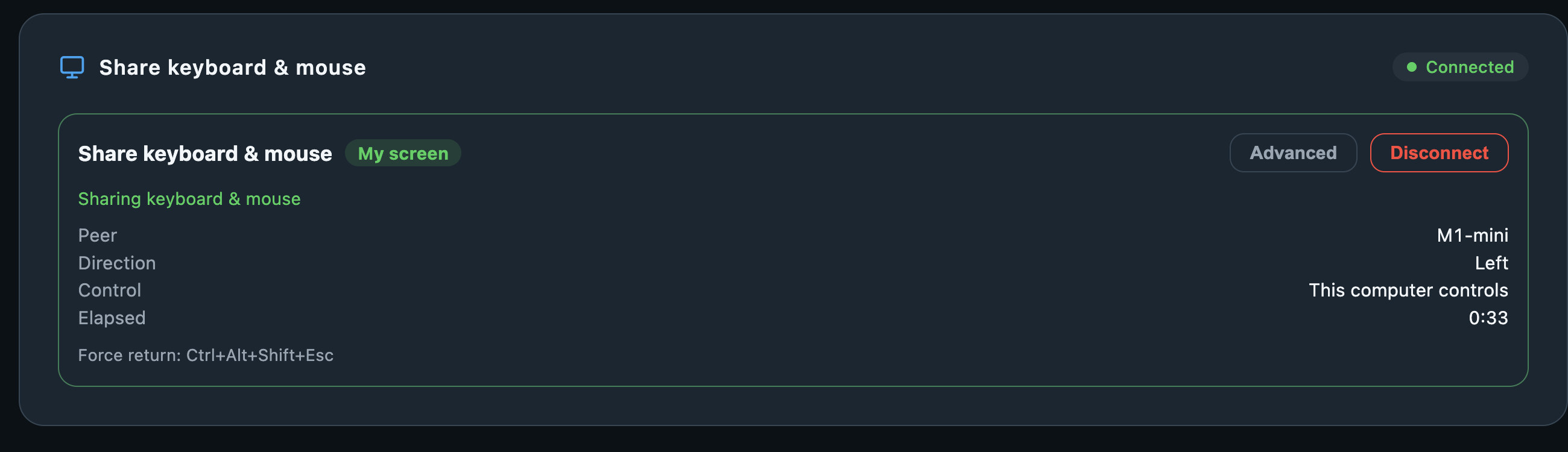
Local, remote and emergency return · Any Display 1.6.2 - 5
Modifiers
In Advanced options, map this computer’s modifier keys to the other computer’s keys. Defaults adapt to the operating-system pair. Check the source and destination before changing Command, Control, Alt or Windows key behavior.
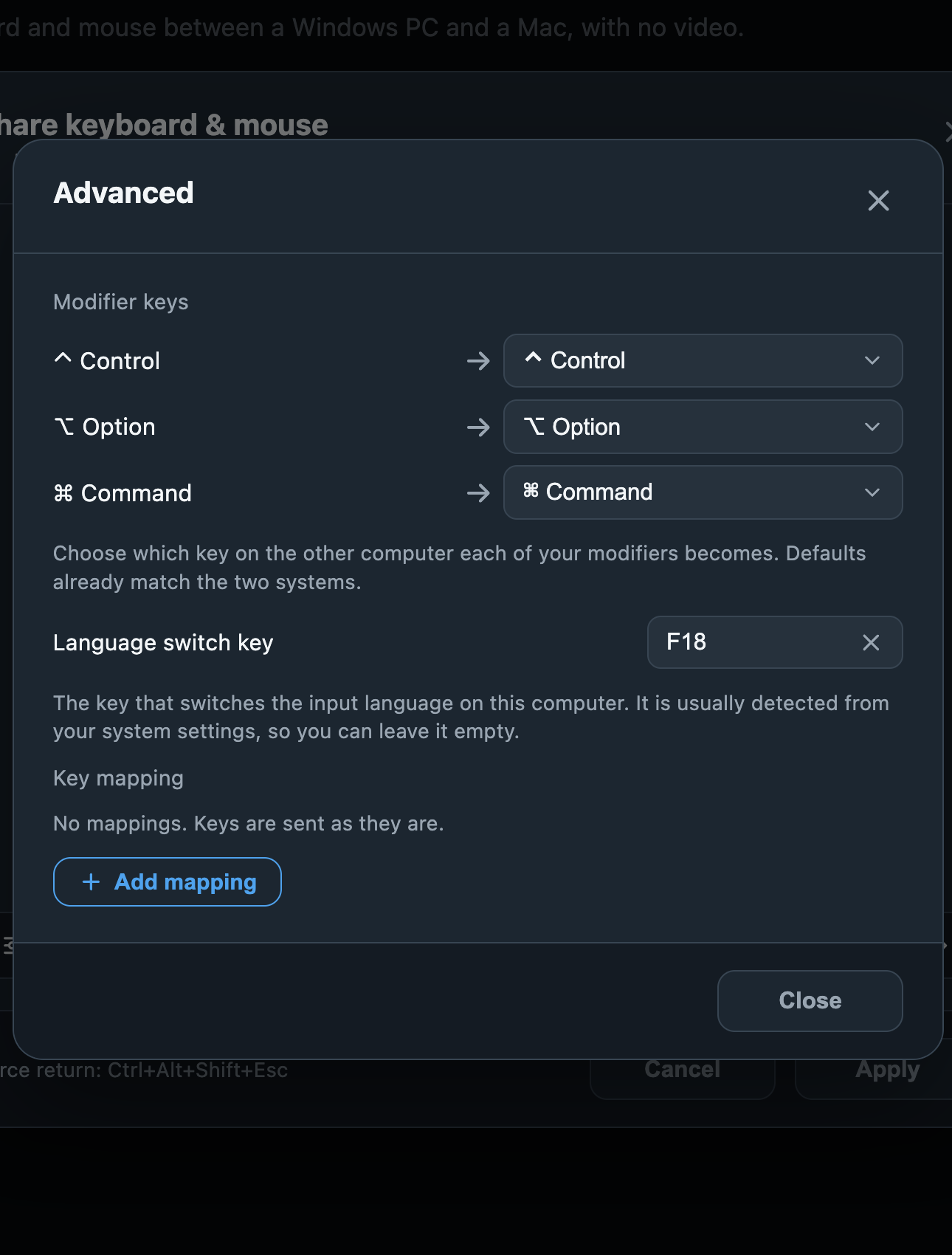
Modifiers · Any Display 1.6.2 - 6
Language switch key
The app normally detects the input-method switch key from system settings. If necessary, record a key manually. Resolve any key-in-use warning and choose None when no override is needed.
- 7
Key mappings
Add mapping pairs a local key with a remote key. Without a mapping, keys pass through unchanged. Remove individual mappings when no longer needed. Check the interaction with modifiers and the language-switch key in a text editor.
- 8
Apply and disconnect
Advanced options can change while connected. Direction and switching-monitor changes require reconnecting. Apply changes and check cursor switching and typing. Disconnect to finish; Settings → Manage connection permissions manages remembered device decisions.