Use Your Phone or Tablet as a Webcam for Mac or PC
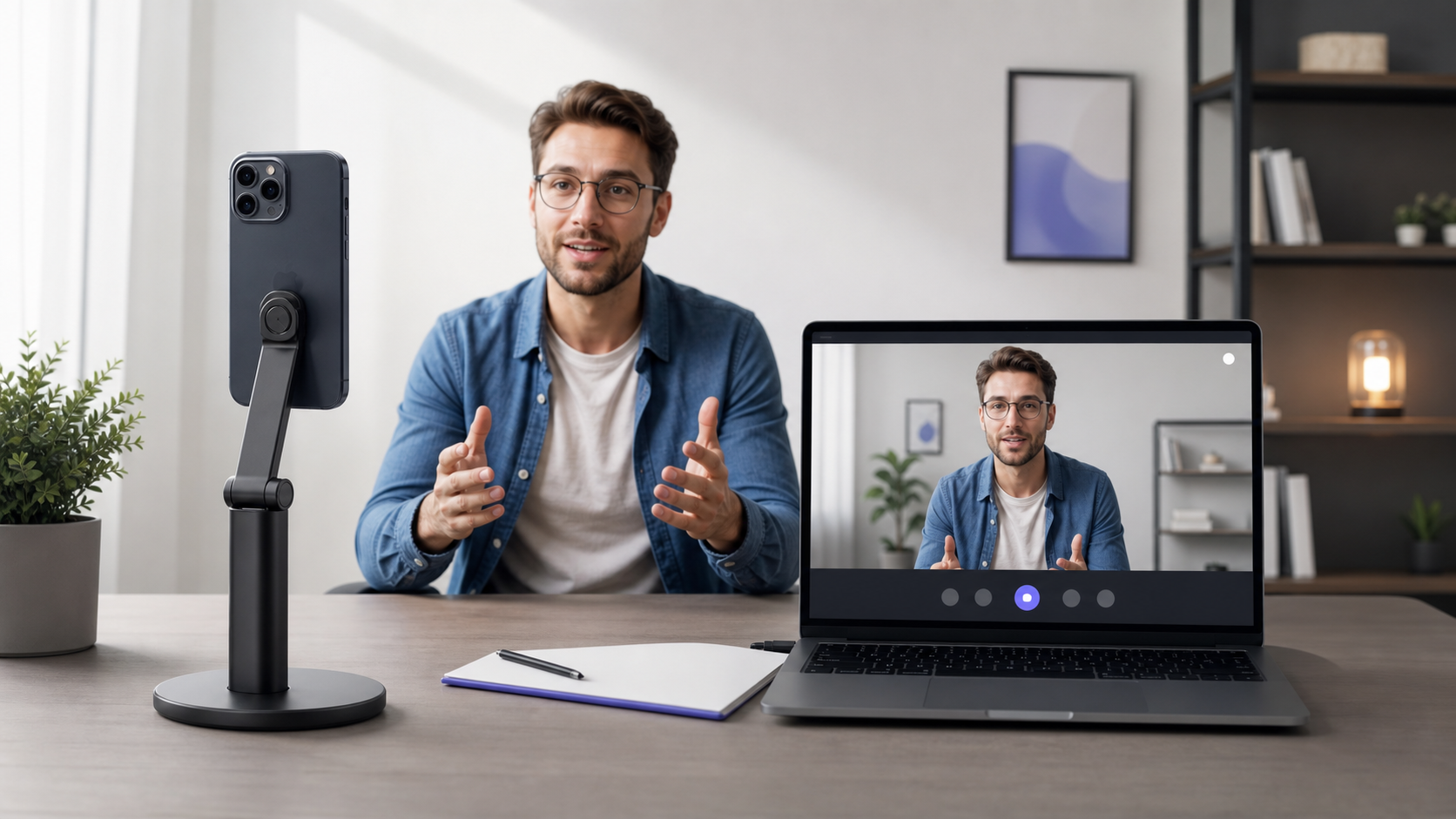
Any Display Premium turns the front or rear camera of your mobile device into a virtual webcam for Mac or Windows.
Connect an iPhone, iPad, or Android camera with Any Display and use it as a webcam on Mac or Windows.
Key points
- Any Display Premium
- Wi-Fi & USB
- iPhone · iPad · Android
- Mac · Windows
- 1
1. Connect desktop and mobile apps
Open Any Display on Mac or Windows, then connect the iPhone, iPad, or Android device over Wi-Fi or USB.
- 2
2. Turn on Webcam
Enable Webcam in the desktop app, then choose the camera, resolution, FPS, and horizontal flip.
- 3
3. AnyDisplay Camera
On macOS, allow the camera extension when prompted. Windows prepares the virtual camera without a separate extension approval. Select ‘AnyDisplay Camera’ in the camera list of the app you use.
Use Your Phone or Tablet as a Webcam for Mac or PC
- Can I switch between front and rear cameras?
- Yes. Choose any camera supported by the connected device from the Webcam card in the desktop app.
- Does it work over USB?
- Yes. Both Wi-Fi and USB connections are supported.
Review basis
Limitations to know
- Webcam is included with Premium. Camera permission and virtual-camera setup on the desktop are required.