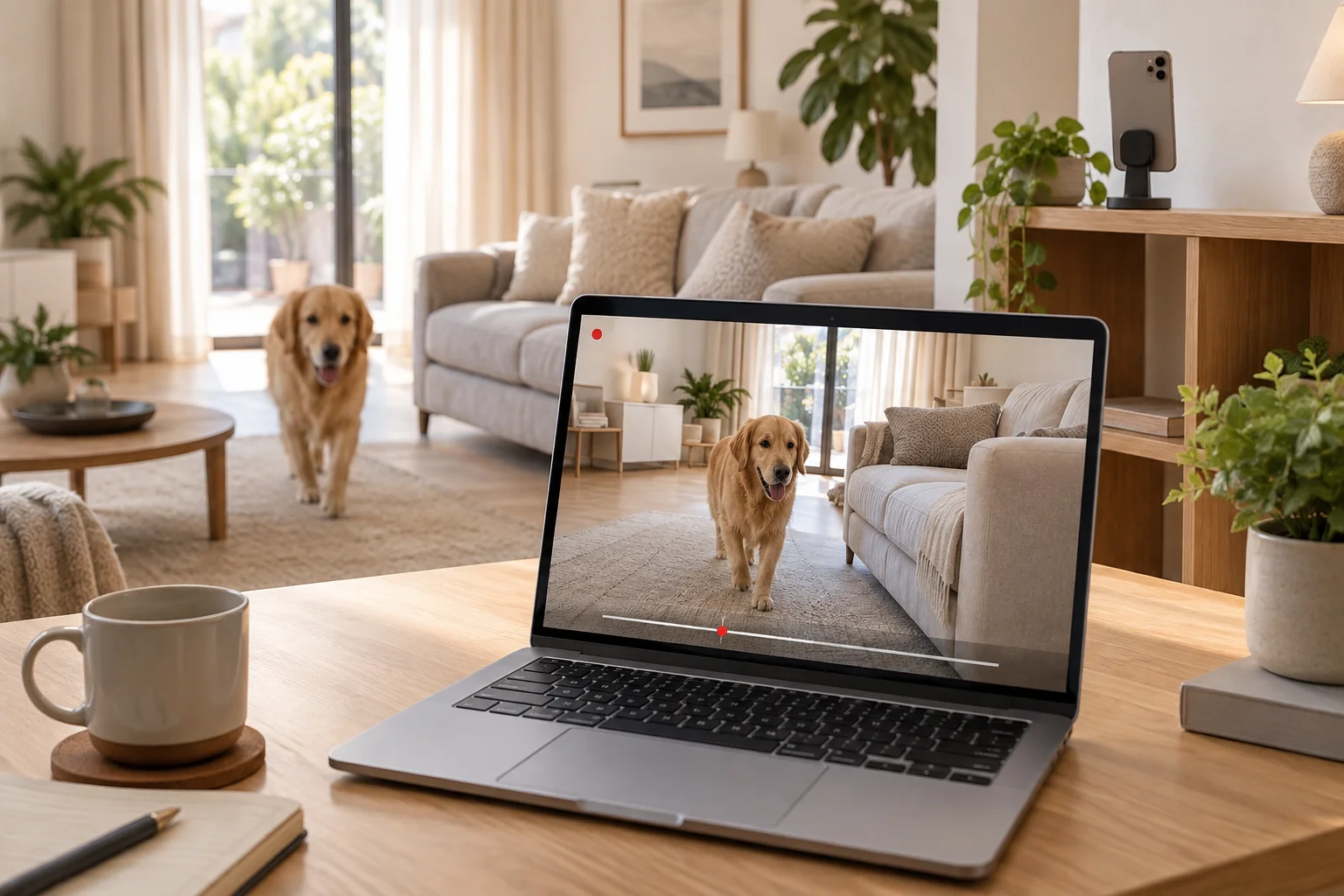
Install Any Display on the old phone and on the phone or computer you watch from, sign in with the same account, and tap Start sharing on the old phone. You get live HD video with clear two-way audio from anywhere — no extra hardware and no cloud subscription.
That phone in your drawer has a better camera and microphone than most budget home cameras. Put it on a charger, point it at the room, and watch it live from your phone, tablet, or computer — at home or away.
Key points
Use any recent iPhone or Android phone you no longer carry — no new camera to buy.
Live video up to 1080p, sent with H.265 when both devices support it.
Clear 48 kHz audio and Talk back, so you can hear the room and speak through the phone.
Peer-to-peer and encrypted: video is not uploaded to a cloud server.
Watch from an iPhone, Android phone or tablet, Mac, or Windows PC on the same account.
Record on a schedule, save only motion clips, or take screenshots from the computer viewer.
Update it, connect it to Wi-Fi, and place it on a charger or stand where it sees the room. Turn on auto-brightness and keep it plugged in.
2
2. Install Any Display
Install Any Display on the old phone and on the device you will watch from (phone, tablet, Mac, or Windows PC). Sign in with the same account on both.
3
3. Start sharing
On the old phone open Remote camera and tap Start sharing. Keep that screen open — the phone shares only while it is visible.
4
4. Watch from anywhere
On the viewing device open Remote camera and choose the old phone under Devices to view. Switch cameras, change quality, mute, or use Talk back.
5
5. Record on the computer (optional)
In the computer viewer, start recording, choose motion-only clips, or save screenshots to a folder you pick.
An old phone used as a home monitoring camera
Keep the old phone on a charger and watch the room live from your computer or phone.
Why an old phone often beats a budget home camera
Compared with the spec range of typical low-cost home cameras — not any specific brand:
Picture quality
Phone cameras have larger sensors, better lenses, autofocus, and HDR processing. Many budget home cameras use small fixed-focus 2–3 MP sensors and heavy compression to save cloud storage. Any Display streams up to 1080p with H.265 directly between your devices.
Sound you can actually understand
Any Display sends the phone microphone as 48 kHz Opus audio with the phone's own noise reduction. Many budget cameras send narrowband voice (often 8–16 kHz), which is why voices sound muffled. Talk back lets you answer from the viewer.
Low delay
The video goes straight between your devices over a direct connection. In our test over 5G through a home relay server, the round trip stayed around 50–70 ms — close to real time.
No monthly fee, no cloud
With a Lifetime license there is no monthly camera subscription, and there is never a cloud storage plan — recordings are saved on your own computer.
Private by design
Connections are limited to devices signed in to your account and are encrypted end to end between the devices.
Is it free?
Remote camera is available with Premium or the 3-day free trial. With a Lifetime license you pay once and keep using it — no monthly camera subscription and no cloud storage fee.
Can I use an iPhone and an Android phone together?
Yes. iPhone and Android can share or view each other, and a Mac or Windows PC can view as well.
Does it work when I am away from home?
Yes. Devices on the same account connect over the internet. Most networks connect directly; for strict networks you can set up a relay server.
Can it record?
Yes, from the computer viewer: continuous recording in one-minute files, motion-only clips, and screenshots, saved on your computer.
Can I use it as a baby monitor or pet camera?
Yes. Clear audio and Talk back make it practical for checking on a baby or talking to a pet.
Review basis
Remote camera flows on iPhone, Android, Mac, and Windows verified on October 8, 2026, including a 5G connection through a relay server.
Limitations to know
The sharing phone must stay on the Start sharing screen and should stay plugged in.
There is no infrared night vision and the phone is not weatherproof — use it indoors.
Remote camera is available with Premium or the trial.
Very strict networks may block direct connections; you can add your own relay (TURN) server in Settings.